Windows 10 has no Screen Time page, so if you searched Settings for one, it is not hiding from you. Pages that describe a Screen Time menu under Accounts are describing something Microsoft does not document. What Windows 10 does keep is narrower: battery use by app on laptops, Microsoft Family Safety activity for members of a family group, and system logs showing when the PC was on, asleep or signed in. Match your question to the record that answers it.
Which Windows 10 record answers your question
| What you want to know | Record that answers it | What it cannot tell you |
|---|---|---|
| Which apps ran most on my laptop this week | Battery usage by app in Settings | Time while plugged in may be missing; nothing on desktops |
| How long my child used the PC each day | Family Safety activity reporting | Anything from before reporting was on, or time on another account |
| Which sites my child visited | Family Safety web activity | Sites opened in browsers other than Microsoft Edge |
| How long since the PC last started | Task Manager uptime | Whether anyone was actually using it |
| When the PC woke, slept or was signed in to | Event Viewer logs | Which apps were open or for how long |
| Which documents and apps I opened | Activity history (Timeline) | Durations; it is a history, not a timer |
If none of these fits, a dedicated time-tracking app is the honest answer; more on that near the end.
Battery usage by app on a laptop
On a Windows 10 laptop or tablet, the battery settings break down which apps used power over a recent period. Because an app on screen uses power, this is the closest thing Windows 10 has to a per-app usage list for your own account.
- Press Windows key + I to open Settings.
- Go to System > Battery.
- Select the link that shows which apps are affecting your battery life.
- Pick a time period from the list: the choices cover the last 6 hours, 24 hours or week.
- Read the list from the top. Each app shows its share of battery use for that period, and selecting an app can split that into use while on screen and in the background.
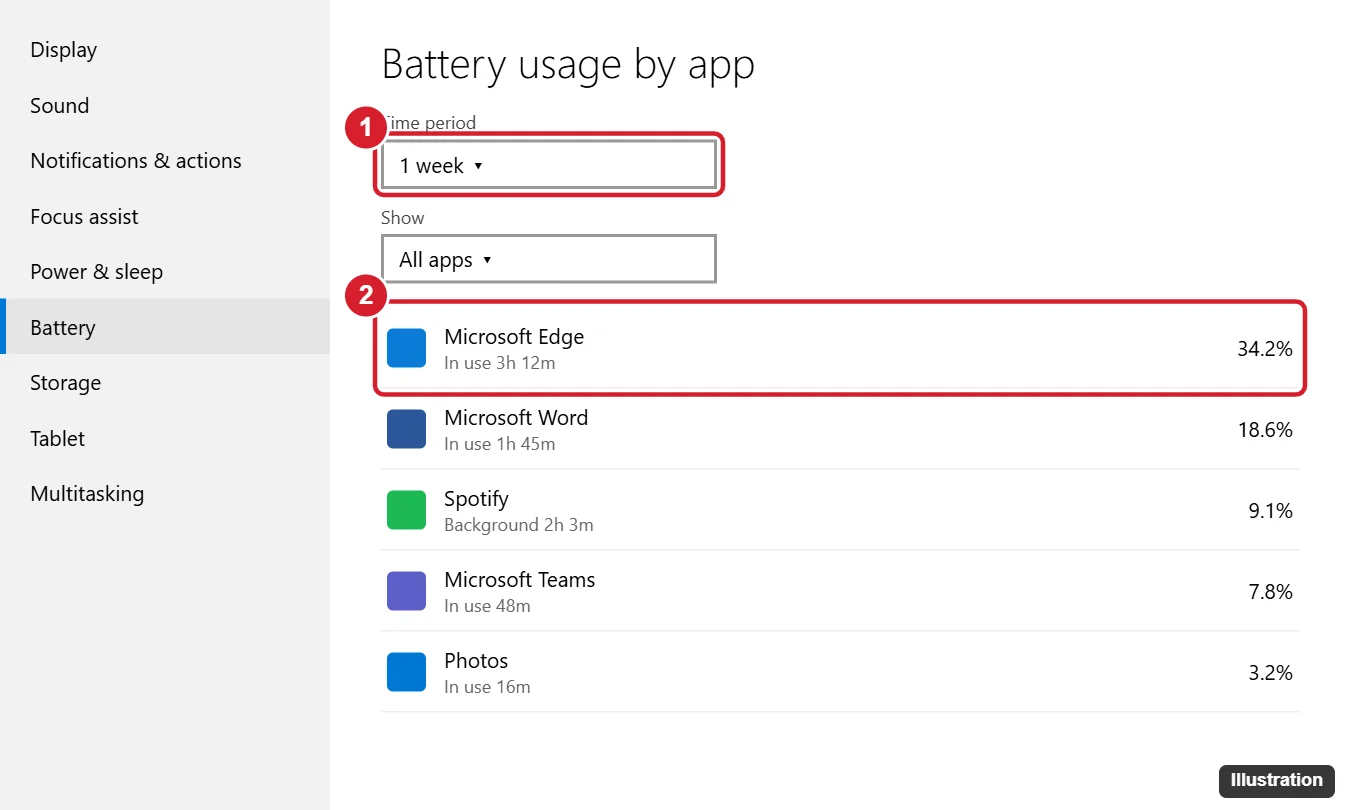
How to read it: the list measures battery, not attention. A video left playing in a background tab counts; a document you read for an hour on mains power may barely show up. Treat it as a ranking of where the time probably went, not a stopwatch. A desktop PC without a battery has no such page.
For a longer history of charge and drain, Windows can generate a battery report; see how to read a battery report in Windows 10. That report shows battery history and capacity, not per-app time.
When the PC was on, asleep or signed in
If the question is “was this computer used last night?” rather than “which app”, the system logs are the record.
Uptime in Task Manager
Press Ctrl + Shift + Esc, select More details if the small view opens, then open the Performance tab and select CPU. The up time figure is how long Windows has run since the last full start. Sleep does not reset it, and with Fast Startup on, a shutdown may not reset it either, so a big number does not mean someone sat at the PC that long. There are other ways to read it in how to see uptime in Windows 10.
Event Viewer
- Right-click Start and choose Event Viewer.
- Open Windows Logs > System, then select Filter Current Log in the right pane.
- Enter the event IDs you want, separated by commas. Commonly used ones are 6005 and 6006 (event log service starting and stopping, which line up with startup and shutdown), 1 from the Power-Troubleshooter source (waking from sleep) and 42 (entering sleep).
- For sign-ins, open Windows Logs > Security and filter for 4624. Expect many entries: services sign in too, so look at the times rather than the count.
Lining up wake and sleep times gives you a rough picture of each session. If you are new to the tool, how to check the Windows event log covers filtering and reading entries.
App history in Task Manager
The App history tab in Task Manager lists CPU time and network use, mainly for Microsoft Store apps. CPU time is processor work, not minutes on screen, so a game and a chat app open for the same hour can show very different numbers.
Why Activity history and Timeline are not a timer
Windows 10 can keep an activity history (shown in Timeline when you press Windows key + Tab) of apps, files and sites you opened. Microsoft says the Timeline experience was retired in Windows 11 but remains in Windows 10, and on Windows 10 the history is stored on the device. It tells you what was opened and roughly when, not for how long. To review or clear it, see how to view activity history on Windows 10.
A child’s daily time through Family Safety
For a child, Microsoft Family Safety is the only Microsoft tool that reports daily screen time, and it works only when several conditions are met:
- You are an organizer. Only organizers in the family group can turn activity reports on or off and view them.
- The child signs in with the Microsoft account that is in your family group, and that PC is connected to Family Safety. Time spent on a different account on the same PC is not reported.
- Activity reporting is turned on. It is a separate switch, per device type: Windows, Xbox, Web safety and Mobile.
- Websites only show from Microsoft Edge while the child is signed in. Other browsers do not feed web activity.
To turn it on, sign in at family.microsoft.com or open the Family Safety app, choose the family member, and switch on Activity reporting. Once it is on, the member’s overview shows screen time and the Apps, features, and games they used, with daily and weekly details. Activity is collected from Windows, Xbox and Android devices; Microsoft’s activity reporting help page walks through both the website and the app.
Reports only start from the day you turn them on, so you cannot look back at last month. If you also want to cap time, Family Safety has per-platform limits (Windows, Xbox, and Android for mobile) with Turn limits on and Turn limits off, explained on Microsoft’s screen time limits page. Limits are a separate decision from simply viewing the time. App and game limits and website filtering are separate settings, each with its own Microsoft help page.
Why the numbers look wrong
- Limits ran out faster than the report shows. Microsoft’s troubleshooting notes say limits count signed-in time, idle included, while idle time does not appear in the usage report. A PC left on a signed-in desktop burns the allowance.
- Yesterday’s time appears under today. If the PC’s time zone is wrong, usage lands on the wrong day. Fix the clock and time zone first.
- The child’s account is an administrator. An administrator account can change settings that Family Safety depends on, which makes reports unreliable. Use a standard account for the child.
- A teenager stopped sharing. Depending on the region, children from about 13 can choose not to share usage data, and the organizer has to ask them to share again.
- “Screen time information is not shared with you.” You are not an organizer, the person is not in your family group, or you only share a Microsoft 365 subscription with them.
Tracking your own time in more detail
Family Safety is built around a family group, and the battery list is only a proxy. If you want an exact per-app and per-site log of your own work hours, a third-party time tracker is the usual route. Read what any tracker collects and where it sends it before you install it, and do not install monitoring tools on someone else’s account without their knowledge.
Windows 10 after October 2025
Windows 10 reached end of support on October 14, 2025, and home users can stay on security updates through October 12, 2027 with Extended Security Updates. Family Safety reporting on Windows works the same way on Windows 11, where battery usage moved to Settings > System > Power & battery. If you later want to remove the controls, see how to turn off Microsoft Family Safety on Windows 11.
Windows 10 usage time questions
Is there a Screen Time setting under Accounts in Windows 10?
No. Microsoft does not document one. Screen time for children lives in Family Safety online and in its app, not in the Windows 10 Settings app.
Does activity reporting see sites visited in Chrome?
No. Web and search activity is reported only from Microsoft Edge while the child is signed in. App time in Chrome still counts as app use on Windows.
Can I see what my child did before I turned reporting on?
No. Activity reporting starts collecting from the moment it is switched on. Event Viewer can still show when the PC was on or asleep on earlier days.
Why does the battery list show apps I did not open?
Background work counts. Sync tools, updaters and browsers running in the background use battery without being on screen, so a high share of battery use does not prove anyone had them open.
Pick the one row of the table that matches your question and check that record first; trying all of them at once mostly produces numbers that disagree.

Kermit Matthews runs Live2Tech from just outside Philadelphia. He is an IT specialist with over 20 years of experience, from a university help desk to small-business IT, IT management and his own consulting practice, and has written tech guides full time since 2020. Steps are checked against the current software on a real device or the maker’s official documentation. More about Kermit.