Before blocking a website on Windows, decide who the block is for and where it must hold. For your own PC in every browser, edit the hosts file. For a child’s Microsoft account, use Microsoft Family Safety, whose web filter works in Microsoft Edge. For every device at home, use your router or a filtering DNS service. For one browser only, use an extension. The steps below are the same on Windows 10 and Windows 11.
Pick the method that fits who you are blocking
| Situation | Best method | Covers | Main limit |
|---|---|---|---|
| A child signs in to the PC with their own Microsoft account | Microsoft Family Safety content filters | That account, in Edge (other browsers are blocked while filtering is on) | Needs a family group and the child’s own sign-in |
| Phones, tablets, consoles and PCs at home | Router parental controls or a filtering DNS service | Every device on your network | Menus depend on the router; mobile data and VPNs get around it |
| Your own PC, every browser and every account on it | Hosts file (Notepad or PowerToys) | All browsers and apps on that PC | Needs administrator rights, and any administrator can undo it |
| A distracting site in the browser you work in | A site-blocker extension | That browser only | Easy to switch off, so it suits self-control rather than parental control |
| A work or school PC | Your IT department’s browser policy | Managed browsers | Set by the organization, not by you |
One note for older PCs: Windows 10 reached end of support on October 14, 2025, and consumer Extended Security Updates can protect a device until October 12, 2027, per Microsoft’s Windows 10 end of support notice.
Block sites on a child’s account with Family Safety
Family Safety filters follow the child’s Microsoft account, so they keep working even if the child learns to edit files. The child must sign in to Windows with that account, and you must be an organizer of the family group (create or manage it at family.microsoft.com or in the Family Safety app; in Windows, the family options sit under Settings > Accounts).
- Open the Family Safety app or sign in at the Family Safety website and select the family member.
- In the app, select Content filters. On the website, open the member’s overview and choose Edge as the platform.
- Turn on Filter inappropriate websites and searches. Mature sites are then filtered and Bing searches are filtered too.
- Add the addresses you want stopped under Blocked sites. To allow a short list and nothing else, turn on Only use allowed websites and add sites under Allowed sites. On the website you can also turn on Always allow educational websites.
Know the browser rule before relying on it. Microsoft’s Family Safety web filtering page says that when Filter inappropriate websites and searches is on, unsupported browsers are blocked on the child’s device. Chrome or Firefox therefore will not simply open as a way around the filter. The filters apply only to the child’s account, so check the child does not also have an adult or administrator account on the PC. If you choose to allow another browser, you unblock it under App and game filters, but expect no website filtering there, because Edge is currently the only supported browser. If you later want to remove these controls, see how to turn off Microsoft Family Safety as the organizer.
Block a site for every device on your network
A block on the router applies to anything connected to your Wi-Fi or Ethernet, including phones and game consoles, without touching each device.
- Router parental controls: sign in to the router’s admin page in a browser (the address is often 192.168.0.1 or 192.168.1.1, and is usually printed on the router). Look for a page called Parental Controls, Access Control, or URL or keyword filtering, add the site, and save. Wording varies by manufacturer, so check the router’s manual if you cannot find it.
- Filtering DNS service: some public DNS services offer family filters, and some let you build your own block list with a free account. Enter their server addresses on the router to cover the whole network, or on a single PC by changing the DNS server in Windows.
Block a site in every browser on this PC
The hosts file is a small text file Windows checks before it asks a DNS server where a name points. Microsoft’s Hosts File Editor documentation describes it as a local map of host names to IP addresses. Point a site’s name at a dead address and nothing on the PC can reach it. You need an administrator account.
- Select Start, type Notepad, right-click Notepad and choose Run as administrator. Approve the prompt.
- In Notepad, choose File > Open and go to
C:\Windows\System32\drivers\etc. - Change the file type box from Text Documents to All Files, then open hosts.
- Go to the end of the file and add one line per address, for example
0.0.0.0 example.comand0.0.0.0 www.example.com. To block several sites, keep adding lines; add mobile versions such asm.example.comtoo.
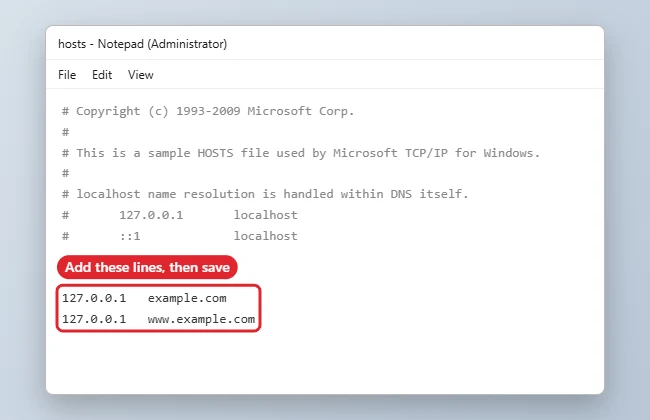
- Choose File > Save. Do not use Save As, which can add a .txt extension and leave the real file unchanged.
- Open Command Prompt and run
ipconfig /flushdns, then close every browser window and reopen the browser. Details on clearing the cache are in how to clear the DNS cache in Windows.
Edit the hosts file with PowerToys instead of Notepad
If you edit the hosts file often, Microsoft’s free PowerToys includes a Hosts File Editor with a form for each entry, so you are less likely to break the file’s format.
- In PowerToys Settings, turn on Hosts File Editor. Check that Open as administrator is on (it is by default); without it the editor is read-only.
- Open the editor from the PowerToys icon in the notification area.
- Select New entry, enter 0.0.0.0 as the IP address and the site as the host name, keep Active on, and select Add.
Switching an entry’s Active toggle off lifts that block without deleting it. If you see “Failed to save hosts file”, the editor is not running as administrator. PowerToys also keeps backups named hosts_PowerToysBackup_ followed by a date and time in the same etc folder.
Block a site in one browser only
Site-blocker extensions for Edge, Chrome and Firefox are the lightest option, and many offer schedules for work hours. Install one only from the browser’s official add-on store. On a managed work or school PC, IT departments can block addresses in Edge through browser policy (the Microsoft Edge policy list includes a URL block list). If a site is blocked that way, only your IT department can change it.
Confirm the block and undo it
- Test in a fresh window: open a new private or InPrivate window and type the address. A blocked site fails to load with a connection error.
- Test with ping (hosts file): in Command Prompt run
ping example.com. The reply should show the address you used, such as 0.0.0.0, rather than the site’s real IP. - Undo a hosts block: open the file the same way, delete the lines or put
#at the start of each to switch them off, save, and runipconfig /flushdnsagain. - Undo other blocks: remove the site from Blocked sites in Family Safety, from the router’s filter list, or from the extension.
Why a blocked site still loads
- Secure DNS in the browser: when DNS over HTTPS is on, the browser may resolve names itself and skip the hosts file. Search the browser’s settings for “secure DNS” and turn it off while you test the block.
- Cached pages or lookups: flush DNS, close every browser window (including ones in the background), or restart the PC.
- A missing variation: example.com, www.example.com and m.example.com are separate names, and each needs a line.
- The file did not really change: Notepad was not run as administrator, the file was saved as hosts.txt (in File Explorer, turn on View > File name extensions on Windows 10, or View > Show > File name extensions on Windows 11), or security software protected the hosts file. If antivirus blocks the save, allow the change in its settings rather than turning protection off.
- A VPN or proxy: these can route around router and DNS filters.
Why Windows Firewall is the wrong tool for a website
Firewall rules work on programs, ports and IP addresses, not on site names. Large sites use many addresses that change, and one address can host thousands of unrelated sites, so an IP rule either misses the site or blocks the wrong ones. The firewall is the right tool for other jobs: blocking an app from the internet, blocking a program in Windows Firewall, or blocking a specific IP address that is attacking or spamming you.
Website blocking questions
Why do some guides use 0.0.0.0 and others 127.0.0.1?
Both are commonly used and both block the site. 127.0.0.1 points the name back at your own PC, while 0.0.0.0 is a non-routable address. Pick one and use it consistently.
Can I use a wildcard to block every subdomain?
Not in the hosts file. A line such as *.example.com does nothing, so list each subdomain you want blocked. Router filters and filtering DNS services often block a whole domain, which is easier for large sites.
Does a hosts file block stop apps as well as browsers?
Generally yes, because apps look up names through Windows too. A desktop app for the same service stops connecting if it uses the blocked names.
Can I block a site only during certain hours?
The hosts file has no schedule; a line is either there or not. For timed blocks, use an extension with a schedule or your router’s time-based rules, if it has them.
Choose the row in the table that matches your situation, set that one method up, and run the private-window test before you count on it.

Kermit Matthews runs Live2Tech from just outside Philadelphia. He is an IT specialist with over 20 years of experience, from a university help desk to small-business IT, IT management and his own consulting practice, and has written tech guides full time since 2020. Steps are checked against the current software on a real device or the maker’s official documentation. More about Kermit.