When people ask how to show a dollar sign in Excel, they usually mean one of two looks. Either the $ sits right against the number ($1,250.50), or it sits at the left edge of the cell with the number pushed to the right. The first look is the Currency format. The second is the Accounting format, which is what the $ button on the Home tab applies. Pick the one you want, then use the steps below.
Which look do you want?
Both formats are built for money and both keep the cell a real number, so totals and formulas still work. The differences are about where the symbol goes and how zeros and negatives appear.
| What you see | Currency | Accounting |
|---|---|---|
| Position of the $ | Right next to the first digit | Lined up at the left edge of the cell, so every $ in a column forms a straight line |
| Decimal points | Follow the number | Aligned down the column |
| Zero | Shown as a zero amount | Shown as a dash |
| Negative numbers | You choose the style in the Negative numbers box | Always in parentheses unless you write a custom format |
| Quickest way to apply | Ctrl+Shift+$ (Windows) | Accounting Number Format button on the Home tab |
A quick way to decide: use Currency for prices, invoices, and single amounts people read on their own. Use Accounting for a ledger or budget column where you want the symbols and decimals stacked neatly.
Put the dollar sign right next to the number
These steps apply the Currency format in Excel for Microsoft 365 and recent desktop versions such as Excel 2024, 2021, 2019, and 2016. The labels are the same in older versions like Excel 2013, although the screens look different.
Use the keyboard shortcut
Select the cells and press Ctrl+Shift+$ on Windows. Excel applies the Currency format with its default settings. If that look is all you need, you are done.
Use the ribbon
On the Home tab, open the drop-down list in the Number group (it usually shows General) and choose Currency.
Use the Format Cells dialog box for more control
- Select the cells you want to format. To format a whole column, click its letter at the top. For a whole row, click its row number. For the entire sheet, click the box where the row numbers and column letters meet.
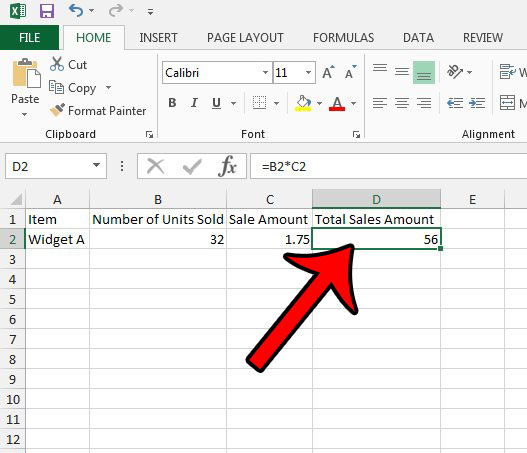
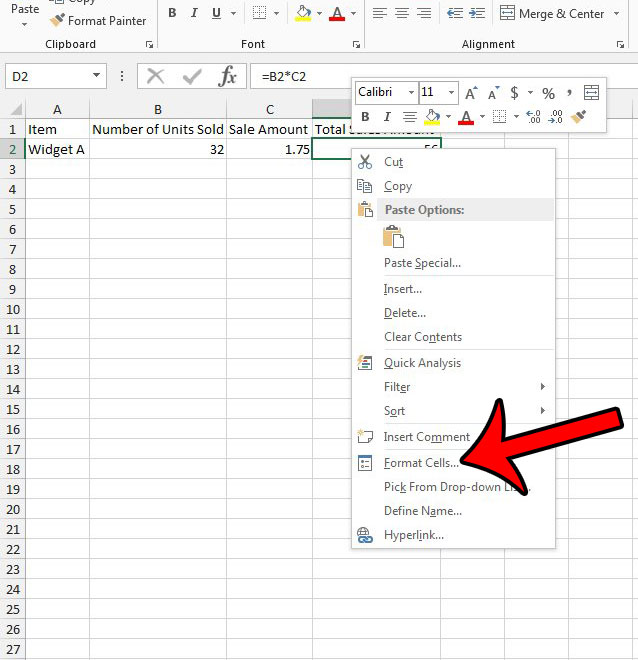
Older Excel version shown; current screens look different. - Open Format Cells. You can press Ctrl+1, select the small Number Format launcher in the corner of the Number group on the Home tab, or right-click the selection and choose Format Cells.
Older Excel version shown; current screens look different. - In the Category list, select Currency.
- In the Symbol box, make sure $ is selected. If Excel shows a different default symbol, pick the dollar sign from the list.
- Set Decimal places. Two is standard for prices; enter 0 to show whole dollars.
- In the Negative numbers box, choose how negative amounts should appear from the listed styles.
- Watch the Sample box as you change settings; it shows how the number will display. Then select OK.

Older Excel version shown; current screens look different.
To confirm it worked, type a plain number such as 1250.5 into one of the formatted cells and press Enter. It should display as $1,250.50 while the formula bar still shows 1250.5. Formatting changes only how the value looks, not the value itself.
Line the dollar signs up at the left edge
If you want the classic ledger look, select the cells and choose Accounting Number Format (the button with a currency symbol) in the Number group on the Home tab.
Accounting also shows zeros as dashes and negatives in parentheses, which is why Format Cells does not offer the Negative numbers box for it. To use a symbol other than the default, select the arrow next to the Accounting Number Format button and pick another currency, such as euros or pounds.
Show whole dollars or a different currency
Both formats share the Symbol and Decimal places boxes in Format Cells. Microsoft’s own example: with 0 decimal places, $138,690.63 displays as $138,691. If you need to show more or fewer decimals than you expect, the separate explanation of why Excel shows two decimal places covers that behavior in detail.
The Symbol list includes many currencies and an option called None, which keeps the money formatting (separators, decimals, negative style) without printing any symbol. That is handy for a table where the column header already says “USD.”
Write a custom format for exact placement
When neither built-in format looks right, build your own. Open Format Cells, select Custom in the Category list, and type a code in the Type box. You can also reach this from Home > Number Format > More Number Formats. These codes follow the rules in Microsoft’s number format codes reference:
- The $ character displays as typed, with no quotation marks needed.
- 0 forces a digit to show, even a zero; # shows only significant digits.
- A comma in the code adds a thousands separator.
- An asterisk followed by a character repeats that character to fill the cell width, and an underscore followed by a character leaves a space as wide as that character.
- Up to four sections separated by semicolons set the format for positive numbers, negative numbers, zero, and text, in that order.
Putting those rules together, $#,##0.00 places the dollar sign tight against the number with a comma and two decimals, and $#,##0 does the same for whole dollars. Adding an asterisk and a space after the symbol, as in $* #,##0.00, fills the gap with spaces and pushes the $ to the left edge, much like Accounting. Avoid a bare code such as $#: it rounds away the cents and, because # shows only significant digits, a zero appears as a lone $.
Fix a dollar sign that will not show up
The cell shows #####
The column is too narrow for the formatted number. Double-click the right boundary of the column heading to fit it automatically, or drag the boundary wider.
Nothing changes after formatting
If the cells were formatted as Text before you typed the numbers, Excel stored them as text and number formats do not apply. Set the cells to General, then re-enter the values. Values pasted from other programs can have the same problem, and Excel may also turn some entries into dates; see how to stop Excel from changing numbers to dates.
Totals ignore some amounts
A dollar sign added by a formula, such as joining “$” to a number or using the DOLLAR function, produces text. Microsoft notes that the DOLLAR function converts a number to text, and functions like SUM skip text. Use Currency or Accounting formatting instead so the values stay numeric.
Remove the dollar sign
Select the cells, then on the Home tab, in the Number group, choose General. General has no specific number format, so the number shows as plain digits. To keep commas and decimals without the symbol, set Symbol to None instead.
Start new workbooks with currency already set
If you build the same kind of money sheet often, format the columns once, then save that workbook as an Excel template (File > Export > Change File Type > Template in Excel for Windows). Microsoft’s page on formatting numbers as currency also explains setting a personal templates location so the template appears under Personal when you choose File > New. Every workbook made from it starts with your Currency or Accounting formats in place.
Excel for Mac and Excel for the web
Microsoft lists Excel for Microsoft 365 for Mac and recent Mac versions on its currency formatting page, and the same Currency and Accounting formats, Symbol box, and Decimal places box are available there. Ctrl+Shift+$ is the documented Windows shortcut; on a Mac, use the Home tab or Format Cells instead of relying on that shortcut. In a browser, the ribbon works a little differently, so follow the walkthrough on applying currency formatting in Excel Online. Working in Google Sheets instead? Its menus differ, and the guide to currency formatting in Google Sheets covers them.
Dollar sign questions
Is the $ in a formula like =A$1 the same thing?
No. A $ inside a cell reference locks the row or column when you copy the formula (an absolute reference) and has nothing to do with how money is displayed.
Do other cell formats work the same way?
Yes. Number, Percentage, Date, and the rest live in the same Format Cells dialog. For a broader tour, see how to format Excel cells or the shorter walkthrough on applying number formatting to a cell.
Long codes such as UPCs raise a different formatting problem, since Excel can display long numbers in scientific notation; this explainer on how to format UPC codes in Excel shows the fix.
Currency amounts can also come out grouped in lakhs and crores, and switching Excel from lakhs to millions walks through the Windows and Excel settings involved.

Kermit Matthews runs Live2Tech from just outside Philadelphia. He is an IT specialist with over 20 years of experience, from a university help desk to small-business IT, IT management and his own consulting practice, and has written tech guides full time since 2020. Steps are checked against the current software on a real device or the maker’s official documentation. More about Kermit.