Lakhs and crores come from the Indian digit grouping in Windows 10, and Excel shows numbers that way because it borrows the Windows number settings. You can either change how the digits are grouped, so 12,34,56,789 becomes 123,456,789, or convert the values themselves, so a column of figures in lakhs becomes a column in millions. Both are covered below, along with a format that shows millions in a single workbook.
Lakhs, crores and millions side by side
The two systems count the same amounts; they just place the commas differently and use different names above one hundred thousand.
| Amount | Indian grouping and name | International grouping and name |
|---|---|---|
| One hundred thousand | 1,00,000 (1 lakh) | 100,000 (0.1 million) |
| One million | 10,00,000 (10 lakh) | 1,000,000 (1 million) |
| Ten million | 1,00,00,000 (1 crore) | 10,000,000 (10 million) |
| One billion | 1,00,00,00,000 (100 crore) | 1,000,000,000 (1 billion) |
Two shortcuts help with mental math: divide lakhs by 10 to get millions, and multiply crores by 10 to get millions. So 25 lakh is 2.5 million, and 3 crore is 30 million.
Change the look or the numbers?
Pick the method that matches what is actually wrong with your sheet.
| Your situation | Method | What changes |
|---|---|---|
| Every number on this PC shows commas like 12,34,567 | Change digit grouping in Windows | The display in Excel and other programs that follow Windows number settings |
| Only one report needs to read in millions, such as 12.2M | Custom number format in Excel | The display of the selected cells only |
| The cells hold numbers like 25 that mean 25 lakh | Convert with a formula or Paste Special | The values themselves |
A finance team sharing one workbook between offices in India and abroad usually wants the second or third option, because the Windows setting only affects the PC it is changed on.
Switch Windows 10 to million-style grouping
Microsoft notes that Windows 10 has reached the end of support on October 14, 2025, but the Region dialog below still works on PCs running it. Before you start, know that this is a Windows setting for your user account, not an Excel setting, so other programs that use Windows number formats may change too.
- Save your work and close Excel.
- Press Windows key + R, type
intl.cpland press Enter. Microsoft’s regional settings page gives this as the direct way to open the classic Region dialog. You can also reach Region from the Control Panel; see opening Control Panel in Windows 10. - On the Formats tab, click Additional settings. The Customize Format dialog opens.
- Click the Numbers tab and find the digit grouping setting. Choose the pattern that groups digits in threes (it looks like 123,456,789) instead of the Indian pattern (12,34,56,789).
- If amounts with a currency symbol also show lakhs, open the Currency tab and look for the same kind of grouping choice there.
- Click OK to close Customize Format, then OK to close Region.
- Open Excel again and check a large number.
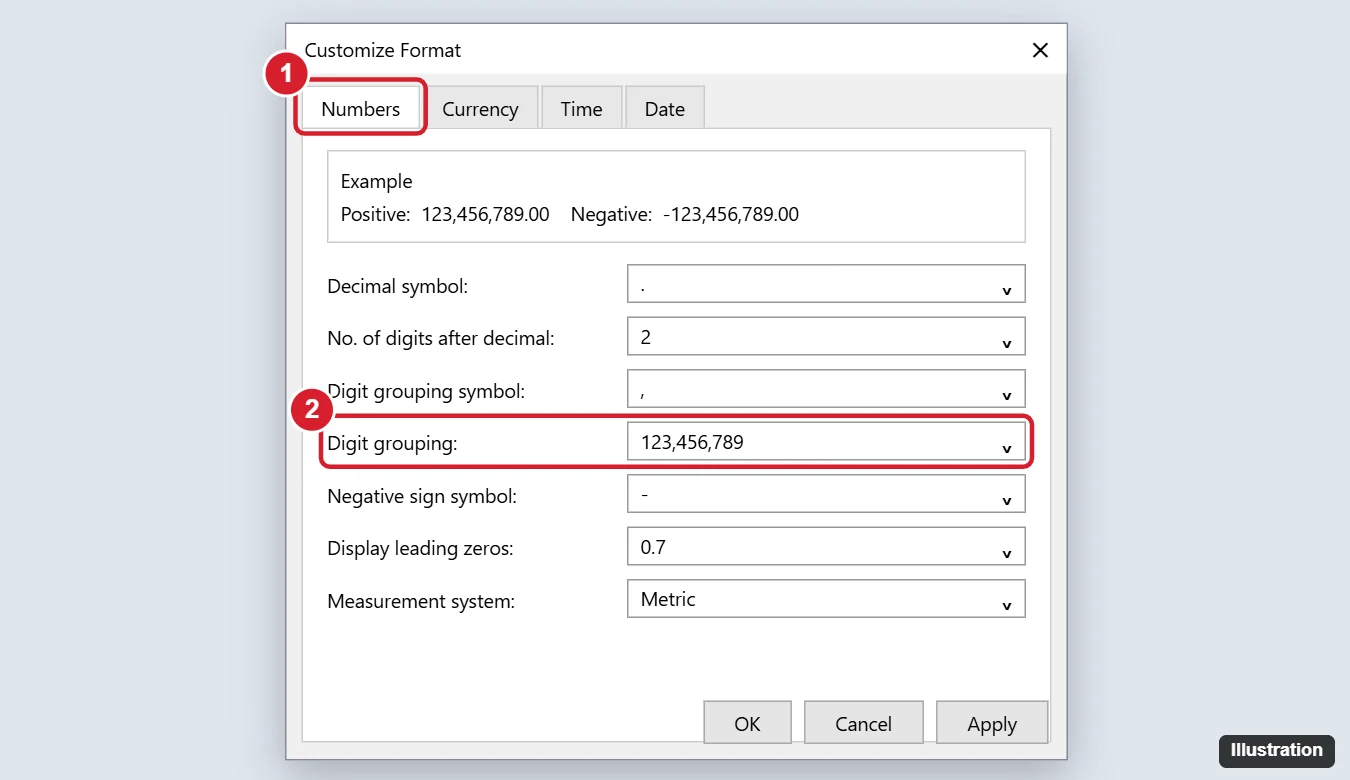
To go back to lakhs, repeat the steps and choose the Indian pattern again. On current versions of Windows 11, Microsoft’s page reaches the same classic dialog through Settings > Time & language > Language & region, and the intl.cpl shortcut works there too.
A workbook opened on someone else’s PC generally follows that PC’s region settings, so your colleague in Mumbai may still see lakhs in the file you formatted in millions. If that matters, use a custom format with an explicit unit instead.
Show millions in one workbook with a custom format
A custom number format changes how cells look without touching Windows or the stored values, which makes it the safer choice on a shared or work PC.
- Select the cells.
- On the Home tab, in the Number group, select the small arrow to open the dialog (or press Ctrl + 1).
- Select Custom.
- In the Type box, enter a format from the table below, then select OK.
The rule that makes this work is in Microsoft’s custom format guidelines: a comma that follows a digit placeholder scales the number by 1,000. Two trailing commas scale it by a million.
| Format code | Cell value | Shows as |
|---|---|---|
0.0,,"M" |
12200000 | 12.2M (Microsoft’s own example) |
0.00,," million" |
2500000 | 2.50 million |
#,##0,"K" |
1234567 | 1,235K |
#,##0 |
1234567 | 1,234,567 with thousands separators |
Text inside quotation marks is shown as typed, so you can write “M”, ” million” or any label you like. Leave at least one 0 after the decimal point if you need precision: with 0,,"M", 2,500,000 rounds to 3M on screen even though the cell still holds 2,500,000. For more on why Excel rounds what it shows, see why Excel only shows two decimal places, and for the Format Cells basics, applying number formatting to a cell.
A plain #,##0 format uses your separator characters and can still follow the Windows grouping pattern, so on a PC set to Indian grouping it may keep showing lakhs. The scaled “M” formats avoid that problem, because the number shown is small enough not to need extra commas.
Convert lakh or crore figures to millions
Sometimes the problem is not commas at all: a column holds 25, 40 and 7.5, and the header says “in lakhs”. To turn those into millions, change the values.
With a formula. If the lakh figure is in A2, enter one of these in an empty column and fill it down:
- Lakhs to millions:
=A2/10(25 becomes 2.5) - Crores to millions:
=A2*10(3 becomes 30) - Lakhs to the full number:
=A2*100000(25 becomes 2500000)
In place, with Paste Special. This overwrites the original cells, so keep a copy of the sheet first.
- Type 10 in an empty cell and copy it.
- Select the lakh values.
- Select Home, the Paste (clipboard) icon, then Paste Special, or press Ctrl + Alt + V.
- Under Operation, choose Divide and click OK. Each selected value is divided by the 10 you copied; Microsoft’s paste options page lists Divide, Multiply and the other operations.
- Delete the helper cell with 10 in it.
Use 100000 and Multiply instead to turn lakhs into full numbers. If converted values start turning into dates or losing digits, stopping Excel from changing numbers to dates covers the cause.
When Excel still shows lakhs
- Excel was open during the change. Close every Excel window and open the file again.
- The cells carry their own custom format. Open Format Cells and check the Type box. If it shows a custom code built for lakhs (for example one with conditions in square brackets), replace it with
#,##0or an “M” format. - You changed Excel’s separators instead. In Microsoft’s separator steps, File > Options > Advanced > Use system separators only lets you type a different Decimal separator and Thousands separator. It changes the characters, not where the commas fall, and Microsoft points to the regional settings for a permanent fix.
- The PC is managed by work or school. Region settings may be set by your organization. Use a custom format in the workbook instead.
Lakhs and millions answers
Will changing digit grouping change the rupee symbol?
The grouping pattern and the currency symbol are separate settings in the Customize Format dialog, so switching grouping alone should leave the symbol as it is. Check the Currency tab after the change.
Does a custom format change the numbers used in formulas?
No. A format changes only what you see. A cell showing 12.2M still holds 12200000, and SUM or any other formula uses that full value.
If you only need one report fixed today, start with the 0.0,,"M" format on a copy of the sheet and see whether it reads the way your audience expects.

Kermit Matthews runs Live2Tech from just outside Philadelphia. He is an IT specialist with over 20 years of experience, from a university help desk to small-business IT, IT management and his own consulting practice, and has written tech guides full time since 2020. Steps are checked against the current software on a real device or the maker’s official documentation. More about Kermit.