Deleting iMovie also deletes the projects stored inside it, so export or share any project you want to keep before you remove the app. After that, touch and hold the iMovie icon, tap Remove App, tap Delete App, then tap Delete. iMovie is a free app from the App Store, so you can download it again whenever you want. These steps match current versions of iOS on any iPhone.
Before you delete: what happens to your projects
iMovie keeps your projects and trailers inside the app itself. Apple’s rule for deleting any app is simple: deleting an app removes it and its data from your iPhone. Data an app stores in iCloud, such as documents you saved through it, is not deleted. Don’t count on iMovie projects being kept in iCloud automatically, though. Apple’s iMovie guide gives Export Project as the way to save a project outside the app.
So before you delete, sort your projects into three groups:
- Finished and only needed as a video: save the movie to Photos or Files (Share Video, below). You lose the ability to re-edit it, but the file is small and plays anywhere.
- Might edit again later: export the whole project (Export Project, below). This keeps the timeline, titles and the media it uses together in one file.
- Not needed at all: nothing to do. These go away with the app.
A quick check helps here. Open iMovie and scroll through the Projects browser. If every project is something you’ve already shared or no longer care about, you can skip straight to the deletion steps.
Save a project or a finished movie first
iMovie offers two ways out of the app, and they do different jobs. Pick per project; you can use both.
Keep an editable copy with Export Project
- Open iMovie and tap a project in the Projects browser to open its details.
- Tap the Share button at the bottom of the screen.
- Tap Export Project.
- Choose where it goes: AirDrop (to a Mac or another iPhone or iPad), Save to Files (your iPhone or iCloud Drive), Mail or Messages.
Apple says the project and the media it uses are saved as a single file, so expect it to be large for anything longer than a short clip. Save to Files with iCloud Drive selected is the safest choice when the iPhone is about to lose the app, but it uses your iCloud storage. If iCloud is nearly full, AirDrop the file to a Mac instead. One limit to keep in mind: a project made in a newer iMovie for iOS may not open in an older copy of iMovie on a Mac.
Keep only the finished movie with Share Video
- In the Projects browser, tap the project, then tap the Share button.
- Tap Share Video.
- Tap Options if you want to pick the resolution.
- Tap Save Video to put it in your photo library, or Save to Files to keep it on the iPhone or in iCloud Drive.
Avoid sending the movie to yourself by Mail or Messages as your only copy. Apple’s sharing guide notes those routes produce a 360p version at 30 frames per second, which looks soft on a TV or a computer screen.
A typical case: a parent made a school recital video and two half-finished birthday edits. The recital is done, so Save Video is enough. The birthday edits might get finished on a Mac, so those get Export Project and AirDrop. Then the app can go.
Delete iMovie from the Home Screen or App Library
This is the fastest route. The pictures below come from a much older version of iOS, so the menus on your screen look different; follow the step text.
- Find the iMovie icon on your Home Screen. If it isn’t there, swipe left past your last Home Screen page to open the App Library and look for it there.

Older iOS version shown; current screens look different. - Touch and hold the iMovie icon until a menu appears, then tap Remove App. You don’t need to press hard; a normal touch and hold is enough.
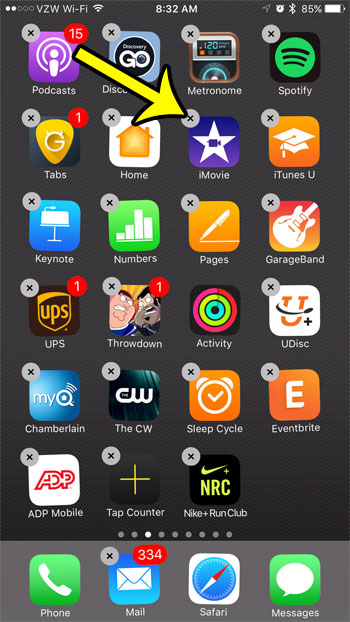
The old shaking-icon method shown here has been replaced by the Remove App menu. - Tap Delete App. Do not tap Remove from Home Screen: that only moves iMovie to the App Library and frees no space.
- Tap Delete to confirm.

Older iOS version shown; the current confirmation reads Delete.
The same steps work for nearly any app you installed, which is covered in more detail in deleting apps from any iPhone.
Delete it from iPhone Storage and see what you get back
This route is slower but shows you how much space iMovie takes before you commit, which makes it the better choice if storage is the reason you’re here.
- Open Settings and tap General.
- Tap iPhone Storage. The list of apps and the space each one uses can take a few seconds to fill in.
- Tap iMovie to open its detail view, which shows how much space it uses.
- Choose to delete the app, then confirm.
The App Store currently lists iMovie at roughly 700 MB before you add any projects, so a phone with several long projects can free up far more than that. After you delete, go back to iPhone Storage. Apple notes the used-space figure may take a moment to update, so give it a minute before deciding it didn’t work. If you’d like to clear other large apps the same way, see how to delete apps through Settings and how to check your iPhone storage.
Offload iMovie instead of deleting it
The same detail view in iPhone Storage offers a second option: offload the app. According to Apple’s storage article, offloading frees the storage used by the app but keeps its documents and data. The iMovie icon stays on your Home Screen with a small cloud symbol, and tapping it reinstalls the app.
When does offloading make sense? If what’s large is the app itself and your projects are small, offloading gives back most of the space while leaving the door open. If the projects are what’s taking up room, offloading won’t help much, because their data stays on the phone. Apple doesn’t make any iMovie-specific promise about projects surviving an offload, so export anything important first either way.
The iPhone can also offload apps you haven’t used in a while on its own. That setting, and what to expect from it, is explained in turning on Offload Unused Apps.
Free up space without removing the app
Maybe you still use iMovie now and then, and only the old projects are the problem. Deleting single projects keeps the app ready to use:
- Open iMovie and tap the project in the Projects browser.
- On the project details screen, tap the Delete button.
- Tap Delete Project (or Delete Trailer for a trailer) to confirm.
Apple’s project guide says any video clips and photos you recorded inside iMovie while editing that project remain in your Photos library. Apple’s guide doesn’t describe a recently deleted area for iMovie projects, so treat project deletion as permanent unless you exported first.
Get iMovie back later
iMovie isn’t on Apple’s list of built-in apps you can delete. It’s a free Apple app on the App Store, and it installs and deletes like any other app. To reinstall it:
- Open the App Store and search for iMovie.
- Tap the download button next to iMovie.
You can also go through your purchase history: in the App Store, tap your picture, tap Apps & Purchase History, then Your Apps, find iMovie and tap the cloud icon. The meaning of that cloud is covered in why a cloud appears next to an app in the App Store.
After a full delete, expect a reinstalled iMovie to open with an empty Projects browser. Only projects you exported, or movies you saved to Photos or Files, are still around. The current App Store listing also requires a recent version of iOS, so check the listing if your iPhone runs older software.
If iMovie will not delete
- You only see Remove from Home Screen moving it around: make sure you tap Delete App, not Remove from Home Screen. If iMovie vanished from the Home Screen but iPhone Storage still lists it, it’s sitting in the App Library; delete it from there or from iPhone Storage.
- There’s no delete option at all: the iPhone may be managed by someone else. On a child’s iPhone a parent controls app settings through Screen Time, and a phone from a school or employer can have its own restrictions. Ask whoever manages the phone; Apple’s Screen Time guide explains what a parent can block.
- The space didn’t come back: wait a minute and reopen iPhone Storage, since Apple says the figure can lag. Exported projects saved to On My iPhone in the Files app still use iPhone storage, so delete those copies once they’re safely stored somewhere else.
Removing iMovie: your next questions
Will deleting iMovie remove movies I already saved to Photos?
Movies you saved with Save Video live in your photo library, not inside iMovie, so they stay. The same goes for clips Apple says remain in Photos after you record them in iMovie. What disappears is the editable project.
Does reinstalling iMovie bring my projects back?
Don’t expect it to. Deleting the app removes its data from the iPhone, so plan on a fresh download starting empty. Keep the exported project file if you want to edit again later.
Is iMovie one of the apps that came with my iPhone?
It isn’t on Apple’s list of built-in apps you can delete and restore, whether or not it was already on your iPhone when you got it. It installs and deletes like any App Store app, and you can download it again for free.
Can I move projects to a Mac instead of keeping them on the phone?
Yes. Use Export Project and choose AirDrop. Keep in mind that a project from a newer iMovie for iOS may not open in an older iMovie for Mac, so update the Mac first if it’s behind.
Should I delete GarageBand too?
If you don’t make music on the phone, it’s another sizable Apple app worth checking in iPhone Storage. The steps, and how to keep your songs, are in deleting GarageBand from an iPhone.
Once iMovie is gone, open iPhone Storage again and look at the next few apps at the top of the list. For a wider look at how much the apps Apple includes take up, see how much storage built-in apps use.

Kermit Matthews runs Live2Tech from just outside Philadelphia. He is an IT specialist with over 20 years of experience, from a university help desk to small-business IT, IT management and his own consulting practice, and has written tech guides full time since 2020. Steps are checked against the current software on a real device or the maker’s official documentation. More about Kermit.