People switch an iPhone to black and white to make apps less eye-catching, to check whether a design still reads without color, or because long text feels calmer in gray. On current versions of iOS, go to Settings > Accessibility > Display & Text Size > Color Filters, turn on Color Filters and choose Grayscale. Below are those steps, then ways to make the switch a one-click habit.
Grayscale changes the whole screen, so if you only want to turn a single photo black and white, use the Photos editor instead.
Why people make an iPhone black and white
Grayscale is an accessibility display option. Apple groups it with the other color filters, which are meant to help people who have trouble telling colors apart, and the grayscale choice shows the entire screen in shades of gray. It does not delete anything, change your wallpaper file or alter apps; it only changes how the screen is drawn, and you can turn it off at any time. If battery life is the real goal, Low Power Mode on iPhone is the setting built for that.
Common reasons people use it:
- Less screen pull. Red badges, bright icons and colorful feeds are built to catch your eye. In gray, they blend together, which some people find makes it easier to put the phone down. Treat this as a habit tool, not a guaranteed fix for screen time.
- Checking designs. A student or designer can glance at a chart, slide or web page on the phone and see whether it still makes sense when color is removed.
- Reading. Some people prefer gray text and pages for long reading sessions.
- Color vision differences. Grayscale removes color entirely. If your goal is to tell specific colors apart, the other color filters on the same screen (red/green, green/red, blue/yellow and Color Tint) may suit you better.
One caution from Apple: color filters can change the look of images and videos, so photos and video will also appear gray while the filter is on.
Turn on grayscale in Settings
These steps match the current iPhone User Guide. On older iOS versions the menus were arranged differently; see the short section near the end.
- Open the Settings app.
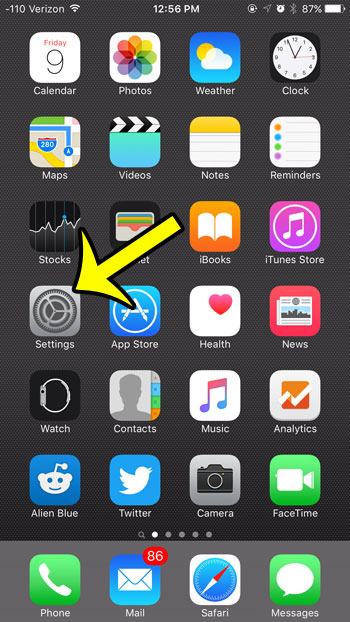
- Tap Accessibility. On current versions it sits in the main Settings list, not inside General.
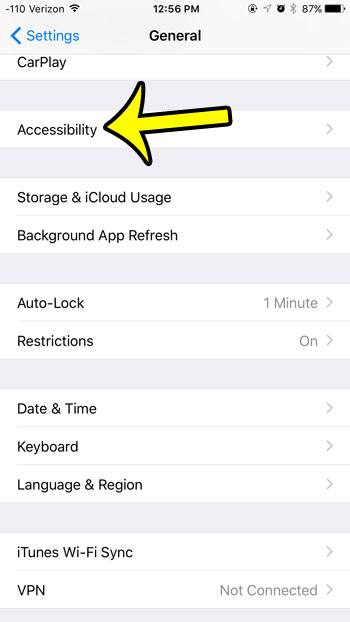
- Tap Display & Text Size.
- Tap Color Filters.
- Turn on the Color Filters switch.
- Tap Grayscale in the list of filters. The screen turns gray right away.
When a filter that supports it is selected, sliders appear for intensity or hue.
To go back to color, return to the same screen and turn off the Color Filters switch. When you turn Color Filters on again, check that Grayscale is still the selected filter. If you only want the plain on and off steps for later, there is a shorter page on how to turn grayscale on or off on iPhone.
Switch it fast with a triple-click
Opening four menus every time gets old. The Accessibility Shortcut lets you flip grayscale with a triple-click instead: gray most of the day, color for a moment when you need to see a photo properly.
- Go to Settings > Accessibility > Accessibility Shortcut.
- Select Color Filters in the list of features.
- Triple-click the side button on an iPhone with Face ID, or the Home button on an iPhone with one, such as iPhone SE.
If Color Filters is the only feature you selected, the triple-click toggles it immediately. If you selected several features, a menu appears and you tap the one you want. Keep the list short if you want true one-click switching.
Back Tap
Back Tap runs an action when you double-tap or triple-tap the back of the phone.
- Go to Settings > Accessibility > Touch > Back Tap.
- Choose Double Tap or Triple Tap.
- Pick an action. Apple says Back Tap can turn on an accessibility feature; look for the Accessibility Shortcut or Color Filters entry in the action list on your version.
Choosing None turns the gesture off again. A firm tap on the back can trigger it by accident, so check Back Tap if the screen goes gray unexpectedly. If you later want it gone, these steps to turn off double tap gestures on iPhone cover Back Tap and similar features.
Control Center
On current versions you can add controls straight from Control Center: open it, tap the add (+) button at the top-left, then tap Add a Control and look in the accessibility and vision categories for a color filters or Accessibility Shortcut control. On older iOS versions, controls were added in Settings > Control Center instead.
Action button and Siri
On iPhone models with an Action button, Apple says the button can be set to open an accessibility feature; the options are explained in the guide to customize the Action button on iPhone. Apple also says Siri can turn accessibility features on, so you can ask Siri to turn on Color Filters.
Put grayscale on a schedule with Shortcuts
If you want gray only at certain times, for example after 9 p.m. or while a work app is open, a personal automation in the Shortcuts app can handle it.
- Open the Shortcuts app and tap Automation.
- Create a new automation and choose a trigger such as Time of Day or App. Apple also lists triggers like Sleep and Do Not Disturb.
- Add an action that turns color filters on (search the action list for “color filters”).
- Set the action to turn the filter on, then make a second automation that turns it off at your end time.
- To let it run while the iPhone is locked, open the automation, tap Edit, tap the Info button, tap Privacy, then turn on Allow Running When Locked.
A practical pairing: grayscale on at bedtime, color back on in the morning.
Grayscale, Night Shift and invert: what each one does
| Setting | What it changes | Where it is |
|---|---|---|
| Grayscale | Removes all color from the screen | Accessibility > Display & Text Size > Color Filters |
| Other color filters | Shifts colors to help tell them apart, or tints the screen | Same screen |
| Reduce White Point | Lowers the intensity of bright colors | Accessibility > Display & Text Size |
| Smart Invert and Classic Invert | Reverses screen colors | Accessibility > Display & Text Size |
| Night Shift | Warms the screen color at night | Settings > Display & Brightness |
Two interactions are worth knowing. Apple says Night Shift removes inverted colors and color filter effects, except grayscale, so a Night Shift schedule will not knock you out of gray. And Dark Mode is a separate appearance setting: it darkens backgrounds but keeps colors. For reversed colors instead of gray, see how to invert colors on iPhone; for a warmer screen at night, see where the blue light filter is on iPhone.
Turn a photo black and white instead
Grayscale changes only what you see. A photo you take while it is on is still a normal photo, and it shows in color once you switch back. If you want a picture that stays black and white for everyone, edit the picture itself: open it in Photos, tap Edit, open the filters, and choose a black and white filter such as Mono (filter names can vary by version). Edits in Photos can be reverted later.
When the screen turns gray on its own
If your iPhone went black and white without you choosing it, one of the quick toggles above is usually the cause. Check these in order:
- Color Filters: Settings > Accessibility > Display & Text Size > Color Filters. Turn the switch off.
- Accessibility Shortcut: Settings > Accessibility > Accessibility Shortcut. Clear Color Filters if a triple-click keeps triggering it in a pocket or bag.
- Back Tap: Settings > Accessibility > Touch > Back Tap. Set Double Tap and Triple Tap to None.
- Shortcuts automations: open Shortcuts > Automation and delete or turn off any automation that changes color filters.
Older iOS versions
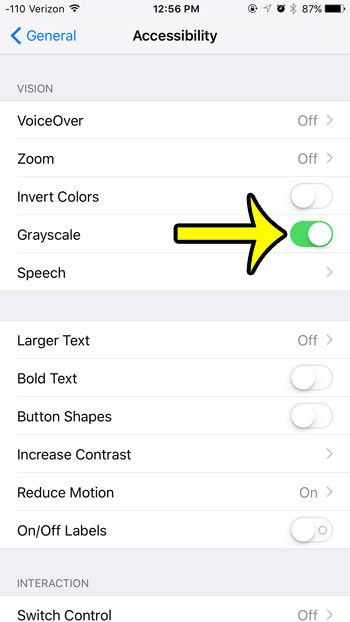
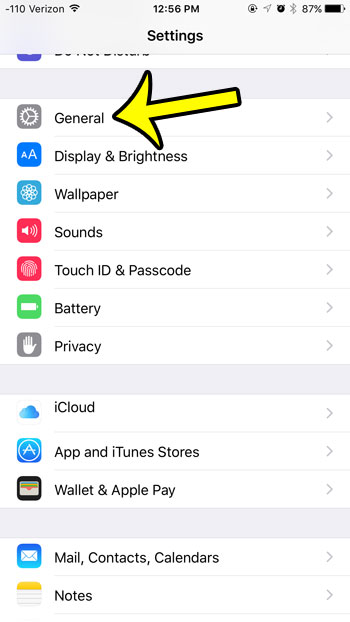
On very old versions of iOS, such as the iOS 9 era, Grayscale was a single switch at Settings > General > Accessibility > Grayscale. If your menus look like the older screenshots shown here, follow that path instead.
Grayscale questions
Do screenshots come out black and white?
Apple doesn’t document this. Older versions of iOS saved screenshots in color while grayscale was on, so open a screenshot with grayscale off before you share it if the colors matter.
Can I make only one app black and white?
There is no per-app grayscale setting in Settings. The closest option is a Shortcuts automation with the App trigger that turns color filters on when that app opens and off when you leave, if your version offers both.
Can I use Night Shift and grayscale together?
Not reliably. Night Shift leaves grayscale in place, but Apple’s Night Shift support page says Grayscale might turn off Night Shift, so expect the warm tint to disappear while the screen is gray.
Once grayscale is set up with a triple-click, it takes a second to check a photo in color and drop back to gray. If you are cutting back on phone habits more broadly, limiting data for individual apps can help too; this older post shows how to stop the Netflix app from using cellular data. Apple’s own reference is the iPhone User Guide page on how to change display colors on iPhone, with related pages on turning accessibility features on or off quickly, Back Tap and Shortcuts automations.

Kermit Matthews runs Live2Tech from just outside Philadelphia. He is an IT specialist with over 20 years of experience, from a university help desk to small-business IT, IT management and his own consulting practice, and has written tech guides full time since 2020. Steps are checked against the current software on a real device or the maker’s official documentation. More about Kermit.