If a bright white screen feels harsh when you check your phone in a dark room, inverting the colors turns that white into black. Go to Settings > Accessibility > Display & Text Size and turn on Smart Invert, which keeps photos and media looking normal, or Classic Invert, which reverses everything. These steps apply to current versions of iOS on any iPhone that offers them.
If only web pages are too bright, Firefox has its own page-darkening switch, covered in turning on Website Dark Mode in Firefox on iPhone.
If you would rather remove color than reverse it, here is how to turn your iPhone screen black and white with the Grayscale filter.
Turn on Smart Invert or Classic Invert
- Open the Settings app and tap Accessibility.
- Under Vision, tap Display & Text Size.
- Scroll down and turn on Smart Invert or Classic Invert. The screen changes as soon as you tap the switch.
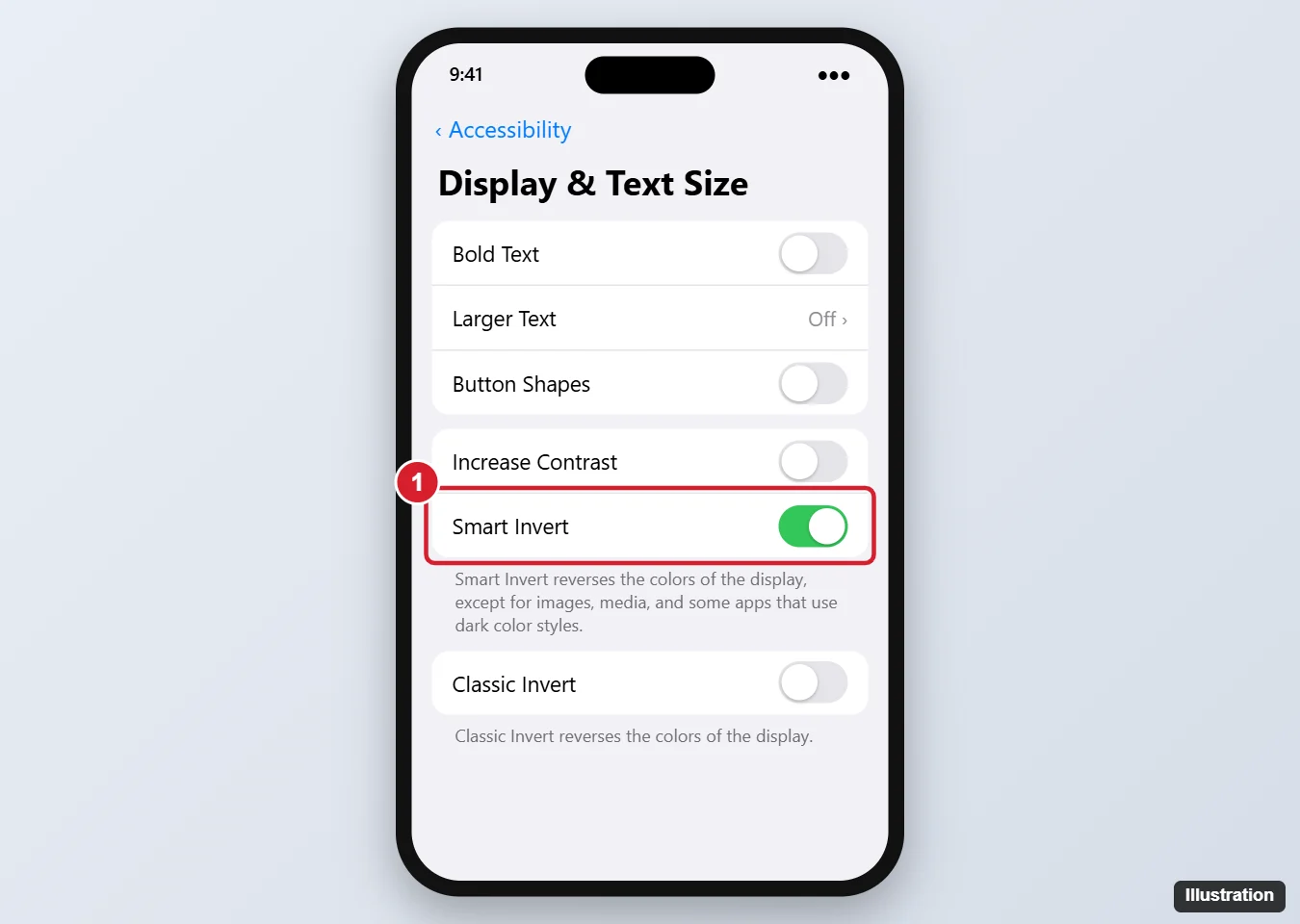
To go back to normal colors, return to the same screen and turn the switch off. On iOS 12 and earlier, the setting lived under Settings > General > Accessibility > Display Accommodations > Invert Colors.
Which invert mode should you pick?
Apple describes Smart Invert as reversing the colors on the display except for images, media and some apps that use dark color styles. Classic Invert reverses all colors.
| Smart Invert | Classic Invert | |
|---|---|---|
| Photos and videos | Left as they are | Reversed, like film negatives |
| Apps that already use dark styles | Usually left alone | Reversed, which can make them light |
| Good choice when | You want a dark screen for reading but still need to see pictures | You want maximum contrast everywhere, or an app looks patchy with Smart Invert |
For most people reading at night, Smart Invert is the better starting point. Classic Invert suits someone who needs light text on a dark background in every app and doesn’t care how photos look.
Toggle inverted colors without opening Settings
Accessibility Shortcut (triple-click)
- Go to Settings > Accessibility > Accessibility Shortcut (near the bottom of the list).
- Tap Smart Invert or Classic Invert so a check mark appears.
- Triple-click the side button on an iPhone with Face ID, or the Home button on an iPhone that has one. Triple-click again to switch back.
If you pick more than one feature in step 2, a triple-click shows a menu so you can choose. If triple-clicks keep registering as single presses, slow the click speed under Settings > Accessibility > Side Button (or Home Button).
Control Center
Add the Accessibility Shortcuts control to Control Center, then tap it and choose the invert mode you set up above. How you add controls depends on your iOS version: older versions use Settings > Control Center, while newer versions let you edit Control Center directly from Control Center itself.
Back Tap
Back Tap runs an action when you double-tap or triple-tap the back of an iPhone 8 or later. Go to Settings > Accessibility > Touch > Back Tap, choose Double Tap or Triple Tap, and pick Accessibility Shortcut to trigger the same invert choice. Apple’s Back Tap page doesn’t list an invert action by name, so if your list does show Smart Invert or Classic Invert, you can pick it directly. To change or remove a tap action later, see turning off Back Tap.
Keep one app from inverting
Settings > Accessibility > Per-App Settings lets you choose display settings for particular apps, the Home Screen and Settings. Tap Add App, pick the app, then look for a Smart Invert option and set it to Off or On. This is useful when one app, such as a photo editor, looks wrong while everything else should stay dark. The Smart Invert entry may not appear in every iOS version.
Dark Mode, Color Filters and other alternatives
- Dark Mode: found in Settings > Display & Brightness (Light, Dark or Automatic). Apps that support it are redesigned in dark colors, so images and icons look correct. Apple’s iPhone guide suggests invert is most useful in apps and websites that don’t support Dark Mode, which makes the two a good pair rather than rivals.
- Color Filters: in Display & Text Size, this offers grayscale, filters for color blindness and a color tint. The grayscale and color filter walkthrough covers each option.
- Reduce White Point: also in Display & Text Size, it lowers the intensity of bright colors without changing them.
- Larger Text, Bold Text and Increase Contrast: help when the problem is readability rather than glare. If everything looks too big instead, you may have Zoom on; zooming back out on an iPhone explains the fix.
Why colors look wrong, and how to fix them
The screen inverted on its own
A triple-click of the side or Home button probably fired the Accessibility Shortcut, or a Back Tap action ran while the phone was in a pocket. Triple-click again, or turn the setting off in Display & Text Size.
Some apps look patchy with Smart Invert
Smart Invert depends on how each app is built, so a few show mixed light and dark areas. Try Classic Invert for that session, use Dark Mode instead, or exclude the app with Per-App Settings.
Inverted colors switched off at night
Apple’s iPhone guide says Night Shift removes inverted colors and color filter effects (except grayscale), while its Night Shift article puts it the other way round, saying invert might turn Night Shift off. Either way, the two don’t seem to run together, so if you schedule Night Shift, expect invert to drop out while it runs. More on that setting is in finding the iPhone blue light filter.
Colors still look odd after turning invert off
Check Color Filters in Display & Text Size and the Zoom filter under Settings > Accessibility > Zoom. Either can tint or invert the screen independently.
Inverting iPhone colors
Can I schedule invert to turn on at night?
Invert has no schedule switch of its own. The Accessibility Shortcut is an on-demand toggle, and a scheduled Night Shift can actually turn invert off. Dark Mode set to Automatic is the simplest scheduled option; the Shortcuts app can also change Smart Invert from a time-of-day automation, though the action names vary by iOS version.
Does invert work on an iPad?
Yes. Apple lists the same Display & Text Size options for iPad, so the steps above carry over.
If glare is the main complaint, try Smart Invert first and set up the triple-click shortcut, so you can switch back the moment a photo or video needs its real colors. Apple’s guide to changing display colors on iPhone and its display and text size preferences page list every related option.

Kermit Matthews runs Live2Tech from just outside Philadelphia. He is an IT specialist with over 20 years of experience, from a university help desk to small-business IT, IT management and his own consulting practice, and has written tech guides full time since 2020. Steps are checked against the current software on a real device or the maker’s official documentation. More about Kermit.