No. YouTube TV runs on Google Accounts: Google’s sign-up steps say to sign in with your Google Account, its TV sign-in steps ask for your Google Account information, and its help pages describe no way to subscribe or watch without one. That account doesn’t have to be Gmail, though. You can create a Google Account with an email address you already have, and every family member on a shared membership signs in with an account of their own.
What YouTube TV actually needs from you
A Google Account is the sign-in Google uses for YouTube, Gmail, Google Maps, and its other services. A Gmail address is one kind of Google Account, but not the only kind. Here is what that means for YouTube TV:
- To start a membership, you go to the YouTube TV website, begin the trial, and sign in with a Google Account, then confirm your home ZIP code and payment (Sign up for YouTube TV).
- To watch on a TV, phone, or computer, you sign in with a Google Account on each device.
- To join someone else’s membership, you accept their family invitation while signed in to your own Google Account.
So the real question for most people isn’t “how do I skip the account?” but “which account should I use?” The sections below cover the three common answers: an account built on your existing email, a household invitation, and an account you already have but that YouTube TV rejects.
Make a Google Account from the email you already use
Google says plainly that you don’t need a Gmail address to create a Google Account (Create a Google Account). This suits anyone who wants to keep everything in an inbox they already check, such as an Outlook or Yahoo address.
- Open Google’s account sign-up page and click Create account.
- Choose For my personal use.
- Enter your name and the basic details Google asks for, such as your birthday.
- When Google suggests a Gmail address, click Use your existing email instead.
- Type the email address you already use and click Next.
- Google sends a verification code to that inbox. Enter it, then set a password.
The finished account signs in to YouTube TV like any other Google Account. If you’d rather start fresh with a new address, creating a new Gmail account walks through that route on a computer, iPhone, and Android.
One account per person matters here. Each family member’s library, recordings (DVR), and watch history stay private to their own account, according to Google, so sharing one login would mix everyone’s recommendations together.
Get added to a household membership
If someone in your home already pays for YouTube TV, they can be the family manager and invite you. Per Google’s family group page, the manager can invite up to 5 other members at no extra cost.
What the family manager does
- Sign in to YouTube TV and select the profile picture.
- Select Purchases and memberships, then select the membership.
- Next to Family sharing settings, select Edit > Invite a new member.
- Enter the member’s email address or phone number and select Send.
Google also lists a second route for the manager: profile picture > Settings > Family sharing > Manage.
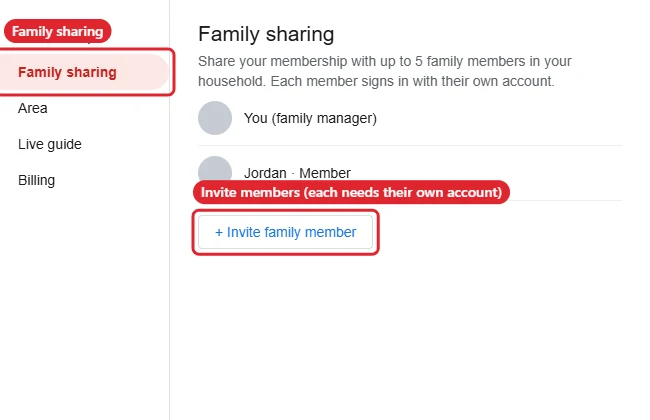
The illustration above shows an older layout; the current screens use the labels in the steps.
What you do as the invited member
- Open the invitation on the email address or phone it was sent to.
- Accept it while signed in to the Google Account you want to use for YouTube TV. If you’re signed in to more than one account in your browser, check the profile picture first so the right one joins.
- Sign in to the YouTube TV app on your devices with that same account.
Family group rules Google lists
| Rule | What Google says |
|---|---|
| Group size | The manager plus up to 5 other members |
| Family manager | At least 18 and in the US |
| Members | At least 13, with their own Google Account |
| Household | Members live in the same household as the manager. Only the manager sets the home area, and members need to use YouTube TV in that home location from time to time to keep access. |
| Groups | One family group at a time; Google limits how often you can switch groups (once in a 12-month period) |
| Account type | Google Apps for Business (G Suite) accounts aren’t eligible |
The household rule is the one that trips people up. YouTube TV is sold as a home service tied to a location, so a relative in another city can’t join simply by getting an invitation. Google’s help pages describe no exception to that, and this article won’t suggest ways around it.
Sign in on a smart TV or streaming device
Typing a password with a TV remote is slow, so Google offers a code-based sign-in (Sign in and out of the YouTube TV app):
- Open the YouTube TV app on the TV or streaming device.
- Scan the QR code on screen with your phone, or type the YouTube TV start address shown on the TV into a browser on your phone or computer.
- Enter the activation code shown on the TV and tap Continue.
- Choose the Google Account tied to your Base Plan or family group membership.
- Select Allow. The TV signs in a moment later.
If you’d rather not use a second device, choose Sign in with your remote and type your details with the on-screen keyboard. Activation codes can expire, so if one stops working, go back on the TV for a new code.
On a phone, open the YouTube TV app, tap Sign in at the top right, and pick your account or add one.
When your Google Account doesn’t work with YouTube TV
“Sorry: you can’t sign in to YouTube TV with this account”
Google says Brand Accounts (shared accounts set up for a business or YouTube channel) aren’t compatible with YouTube TV, and you need a different Google Account to sign up and sign in (YouTube TV account login issues). Select Switch Account below the error message and choose your personal Google Account, or create one using the steps above.
A work or school account won’t join the family group
Google Apps for Business accounts aren’t eligible for family groups. Use a personal Google Account for YouTube TV, even if you use the work account for everything else.
The wrong account is signed in on a device
Select your profile photo, then Switch account to change to another account already on that device, or remove the one you don’t want there. To leave just one account while staying signed in to others in your browser, see signing out of one Google account.
A TV you no longer have is still signed in
Google’s sign-out page points to myaccount.google.com/permissions: find YouTube TV there and choose Remove access. For phones, tablets, and computers attached to your account, removing a device from your Google account covers the rest.
YouTube TV account questions
How many TVs can stream at once?
Google’s family group page says members can watch on up to three devices at the same time.
Does creating a Google Account give me Gmail anyway?
Not if you choose Use your existing email. The account uses the address you already have as its username, and Google sends account messages there.
Next step: create or pick the personal Google Account you’ll use, then sign in on the TV you watch most with the code method above.

Kermit Matthews runs Live2Tech from just outside Philadelphia. He is an IT specialist with over 20 years of experience, from a university help desk to small-business IT, IT management and his own consulting practice, and has written tech guides full time since 2020. Steps are checked against the current software on a real device or the maker’s official documentation. More about Kermit.