Devices signed in to your Google Account are listed under Security & sign-in, where you can sign one out. Signing a device out marks it “Signed out” in that list. Google doesn’t describe it as wiping anything on the device, so a lost Android phone also calls for Find Hub. What you do next depends on which device it is.
Which device is it?
| Situation | What to do |
|---|---|
| An old phone, tablet or computer you sold, gave away or no longer use | Sign it out from the device list. |
| A phone that is lost or stolen | Use Find Hub first, then sign it out and consider a password change. |
| A device you don’t recognize | Sign it out and change your password. |
| A device you still have in your hands | Remove the account on the device itself. |
Find the device list
The list works the same in a browser on a computer and in your Google Account on a phone.
- Go to your Google Account (myaccount.google.com) and sign in if asked.
- Select Security & sign-in.
- Under Your devices, select Manage all devices.
According to Google’s help page on devices with account access, the list shows devices where you are signed in now or have been in the last few weeks. A few details make it easier to read:
- Sessions: one device can show several sessions, which Google says is normal. A new session starts when you sign in on a new device, browser, app or service, re-enter your password to verify it’s you, grant an app access to your account data, or sign in from an incognito or private window.
- Times: the time shown is the last time that device or session communicated with Google. Background syncing can make it more recent than the last time anyone actually used the device.
- Signed out entries: devices or sessions you have already signed out of carry a “Signed out” label.
Sign a device out of your account
- In Manage all devices, select the device you want to remove.
- Select Sign out and confirm if asked.
- If the same device appears more than once, open each entry and sign out of every session, so no part of that device keeps access.
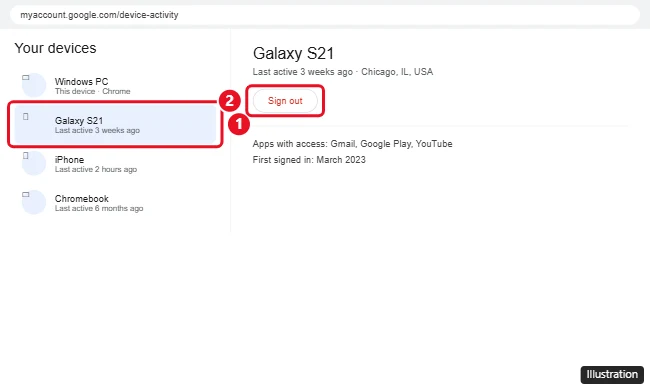
Google recommends signing out on devices that are lost, that you no longer own, or that don’t belong to you. Google’s page doesn’t describe what happens to files already on the device after a sign-out, so if the device still holds anything private, erase it or remove the account on the device as described below.
A lost or stolen phone
For a missing Android phone, start with Find Hub, because once a device is reset you can no longer reach it there. Go to Find Hub on the web and sign in with the same Google Account. Google’s lost Android device help page lists what you can do:
- Play sound: rings the phone at full volume for 5 minutes, even if it is on silent or vibrate.
- Mark as lost: locks the phone with your PIN, pattern or password.
- Factory reset: permanently deletes all data on the phone. Google notes that after a factory reset the device is no longer available in Find Hub, so try the first two options before this one.
Find Hub only reaches a phone that has power, is connected to mobile data or Wi-Fi, is signed in to a Google Account, has Find Hub turned on and is visible on Google Play. If Find Hub can’t reach it, the device list and a password change are still available from your account.
A password change is the other strong move. Google’s password help page says changing or resetting your password signs you out everywhere except devices you use to verify it’s you when you sign in, some devices with third-party apps you’ve given account access, and helpful home devices you’ve given account access.
If the lost phone was the one that received your sign-in codes, getting back into a Google account without the old phone covers the recovery options.
A device you don’t recognize
An unfamiliar name in the list is not always an intruder. Google lists a few ordinary causes: you started using a new device, used someone else’s device or a public computer, recently reset a device to factory settings, or traveled (even briefly, such as through an airport). Check the time and the device type before deciding.
If it still doesn’t fit anything you did, sign it out and change your password. An old phone you are retiring may also hold two-step verification codes, so move or clear those first with removing an account from Google Authenticator.
Take your account off a device you still have
When the device is in front of you, remove the account on the device itself instead of relying on the remote sign-out.
Android phone or tablet
- Open Settings and tap Passwords & accounts. Depending on the phone, the item may be called Users & accounts, Passwords, passkeys & autofill or Manage accounts.
- Under Accounts, tap the Google Account.
- Tap Remove account, then confirm with Remove account and Delete.
Google’s Android account help page warns that removing the account also deletes everything associated with it from the device, and that some of these steps only work on Android 14 and up. If you are about to reset a phone you are handing on, take the account off first; resetting a Motorola phone without a Google Account explains why the order matters.
iPhone or iPad
Google’s iPhone and iPad help page gives two routes:
- Gmail app: open the Menu, tap the signed-in account, tap Manage accounts, then Edit. Tap Remove next to the account, confirm if asked, and tap Done.
- Google app: tap your profile image at the bottom right, tap the signed-in account, then Manage. Tap Remove next to the account, tap Remove again to confirm, and finish with Done.
Other places your account may be signed in
If you only want one of several accounts off a browser or phone, see signing out of one Google account. For single apps and shared hardware, there are separate walkthroughs for signing out of Google Photos and signing out of a Google account on a Chromebook. A smart TV used for YouTube TV has its own sign-in rules, covered in using YouTube TV without a Google Account.
A good habit after any phone upgrade is to open Manage all devices, sign out the phone you replaced, and confirm the new one is the only phone still listed as signed in.
Google device list questions
Why is the same phone listed several times?
Each sign-in from a new browser, app or service on that phone can create its own session. Sign out of every entry for that phone if you want it fully removed.
How long does an old device stay in the list?
Google says the list covers devices where you are signed in now or were in the last few weeks. A device you signed out of shows the “Signed out” label rather than vanishing at once.
Why does a device show recent activity when nobody used it?
The time shown is the device’s last communication with Google, and background syncing can update it without anyone touching the device.
Why did a device I signed out come back?
Signing in again on that device creates a new session, so it reappears. If you didn’t do that yourself, change your password and sign it out again.

Kermit Matthews runs Live2Tech from just outside Philadelphia. He is an IT specialist with over 20 years of experience, from a university help desk to small-business IT, IT management and his own consulting practice, and has written tech guides full time since 2020. Steps are checked against the current software on a real device or the maker’s official documentation. More about Kermit.