To turn off Background App Refresh on the Apple Watch, open the Settings app on the watch, go to General > Background App Refresh, and switch off the main toggle to stop all apps, or turn off individual apps in the list. You can also change it from the Watch app on your iPhone under My Watch > General > Background App Refresh. Turning it off can help the watch battery last longer, at the cost of apps updating less often in the background.
Quick Answer
Watch: Settings > General > Background App Refresh > turn off the toggle or specific apps. Or use the iPhone Watch app.
Steps on the Watch
- Press the Digital Crown and open Settings.
- Tap General.
- Tap Background App Refresh.
- Turn off the top switch to disable it for everything, or scroll and turn off individual apps.
Steps on the iPhone
- Open the Watch app and tap My Watch.
- Tap General > Background App Refresh.
- Turn off the switch, or specific apps.
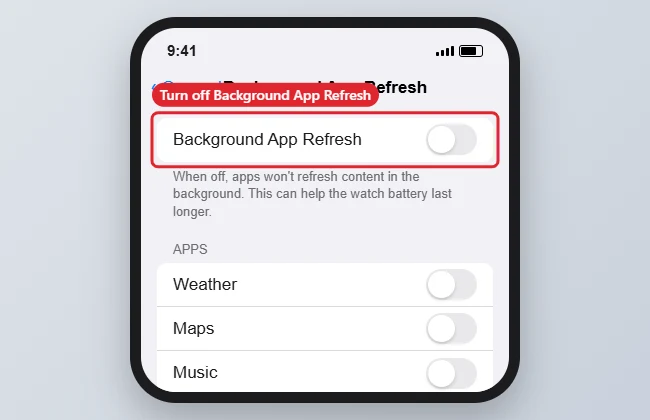
What Changes
| With it on | With it off |
|---|---|
| Apps update data in the background | Apps update when you open them |
| Complications refresh more often | Complications may update less often |
| More battery use | Less battery use |
Troubleshooting
- A complication looks stale: That app may need Background App Refresh on. Turn it back on just for that app.
- Setting is greyed out: Low Power Mode can limit background activity; check that first.
- On the iPhone too: This is a separate setting; see turning off Background App Refresh on iPhone.
Frequently Asked Questions
Does this save much battery?
It can help, especially with many apps installed. Results vary by how you use the watch.
Will alarms and notifications still work?
Yes. Notifications and alarms are separate from background refresh.
Should I turn it off for everything?
Leave it on for apps whose complications you rely on, and turn it off for the rest.
Summary
- Open Settings > General on the watch.
- Tap Background App Refresh.
- Turn off the toggle or specific apps.
- Keep it on for complications you use.

Kermit Matthews is a freelance writer based in Philadelphia, Pennsylvania with more than a decade of experience writing technology guides. He has a Bachelor’s and Master’s degree in Computer Science and has spent much of his professional career in IT management.
He specializes in writing content about iPhones, Android devices, Microsoft Office, and many other popular applications and devices.