Examine the Photos settings on your iPhone and you’ll find a switch named Show Holiday Events. When it’s on, Photos is allowed to build memories and featured photos around holidays in your home country or region. Turning it off hides only those holiday memories: the separate Show Featured Content switch still decides whether Photos suggests anything else, and on current iOS both switches sit inside the Photos app rather than in Settings.
Show Holiday Events in plain English
Photos looks through your library on its own and pulls related pictures into short collections that Apple calls memories. It also picks single pictures to feature, which can appear in the Photos app and in the Photos widget on your Home Screen. Apple’s description of where this suggested content shows up is “memories, featured photos, and the Photos widget.”
Show Holiday Events adds one more source of ideas to that process: the calendar of public holidays for the country or region your iPhone is set to. With the switch on, a batch of pictures taken on a holiday can become a memory of its own, or a picture from that day can turn up as a featured photo. Apple’s current wording is that turning it off prevents “Photos from creating memories and featured content about holidays,” and its iOS 17 and iOS 18 guides describe these as “holiday events in your home country or region.”
So the name is a little misleading. The switch doesn’t add holiday dates to your calendar, it doesn’t send holiday greetings, and it doesn’t create events. It only decides whether holidays count as a reason for Photos to group and feature your pictures.
Three settings people mix up
Most confusion comes from two other switches with similar names. This table shows what each one controls, as Apple describes them.
| Setting | Where it is on current iOS | What it controls |
|---|---|---|
| Show Holiday Events | Photos app > Collections > your account (top right) | Whether Photos creates memories and featured content about holidays in your home country or region |
| Show Featured Content | The same screen in the Photos app | Whether Photos automatically generates featured photos and memories at all |
| Holidays calendar (for example, US Holidays) | Calendar app, in the calendar list | Whether public holiday dates appear in the Calendar app |
Show Featured Content is the broader switch. Apple describes it as stopping Photos from automatically generating featured photos and memories, so it covers holiday memories along with everything else. Show Holiday Events is the finer control: use it when you like your other memories and only want the holiday ones gone (or only want them back).
Find the switch on your iOS version
Current iOS: inside the Photos app
In current versions of iOS, Apple moved these switches out of the Settings app and into Photos itself. Apple’s iPhone User Guide shows this route for its newest versions:
- Open the Photos app.
- Tap Collections.
- Tap your account in the top-right corner.
- Find Show Holiday Events and turn it on or off.
- If holiday memories still never appear with the switch on, check that Show Featured Content on the same screen is on as well.
Apple doesn’t say how quickly Photos acts on the change, so don’t expect a holiday memory to appear the moment you turn the switch on. Apple’s full instructions, including the related switches, are on the Hide people, memories, and holidays in Photos on iPhone page of the iPhone User Guide.
iOS 18, iOS 17 and older: in Settings
If the account screen in Photos doesn’t show these switches, your iPhone is probably on an older iOS version, where Apple kept them in the Settings app. Apple’s guide has a version picker, and its older editions give these routes:
- iOS 18: Settings > Apps > Photos, then turn Show Holiday Events on or off. Show Featured Content is on the same list.
- iOS 17 and iOS 16: Settings > Photos, then Show Holiday Events.
On those older versions the steps look like this. The screenshots below come from an older iOS release, so current screens look different.
- Open the Settings app.

Older version shown; current screens may look different.
- Scroll down and tap Photos (on iOS 18, tap Apps first, then Photos).
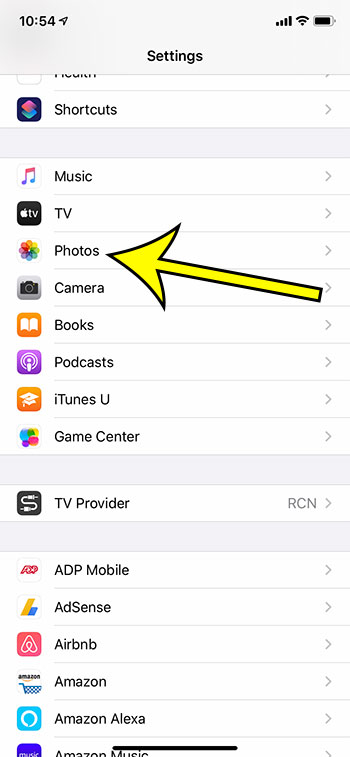
Older version shown; current screens may look different.
- Scroll toward the bottom of the Photos settings and tap the switch next to Show Holiday Events.
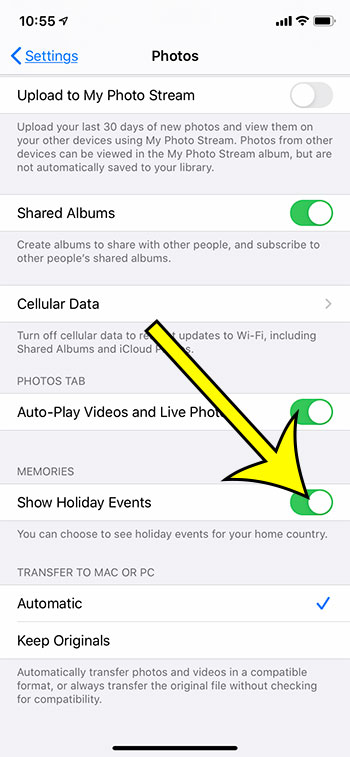
Older version shown; current screens may look different.
After an update to a current iOS version, look for the switch in the Photos app as described above instead of in Settings.
What changes when you turn it off
Apple’s description is short: turning off Show Holiday Events prevents Photos from creating memories and featured content about holidays. In practice that means:
- Photos stops using holidays as a reason to put together new memories.
- Holiday-based picks stop showing up among your featured photos, including the ones the Photos widget can display.
- Your other memories (trips, people, pets and so on) are still controlled by Show Featured Content, so they keep coming if that switch stays on.
Apple doesn’t describe the switch as changing your library, your albums or your search results, and it is listed among settings for what Photos suggests, not what it stores. If your goal is to get rid of pictures rather than stop seeing them featured, that’s a different job: see how to delete photos on iPhone, one at a time or in bulk.
Related controls on the same Photos screen
If holiday memories aren’t the real problem, Apple lists a few other ways to shape what Photos features:
- Feature a person less often. On current iOS, Apple describes a Don’t Feature a Person option with the choices Feature This Person Less and Never Feature This Person, which is useful when one face keeps appearing in memories you’d rather not see.
- Reset suggestions. On the same Collections account screen, Apple lists Reset People & Pets Suggestions. On iOS 16, Apple’s guide instead lists Reset Suggested Memories in Settings > Photos.
- Turn off all suggested content. Turn off Show Featured Content if you don’t want memories or featured photos at all.
Photos also has playback settings that are easy to confuse with these. If moving pictures are what bothers you, see how to stop videos and Live Photos from auto-playing in the Photos app, or turn Live Photos on or off for new pictures.
Holidays in the Calendar app are a separate setting
If you came here because holidays appear in your calendar, Show Holiday Events isn’t the switch you need. The Calendar app has its own Holidays calendar, which Apple describes as a subscription calendar: you can show or hide it, but you can’t add or delete individual holidays in it.
- Open the Calendar app.
- Tap the calendars button (Apple’s guide shows it as an icon).
- Select or deselect US Holidays, or the holiday calendar for your country or region.
- To see another region’s holidays, tap Add Calendar, then Add Holiday Calendar.
Apple covers these steps on its Use the Holidays calendar on iPhone page. Changing the Photos switch never adds or removes anything here, and hiding the Holidays calendar doesn’t affect Photos. If other events are missing from Calendar, the fix is usually in your sync settings; see how to sync all calendar events on an iPhone.
On iPad and Mac
Apple’s iPad User Guide uses the same wording as the iPhone guide, so the Photos app route and the older Settings routes apply to an iPad on the matching iPadOS version.
On a Mac, the setting lives in the Photos app’s settings rather than in System Settings: open Photos, choose Photos > Settings, click General, and deselect Show Holiday Events. Apple’s Mac guide also lists Reset Suggested Memories and Reset Suggested People & Pets there. Apple doesn’t say whether changing the switch on one device changes it on the others, so set it on each device where you want holiday memories on or off.
Holiday events answers
Does turning off Show Holiday Events change the Holidays calendar?
No. It’s a Photos setting only; the Calendar app’s Holidays calendar is shown or hidden separately (see the Calendar section above).
Where did Settings > Photos > Show Holiday Events go?
Apple moved it. On iOS 17 and earlier it was in Settings > Photos, on iOS 18 it moved to Settings > Apps > Photos, and on current iOS it’s in the Photos app under Collections, then your account in the top-right corner.
Can I keep my other memories but stop the holiday ones?
Yes. Turn off Show Holiday Events and leave Show Featured Content on. The first stops only holiday-based memories and featured photos; the second keeps everything else coming.
Holidays show up in Messages too: you can make the iPhone play message effects automatically for birthday and holiday greetings. And if your memories come from Google’s app rather than Apple’s, see how to turn off Google Photos Memories instead.

Kermit Matthews runs Live2Tech from just outside Philadelphia. He is an IT specialist with over 20 years of experience, from a university help desk to small-business IT, IT management and his own consulting practice, and has written tech guides full time since 2020. Steps are checked against the current software on a real device or the maker’s official documentation. More about Kermit.