How you merge CSV files depends on one question: do you want a single header row? PowerShell and Excel’s Get Data keep one header for you, while the quick joins (copy on Windows, cat on a Mac) copy every file’s header along with its data. Whichever method you pick, put only the files you want to merge in one folder first.
Choose by the header row you need
| You have | You need | Use |
|---|---|---|
| A Windows PC, nothing else installed | The fastest join; you’ll tidy headers yourself | Command Prompt copy |
| A Windows PC | One header row, no manual cleanup | PowerShell Import-Csv and Export-Csv |
| Excel for Microsoft 365 | No commands, a table you can refresh when new files arrive | Excel Get Data from a folder (Power Query) |
| A Mac | A quick join from Terminal | cat with output redirection |
| Only a browser | A handful of files, merged online in your Google account | Google Sheets import with “Append rows to current sheet” |
A header row is the first line that names the columns, such as Date,Region,Sales; with copy or cat it appears once per file in the merged result.
Before any method, get the files ready:
- Same columns, same order. Microsoft’s Power Query documentation says files must have the same structure and the same extension to be combined. The command-line methods don’t check this at all, so mismatched columns end up in the wrong place.
- A folder with only these files. Microsoft recommends a dedicated folder with no extra files when you combine from a folder. The same advice protects the
copyandcatmethods, which grab every file matching*.csv. - Work on copies. None of these methods changes the original files, but keep a backup in case you write the output over one of them by mistake.
- Save the result somewhere else. Write the merged file to the folder above, or give it a .txt name and rename it afterward. Otherwise, running the merge a second time can pick up the previous merged file as one of the inputs.
Methods that keep one header row
PowerShell: one header row automatically
PowerShell reads each CSV as a set of records and writes them back out with one header, so there’s no cleanup. Open PowerShell, move to the folder with your files, and run:
Get-ChildItem *.csv | Import-Csv | Export-Csv ..\combined.csv -NoTypeInformation
The result, combined.csv, lands in the folder above, so it can’t be read back in as an input. Microsoft’s Import-Csv reference explains that the first row of each file is read as the column headers, and that values beyond the header’s column count are ignored.
A few details matter depending on which PowerShell you run:
- Windows PowerShell 5.1 (the version built into Windows): keep
-NoTypeInformation, or the first line of the file will be a#TYPEheader. Microsoft also lists ASCII as the default encoding forExport-Csvin 5.1, which can mangle accented letters, so add-Encoding UTF8to the end of the command if your data has them. - PowerShell 7: leaving out the
#TYPEheader became the default in PowerShell 6.0, so-NoTypeInformationis optional, and the default encoding is UTF-8 without a byte order mark. - Columns must match. Per Microsoft’s Export-Csv reference, the output is organized by the properties of the first record. Columns missing from a later file come out empty, and extra columns in a later file are left out.
Excel: combine a folder with Get Data
Excel’s Power Query can stack every file in a folder into one table and remember the steps. Microsoft documents this for Excel for Microsoft 365 and recent Excel versions on Windows.
- Open a new workbook.
- Select Data > Get Data > From File > From Folder.
- Browse to the folder with your CSV files and open it. Excel lists the files it found.
- At the bottom of the dialog, select Combine > Combine & Load. To clean the data first, choose Combine > Combine and Transform Data instead, which opens the Power Query Editor.
- In the Combine Files dialog, choose the sample file Excel should use for the layout, check the delimiter and the preview, and select OK.
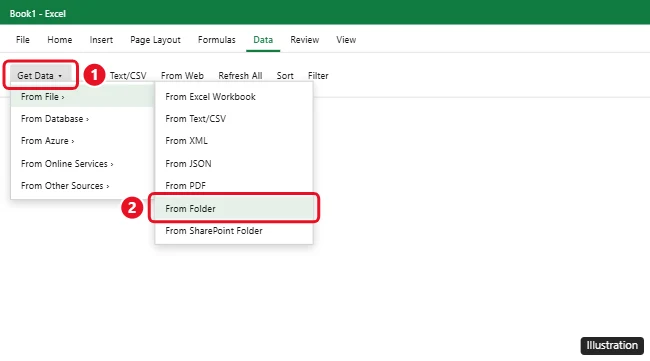
The combined table keeps one header, and Microsoft notes it adds a Source.Name column with the name of the file each row came from, which is handy for checking that every file made it in. When you add more CSV files to the folder later, select Data > Refresh All (or press Ctrl + Alt + F5) and the table picks them up. Full details are on Microsoft’s page about how to import data from a folder with multiple files.
To turn the table back into a CSV file, use File > Save As and choose a CSV format in the Save as type box. Microsoft’s import page also applies to Excel for Microsoft 365 for Mac, but the Mac menus can differ from the Windows labels above; on a Mac, the Terminal method below is the simplest route.
Methods that stack whole files
Command Prompt: join everything with copy
The copy command built into Windows can combine files. Microsoft’s copy command reference shows the syntax, with sources joined by + or picked with a wildcard and a single destination file.
- Open Command Prompt in the folder that holds your CSV files. If you haven’t done that before, see how to open a folder in Command Prompt.
- Run
copy /b *.csv combined.txtand press Enter. - Rename combined.txt to combined.csv. If you can’t see the .txt ending in File Explorer, show file extensions in Windows first.
Why /b? Microsoft says /b indicates a binary file and is the default for copy unless copy combines files. When it combines files, copy assumes they are ASCII files unless you use /b, and Microsoft says including /b prevents Windows from treating CTRL+Z as an end-of-file character. The .txt name keeps *.csv from matching the output file while the command runs.
To merge only some files, or to set the order, list them with + instead of a wildcard, for example copy /b january.csv + february.csv + march.csv q1.txt. For moving and copying files in general, see how to copy files using Command Prompt.
Mac Terminal: cat with output redirection
macOS has no merge button for CSV files, but Terminal can do the join in one line. Apple’s Terminal User Guide documents cat as a way to view text files, and it documents the > symbol for sending a command’s output to a file. Putting the two together writes every file into a new one.
- Open Terminal: open Spotlight, type Terminal, and click it (or find it in Applications > Utilities).
- Move to the folder that holds your files with
cdfollowed by the folder’s path, such ascd ~/Documents/sales-csv. - Run
cat *.csv > ../combined.csv. The merged file appears in the folder above, outside the*.csvmatch.
Like copy, cat joins whole files, so the header row repeats once per file. Delete the extra header lines as described at the end of this section. Apple’s page on how to redirect Terminal input and output covers both > and >>.
Google Sheets: import and append
If you only have a browser, Google Sheets can stack a few CSV files in one sheet.
- Create a blank spreadsheet and select File > Import. Upload the first CSV and choose Replace current sheet.
- Select File > Import again, upload the next CSV, and choose Append rows to current sheet. Google says this adds the imported data after the last row that has any data.
- Repeat for each file, leaving the separator setting on Detect automatically unless your files use something other than commas.
- Delete the header rows that came in with the second and later files.
- Download the sheet as a CSV file; see how to save a Google Sheets file as a CSV.
Google lists the import options on its help page about importing data sets in Google Sheets. This is slower than the other methods with many files because you import each one separately.
Remove the repeated headers. Because copy, cat and a Sheets append join whole files, each file’s header row comes along. Open the result in Excel, turn on a filter, filter the first column for its header text (for example “Date”), delete those rows except the first, and clear the filter. Don’t use Excel’s Remove Duplicates for this: it also deletes any genuinely identical data rows. Use Remove Duplicates in Excel only when you really want to drop repeated records.
Check and fix the merged file
| Problem | Likely cause | Fix |
|---|---|---|
| Header text appears in the middle of the data | copy, cat or a Sheets append kept every file’s header |
Filter the first column for the header text and delete those rows (keep the first) |
| The last row of one file runs into the first row of the next | That file didn’t end with a line break, and a byte-level join doesn’t add one | Use the PowerShell or Excel method, or add a line break at the end of the file and merge again |
| All the data sits in the first column | The files use a separator other than a comma, such as a semicolon | Set the delimiter in Power Query’s Combine Files dialog or the Sheets import dialog, or use the -Delimiter parameter Microsoft documents for Import-Csv and Export-Csv |
| Accented letters look garbled | Files saved with different encodings, or ASCII output in Windows PowerShell 5.1 | Add -Encoding UTF8 in PowerShell 5.1, or save all files as UTF-8 before merging |
| Leading zeros vanish or codes turn into dates | Excel converts values when it opens a CSV | Import the column as text; see how to stop Excel changing numbers to dates |
| Excel stops loading part way | A worksheet holds at most 1,048,576 rows by 16,384 columns | Split the data into smaller files, or keep the merged CSV as a file and don’t open it in a single sheet |
| The merged file contains itself | The output had a .csv name in the same folder | Delete it, then write the output to another folder or a .txt name |
The row limit comes from Microsoft’s Excel specifications and limits. On the leading-zero problem, Microsoft notes that you can make Excel run its Import Text Wizard by changing a file’s extension from .csv to .txt, which lets you set a column to Text before the data loads.
CSV merge answers
Can I merge CSV files without Excel?
Yes. Command Prompt and PowerShell are built into Windows, Terminal is built into every Mac, and Google Sheets runs in a browser. You only need Excel if you want the refreshable Power Query table or want to inspect the result in Excel.
How do I know which file each row came from?
Use the Excel Get Data method: the Source.Name column records the file name for every row. The copy, cat and PowerShell commands above don’t add a file-name column.
Can I add another file to the merged CSV later?
Yes. With the Excel method, put the new file in the folder and select Data > Refresh All. On a Mac, Apple’s Terminal guide says >> appends output to a file, so cat april.csv >> ../combined.csv adds one more file. In Command Prompt, Microsoft’s copy page shows adding to an existing file by listing it first, for example copy /b combined.csv + april.csv. With cat and copy, the new file’s header row comes along too.
Does the merged file have to end in .csv?
The contents are what make it a CSV, but apps use the extension to decide how to open a file, and Microsoft says Power Query combines files only when they share the same extension. Write it as .txt while merging if that’s safer, then rename it to .csv when you’re done.

Kermit Matthews runs Live2Tech from just outside Philadelphia. He is an IT specialist with over 20 years of experience, from a university help desk to small-business IT, IT management and his own consulting practice, and has written tech guides full time since 2020. Steps are checked against the current software on a real device or the maker’s official documentation. More about Kermit.