Crossing out text in Google Docs uses the Strikethrough format, and the menu path and shortcut you reach for depend on the device you are using. Find your device in the table below, then jump to its section. The line sits on the characters themselves, so the words stay in the document and stay readable, which is handy for an old price beside a new one or a finished item you still want to show.
Find your device first
Google Docs runs in a computer browser and in apps for Android, iPhone and iPad, and only some of those routes are spelled out in Google’s help. This table points you to the quickest documented route for each.
| You are on | Quickest route | What Google documents |
|---|---|---|
| Windows PC (Chrome, Edge or another browser) | Select the words, press Alt + Shift + 5 | Menu path and shortcut |
| Chromebook | Select the words, press Alt + Shift + 5 | Menu path and shortcut |
| Mac | Select the words, press Command + Shift + X | Menu path and shortcut |
| Android, iPhone or iPad app | Use a computer if you can’t find the option | How to reach the format options; strikethrough is not named |
On a Windows PC, Chromebook or Mac
Google’s text formatting help gives these steps for a computer.
- Open the document at docs.google.com. If you can’t place the cursor or the menus look limited, check that you have permission to edit the file (see the problems section below).
- Select the text. Drag across the words, double-click a single word, or click at the start and Shift + click at the end of a longer passage. Only the highlighted characters will get the line.
- Open the Format menu in the menu bar above the page.
- Point to Text, then choose Strikethrough. A line now runs through the selected characters.
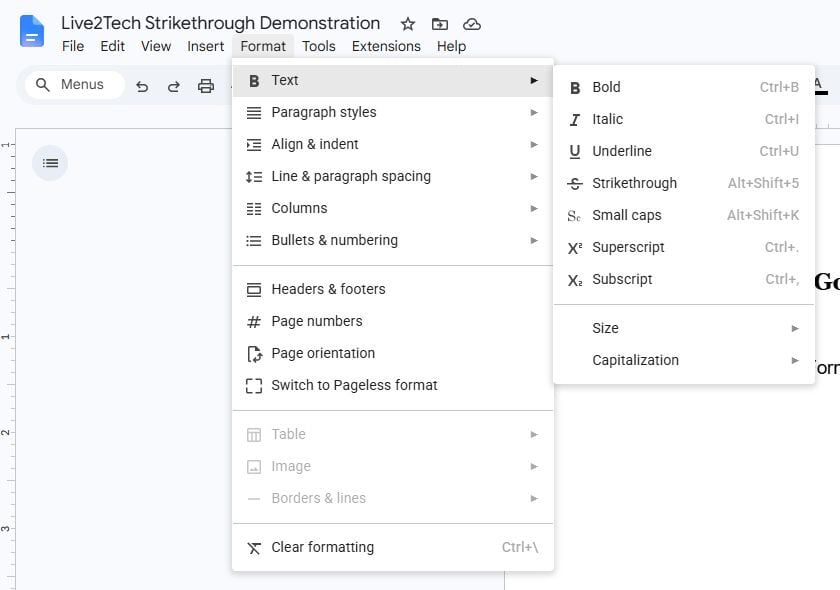
If you prefer the keyboard for the menu itself, Google lists Alt + Shift + O on Windows and Chrome OS, or Control + Option + O on a Mac, to open the Format menu.
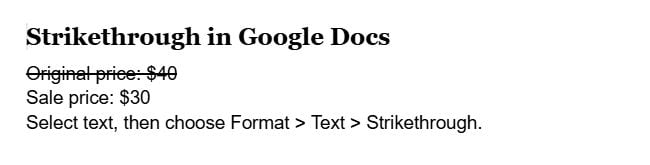
The shortcut for each computer
Select the text first, then press the keys together. These come from Google’s keyboard shortcuts list for Google Docs, which has separate sections for PC, Mac and Chrome OS.
| Computer | Strikethrough | Undo the last change |
|---|---|---|
| Windows PC | Alt + Shift + 5 | Ctrl + Z |
| Chromebook | Alt + Shift + 5 | Ctrl + Z |
| Mac | Command + Shift + X | Command + Z |
Google adds a caution worth knowing before you blame the document: “Some shortcuts might not work for all languages or keyboards.” If the keys do nothing on your layout, the Format menu always works. Google’s shortcut lists for Slides and Sheets give the same keys: Alt + Shift + 5 on a PC and Chromebook, Command + Shift + X on a Mac.
In the Google Docs app on a phone or tablet
Google’s help explains how to reach the formatting options in the apps, but neither app’s steps name a strikethrough control. So here is what Google does document, followed by an honest fallback.
On Android, Google’s Android formatting steps are:
- Open the document in the Google Docs app.
- Tap Edit.
- Double-tap where you want to edit, then move the blue markers to select more text.
- Tap Format and choose a format option.
On an iPhone or iPad, Google’s iPhone and iPad formatting steps are similar: open the document in the app, tap Edit, double-tap the place you want to edit, move the blue markers to select more text, then tap a format option.
Because Google doesn’t describe a strikethrough option in either app, this article doesn’t promise one. If you can’t find it among the format options on your device, open the same document on a computer and use the menu or shortcut above. It is the same file, so the line shows up when you open it on your phone again. Marking up a document on an iPad with a stylus is a different job; using Apple Pencil in Google Docs covers what works there.
Take the line off
There are three ways to remove a line, and they are not equal.
- Run Strikethrough again. Select the crossed-out words and choose Format > Text > Strikethrough, or press the same shortcut.
- Undo right away. If you just added the line by mistake, Ctrl + Z (Command + Z on a Mac) reverses the last change.
- Clear text formatting. Google lists Ctrl + \ on a PC and Chromebook and Command + \ on a Mac for “Clear text formatting.” As the name says, it clears the selection’s text formatting as a whole, not just the line, so bold, italics or a custom color go too. Use it when you want plain text again. Removing formatting in Google Docs explains what that reset touches.
When the line looks or acts wrong
- The shortcut does nothing. Click inside the page so the document has focus, not the browser’s address bar or a sidebar, and check the text is still highlighted. Then try the Format menu. If the menu works and the keys don’t, it is the keyboard or language caution Google mentions.
- A whole paragraph got crossed out. The selection was larger than you meant, often after a triple-click. Select only the extra words and run Strikethrough again on them.
- Nothing in Format > Text will apply. If the file was shared with you for viewing or commenting only, you generally can’t change its formatting. Ask the owner for edit access, or suggest the change instead (next section).
- You want the crossed-out words to stand out more. Pair the line with a lighter or different text color; changing font color in Google Docs shows where that control is.
A crossed-out line you didn’t add
Two other Google Docs features draw a line through text, and neither is the Strikethrough format, so running Strikethrough won’t remove them: Google’s checklist help describes creating a checklist “with or without strike-through” from Format > Bullets & numbering, and in Suggesting mode, Google’s suggested edits help says “Anything you delete will be crossed out,” with the deletion waiting for someone to accept or reject it. Adding a comment in Google Docs lets you explain a change, and telling these kinds of line apart, plus typing a line with Markdown, is the focus of adding or removing strikethrough in Google Docs. For Word, email and other apps, see crossing out a word in any app.
Line through text questions
How do I find Strikethrough if I forget where it lives?
Use Tool finder, which Google says was formerly called search the menus. Press Alt + / on a PC or Chromebook, or Option + / on a Mac, type “strikethrough,” and pick the command. It works for any menu item whose name you know.
What else is in the same Text menu?
Google’s help lists Bold, Italic, Underline and Strikethrough there, along with size and capitalization options. For raised characters such as footnote marks, see using superscript in Google Docs, and to make text larger or smaller, see changing font size in Google Docs.

Kermit Matthews runs Live2Tech from just outside Philadelphia. He is an IT specialist with over 20 years of experience, from a university help desk to small-business IT, IT management and his own consulting practice, and has written tech guides full time since 2020. Steps are checked against the current software on a real device or the maker’s official documentation. More about Kermit.