Consider what you need Windows for before anything else. A Chromebook runs ChromeOS, Google documents no way to install Windows on one, and the realistic options reach Windows apps through the browser or a remote PC instead. If your employer or school provides one, a Windows 365 Cloud PC gives you a full Windows desktop in a Chrome tab.
Pick your task in the table, then jump to that section.
Start with the Windows task you need
| What you need Windows for | Option that works on a Chromebook | What you need |
|---|---|---|
| Word, Excel or PowerPoint files | Microsoft 365 web apps in Chrome, or the Microsoft 365 app | A free Microsoft account (desktop apps need a subscription) |
| A program installed on a Windows PC you own | Chrome Remote Desktop, or Microsoft’s Windows App with Remote Desktop | That PC switched on and online; Windows Pro for Microsoft’s Remote Desktop |
| A full Windows desktop for work or school | A Windows 365 Cloud PC in the browser | An account from an organization that provides Cloud PCs |
| A Windows program your school or company delivers | Whatever app-delivery tool your administrator sets up | A managed Chromebook; ask the administrator |
| Windows installed on the Chromebook itself | No supported option | See why below |
All of these options run over an internet connection. None of them changes ChromeOS, so there’s nothing to undo if one doesn’t suit you.
Office documents: Microsoft 365 in Chrome
If “Windows” really means Word, Excel and PowerPoint, you may not need Windows at all. Microsoft’s comparison of Microsoft 365 subscriptions and free web apps explains how it works:
- In Chrome, go to Microsoft365.com and sign in with a Microsoft account (a free one works).
- Select the app you need from the app launcher.
- To open it like a regular app later, Google’s web apps help page describes selecting More > Cast, save, and share > Install page as app (on some sites an Install icon appears in the address bar instead).
Microsoft spells out the free tier: “only the free web versions of Word, Excel, and PowerPoint are available,” with security updates but no new features, no technical support and 5 GB of OneDrive storage. The full desktop apps need a Microsoft 365 subscription.
ChromeOS has its own route for files saved on the Chromebook. Google’s Office files help page says you can open Microsoft files stored on your Chromebook with the Microsoft 365 app, that OneDrive is required to open and edit files in Microsoft 365, and that Google apps on the Chromebook can also open Microsoft 365 files with no setup.
A Windows PC you already own: reach it remotely
If the program you need is already installed on a Windows PC at home or the office, you can control that PC from the Chromebook. The Windows PC does the work; the Chromebook shows its screen. The PC has to be switched on and connected for this to work.
Chrome Remote Desktop
Google documents this in its Chrome Remote Desktop help, and it works with “your Mac, Windows, or Linux computer.”
On the Windows PC:
- Open Chrome and go to remotedesktop.google.com/access.
- Under Set up Remote Access, click Download.
- Follow the onscreen directions to download and install Chrome Remote Desktop. You may have to enter your computer password.
On the Chromebook:
- Open Chrome and go to remotedesktop.google.com/access.
- Click Access to choose the computer you set up.
- Enter the PIN required to access that computer, then select the arrow to connect. The Windows desktop opens in the tab.
Google adds that “all remote desktop sessions are fully encrypted.” Treat the PIN like a password.
Microsoft Remote Desktop
Microsoft’s own Remote Desktop needs a host PC running Windows Pro. Its How to use Remote Desktop page has you check that the edition shows Windows 11 Pro, then turn Remote Desktop on in Settings > System > Remote Desktop and note the PC name. To connect from the Chromebook, Microsoft’s Windows App documentation lists Android/Chrome OS as a supported platform for remote PC connections; the web browser version of Windows App doesn’t connect to remote PCs.
Step-by-step host setup is in using Remote Desktop on Windows 11 and Windows 10. If your PC runs Windows 11 Home, Microsoft’s Remote Desktop can’t host connections; Remote Desktop options for Windows 11 Home covers what still works, and Chrome Remote Desktop above has no Pro requirement on Google’s page.
A work or school cloud PC: Windows 365
A Cloud PC is a Windows computer that runs in Microsoft’s cloud and streams to your screen. Microsoft’s Windows 365 overview describes it as a service that “automatically creates a new type of Windows virtual machine (Cloud PCs) for your end users,” sold in Business, Enterprise and other organization editions. It also says plainly: “Windows 365 isn’t currently available for individuals.” So this route depends on an employer or school that assigns you a Cloud PC.
If you have one:
- On the Chromebook, open Chrome. Microsoft’s Cloud PC access page lists ChromeOS and Chrome as supported.
- Go to windows.cloud.microsoft and sign in with your work or school account.
- Find your Cloud PC and choose to open it in the browser, then connect. Windows streams into the tab.
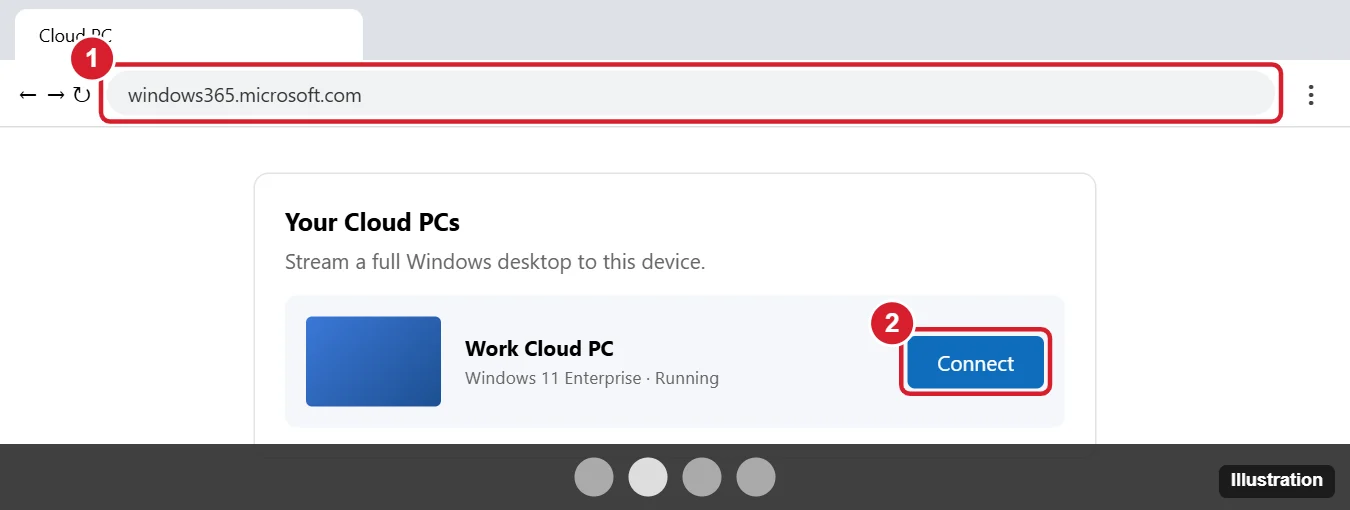
Microsoft’s Windows App for Android/Chrome OS can also open Windows 365 Cloud PCs if you prefer an app to a tab. Because the Cloud PC belongs to your organization, its IT team controls how it’s set up.
For school and company Chromebooks, Google’s Chrome Enterprise help also suggests Cameyo “as a solution for Windows app delivery using app virtualization.” That is set up by the organization, not by individual users.
What happened to Parallels Desktop for ChromeOS
Older guides, including the earlier version of this article, listed Parallels Desktop for ChromeOS as a way to run Windows locally on some business Chromebooks. That product has been discontinued. Parallels’ ChromeOS support page says “Parallels Desktop for ChromeOS is no longer for sale” and that Parallels would “provide support for existing customers until April 21, 2026.” Google’s Chrome Enterprise help page, linked above, says the product “is being discontinued” and gives the same date. It was only ever an organization-managed option that administrators enabled, so there’s nothing for a home user to buy today.
Parallels Desktop on a Mac is a different product. If you also have a Mac, see installing Windows 10 in Parallels on a Mac or running Windows programs on a Mac.
Linux and Android apps are not Windows
Two ChromeOS features sometimes get mistaken for a way to run Windows:
- Linux development environment. Google’s Linux setup page calls Linux “a feature that lets you develop software using your Chromebook.” You turn it on in Settings > About ChromeOS > Developers, next to Linux development environment, select Set up. It installs a Debian Linux environment that runs Linux apps, not Windows. Google also notes: “If you use your Chromebook at work or school, you might not be able to use Linux.”
- Android apps from Google Play. Many Chromebooks run Android apps, and an Android version of the program you need may cover the job. They’re Android apps, though, not Windows programs.
If a school or employer manages your Chromebook, its administrator controls which of these features and remote options you can use, so ask before spending time on setup. Signing out and back in with the right account matters here too; signing out of a Google Account on a Chromebook shows how.
Why there’s no supported install
Google’s Chromebook Help has no page on installing Windows, and Microsoft doesn’t document a Windows installation for Chromebooks. Tutorials that promise one rely on replacing the Chromebook’s own startup software or switching on developer features, neither of which Google or Microsoft documents for running Windows. This article doesn’t cover those methods. If you need Windows apps offline every day, a Windows laptop is the dependable answer, and on a Windows PC you can even create a virtual machine in Windows 11 for testing.
Chromebook Windows answers
Can I open .exe files on a Chromebook?
Google documents no way to do that. An .exe is a Windows program, and ChromeOS doesn’t run Windows programs. Run it on a Windows PC and reach that PC with Chrome Remote Desktop, or check whether the software has a web or Android version.
Can I use Windows 365 with a personal Microsoft account?
No. Microsoft states that “Windows 365 isn’t currently available for individuals.” Cloud PCs come through an organization’s plan, such as Windows 365 Business or Enterprise.
Do I need Windows Pro on my home PC to reach it from a Chromebook?
Only for Microsoft’s Remote Desktop, which Microsoft says needs a Pro edition on the PC you connect to. Google’s Chrome Remote Desktop help lists Windows computers without naming an edition.
Next step: pick the row in the table that matches your task, and start with the Microsoft 365 web apps if all you need is Office files.

Kermit Matthews runs Live2Tech from just outside Philadelphia. He is an IT specialist with over 20 years of experience, from a university help desk to small-business IT, IT management and his own consulting practice, and has written tech guides full time since 2020. Steps are checked against the current software on a real device or the maker’s official documentation. More about Kermit.