A line through words in Google Docs can be one of three things: strikethrough formatting, a ticked checklist item, or a suggested deletion. Each one is added and removed with a different control, so start with the table below to pick the right one.
Which kind of crossed-out line do you need?
| What you want | What to use | Where to find it |
|---|---|---|
| Cross out words but keep them readable (an old price, a dropped idea) | Strikethrough | Format > Text > Strikethrough, or Alt + Shift + 5 (Windows, ChromeOS) / ⌘ + Shift + X (Mac) |
| Take the line off again | Strikethrough a second time, or Clear text formatting | The same command, or Ctrl + \ (Windows, ChromeOS) / ⌘ + \ (Mac) |
| Tick off items in a to-do list | Checklist | The Checklist list type in the toolbar, or Format > Bullets & numbering > Checklist |
| Show someone text you think should go, without deleting it yourself | Suggesting mode | Editing > Suggesting at the top right of the document |
A crossed-out word, a ticked-off task and a proposed deletion look alike on the page, but only the first two rows are formatting that everyone who opens the file sees. The last two are features with their own controls, and they explain most lines that refuse to go away.
Cross out words as formatting
On a computer (menu and keys)
These steps are for Google Docs in a web browser on Windows, Mac or a Chromebook. Google’s help page for formatting text and paragraphs in Docs lists Strikethrough next to Bold, Italic and Underline.
- Select the words you want to cross out. To cover several lines at once, drag across all of them; for scattered words, repeat the steps for each one.
- Open the Format menu.
- Select Text.
- Choose Strikethrough. A line now runs through the selected text, and you can keep typing after it as normal.
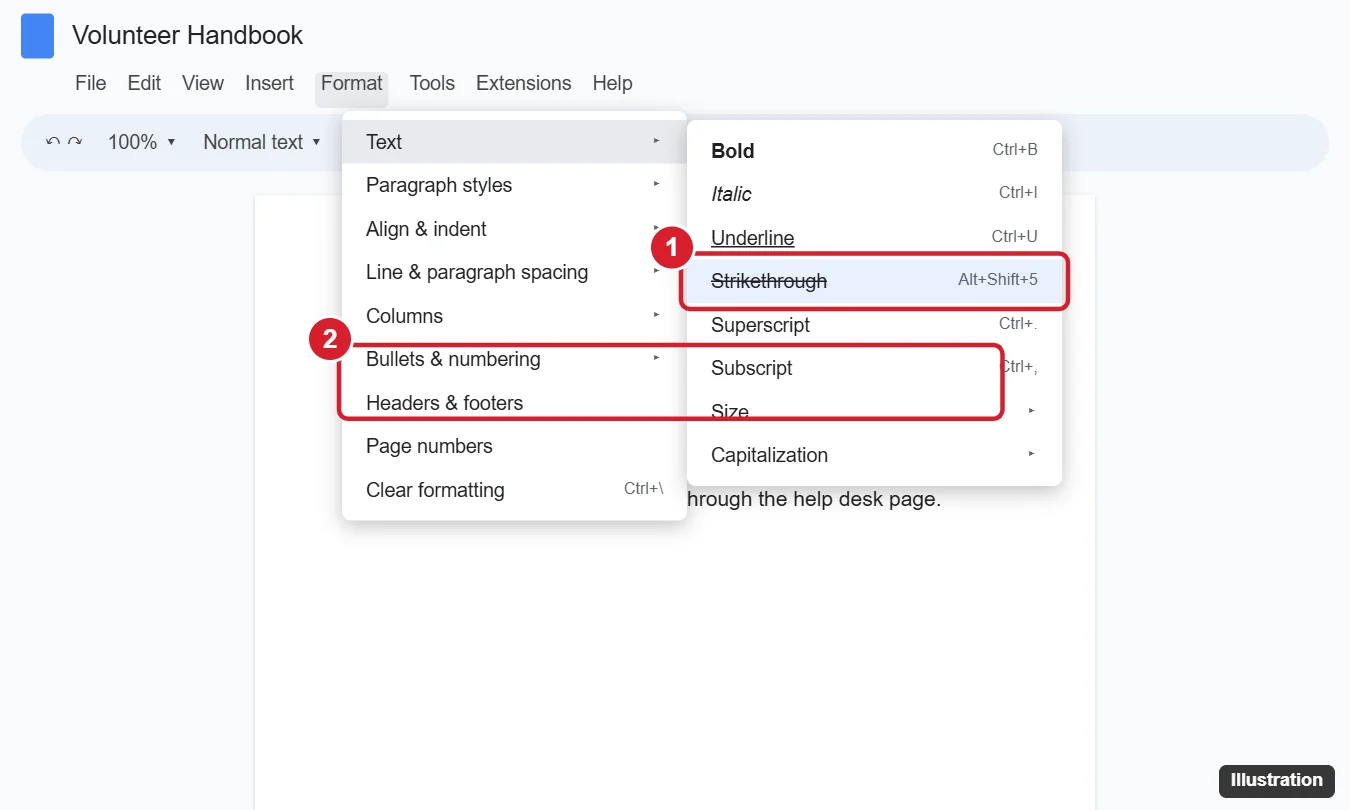
If you cross things out often, the keyboard is faster. These are the keys on Google’s Docs keyboard shortcuts list:
| Computer | Strikethrough | Open the Format menu |
|---|---|---|
| Windows | Alt + Shift + 5 | Alt + Shift + O |
| ChromeOS | Alt + Shift + 5 | Alt + Shift + O |
| Mac | ⌘ + Shift + X | Control + Option + O |
To see the full list inside a document, press Ctrl + / on Windows or ChromeOS, or ⌘ + / on a Mac. If the strikethrough keys do nothing, select the text again and use the Format menu instead; the result is the same.
In the Docs app or with an iPad keyboard
In the Google Docs app for iPhone, iPad and Android, Google’s steps for formatting are: open the document, tap Edit, double-tap the place you want to change, move the blue markers to select more text, then tap a format option. Google’s app instructions name bold, italic and underline but do not name a strikethrough button, so look for the strikethrough choice among the text formatting options the app shows. If you cannot find it on your device, open the same file on a computer and use the Format menu.
If you type on an iPad or iPhone with a hardware keyboard, Google’s iPhone and iPad shortcut list gives Option + Shift + 5 for strikethrough. That page also warns that some shortcuts might not work for all languages or keyboards.
Take it off again
There are two ways to remove strikethrough, and the right one depends on whether you want to keep the rest of the formatting.
- Remove only the line: selecting the crossed-out words and choosing Strikethrough again (or pressing the same keys) turns the line off. Bold, colors and links on that text stay as they were.
- Remove all text formatting: select the text and press Ctrl + \ on Windows or ChromeOS, or ⌘ + \ on a Mac (Windows also accepts Ctrl + Space). Google calls this Clear text formatting. It strips the line along with bold, italics and other text styling, which helps when pasted text arrives with a mix of styles. For more on that command, see removing formatting in Google Docs.
If the line will not come off, check the table above: it may be a suggested deletion or a checklist item.
Tick off a to-do list instead
For task lists, a checklist saves you from selecting and formatting each finished item by hand. Google’s page on lists in Google Docs describes the setup:
- Select the lines that should become tasks.
- In the toolbar, choose the Checklist list type. If you cannot see it, click More first.
- To turn an existing numbered or bulleted list into a checklist, click one of its numbers or bullets and go to Format > Bullets & numbering > Checklist.
- Click a box to mark the task done.
The keyboard shortcut for a checklist is Ctrl + Shift + 9 on Windows and ⌘ + Shift + 9 on a Mac. Google’s help says you can create a checklist with or without strike-through, so whether finished items get a line depends on the checklist option you pick. If Docs keeps turning lines into lists while you type, see stopping automatic lists in Google Docs.
Show a proposed deletion to someone else
When you review someone else’s writing, crossing words out with formatting leaves them guessing whether you meant it. Suggesting mode is built for this. Google’s suggested edits help explains the switch:
- At the top right of the document, click Editing.
- From the drop-down, select Suggesting.
- Delete text as usual. Anything you delete is crossed out instead of removed, and a suggestion appears in the margin.
The document owner or another editor then decides. Accept deletes the crossed-out text for good, and Reject keeps it and removes the line. To handle every suggestion at once, go to Tools > Review suggested edits and choose Accept all or Reject all. If you only want to leave a remark without changing text, add a comment in Google Docs instead.
Type it with Markdown
If you already write Markdown elsewhere, Docs can convert it as you type. Go to Tools > Preferences and check Enable Markdown. Google’s Markdown help page says strikethrough uses a single tilde on each side, so typing ~old plan~ turns into crossed-out text. Turn the box off again if the automatic changes get in the way.
Strikethrough in other apps
The menu path and keys above are specific to Google Docs. Spreadsheets handle it differently, as shown in strikethrough in Excel, and crossing out a word in other apps covers other programs you might be writing in. Related reading on this site: drawing a line through text in Google Docs.
Crossed-out text questions
How do I clear a crossed-out word that someone suggested deleting?
Accept or reject the suggestion. Accept removes the word, Reject keeps it without the line.
Does Google Docs have a double strikethrough?
Google’s formatting help lists a single Strikethrough option under Format > Text and no double version. Docs does not document a way to add a second line.

Kermit Matthews runs Live2Tech from just outside Philadelphia. He is an IT specialist with over 20 years of experience, from a university help desk to small-business IT, IT management and his own consulting practice, and has written tech guides full time since 2020. Steps are checked against the current software on a real device or the maker’s official documentation. More about Kermit.