Your last name and the page number sit together in the Google Docs header when you add a top-right page number and type your name before it. Click Insert > Page elements > Page number, choose the top-right position, then click just before the number and type your last name and a space. If the line isn’t flush right, press Ctrl + Shift + R (⌘ + Shift + R on a Mac).
What the MLA running head needs
MLA style calls this line the running head. The usual expectations are below; your instructor’s sheet wins if it says something different.
| Part | What MLA papers usually expect | Where Google Docs sets it |
|---|---|---|
| Content | Your last name, one space, then the page number | You type the name; the number is an automatic page number |
| Position | Top-right corner of every page | The page number position plus right alignment |
| Punctuation | No “p.”, comma, period or hyphen | Just a space between name and number |
| Distance from the top | Half an inch is the spacing most guides use | Format > Headers & footers > More options |
| Font | Same font and size as the paper | Select the header text and set the font |
| Page one | Usually included; some teachers prefer none on page one | The Different first page checkbox |
Add the page number, then type your last name
Before you start: Google says page numbers and headers aren’t available in pageless documents. If you see no header area, go to File > Page setup, select Pages and click OK, or click Format > Switch to Pages format. Google explains both on its pages or pageless setup page.
- Open the paper in Google Docs on a computer.
- Click Insert > Page elements > Page number.
- Choose the option that places the number at the top right of every page. Docs puts the number in the header.
- Click in the header just to the left of the number.
- Type your last name and press the Space bar once, so the line reads “Lastname 1”.
- Press Esc or click in the body text to leave the header.
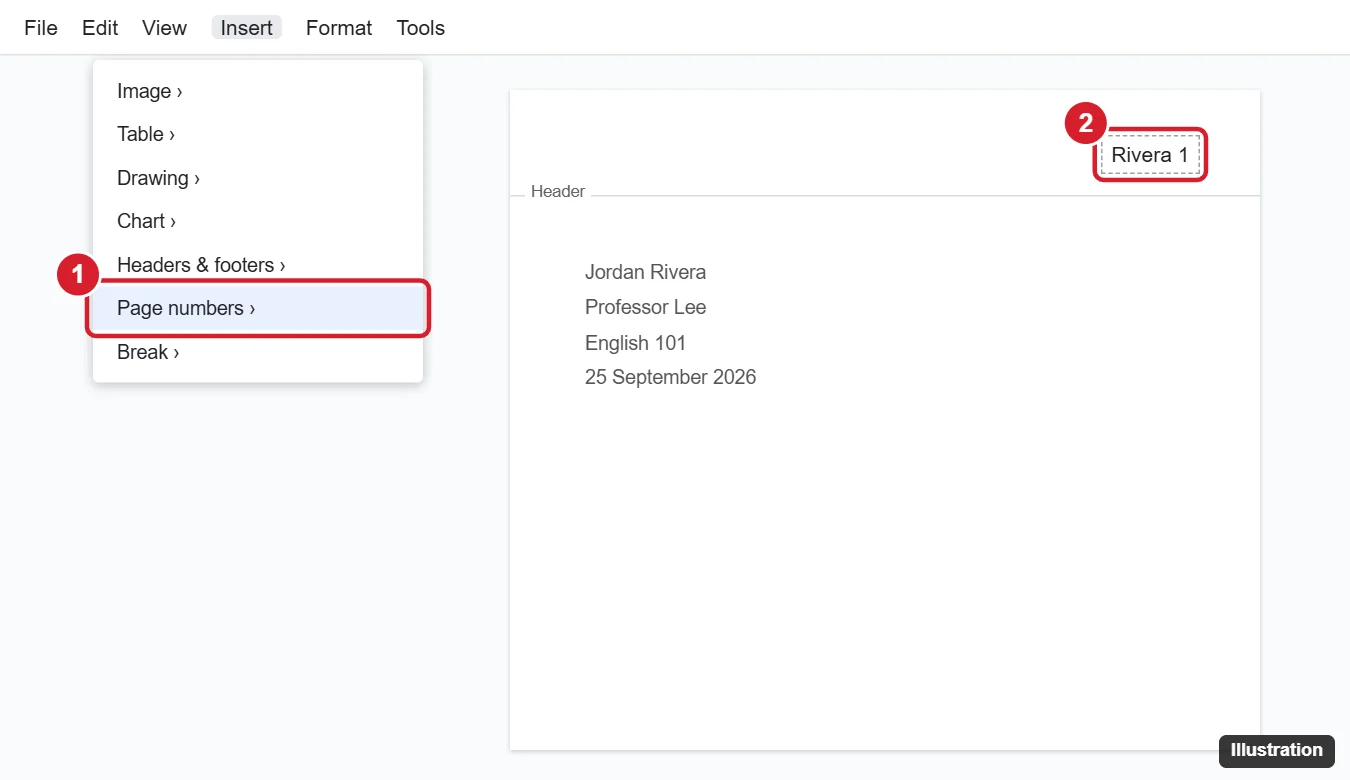
The illustration shows an older menu name; current Docs lists page numbers under Insert > Page elements. You type the name once: the header repeats on every page and the number changes by itself. Google’s headers, footers and page numbers help page has the full set of header options.
Line it up: alignment, font and header margin
- Alignment: click in the header and press Ctrl + Shift + R (⌘ + Shift + R on a Mac), the Right align shortcut on Google’s Docs keyboard shortcuts list. The right-align button in the toolbar does the same.
- Font: select the whole line, name and number together, and pick the same font and size as your paper. A number that stays in a different font usually wasn’t selected.
- Header margin: click in the header, then Format > Headers & footers > More options. Under Apply to, choose the whole document, enter your margin sizes (half an inch is common for MLA papers) and click Apply. Changing the header margin in Google Docs covers the top page margin too.
When page one should have no running head
MLA papers normally number every page, page one included, but some teachers prefer the first page without it. To leave page one blank:
- Click in the header on page one.
- Check Different first page. Google describes it as using “different headers and footers on the first page of the document or section.”
- Leave the page one header empty, and check that page two still reads “Lastname 2”.
For page numbers that start at a different page or apply only to some sections, Google points to Insert > Page elements > Page number > More options and the Apply to list. The other numbering choices are in adding Google Docs page numbers, and removing page numbers in Google Docs handles taking them off one page or all of them.
Fix a running head that doesn’t repeat or looks wrong
| What you see | Likely cause | Fix |
|---|---|---|
| Your name is on page one only | Different first page is checked, so page one has its own header | Type the name in the page two header too, or uncheck the box |
| Later pages show the number in another font | Page one has its own header (Different first page), or a section break starts a new header | Click in a later page’s header, select the name and number, and set the font there |
| No header area anywhere | The document is in pageless format | Switch to Pages format |
| A new section shows a different header | A section break separates the headers | Use Google’s Link to previous option in that section’s header |
| The number starts at 2 or higher | Numbering was set to start later | Insert > Page elements > Page number > More options |
| A big gap above the line | Large header margin | Lower it in Format > Headers & footers > More options |
If you’d rather start over with a clean top of the page, taking off the header in Google Docs removes it.
On a phone or tablet
The Google Docs app for Android, iPhone and iPad shows headers only in Print Layout. Google’s steps:
- Open the document and tap Edit.
- Tap More in the top right and turn on Print Layout.
- Tap Insert > Page Number, then choose where the numbers go and whether the first page is skipped.
- Tap the header, put the cursor before the number and type your last name and a space.
Docs running head questions
Do I put “p.” or a comma between my name and the number?
No. MLA papers usually show only your last name, one space and the number; if your instructor’s sheet says something different, follow it.
How do I show “Page 1 of 5” instead?
That isn’t MLA style, but Docs can do it: type “Page”, insert the page number, type “of”, then use Insert > Page elements > Page number > Page count. Google adds the count wherever your cursor is.
What if my class uses Microsoft Word?
Word uses a different menu; see adding your last name and page number in Word, or “Page 1 of 2” numbers in Word for handouts.
The running head is one piece of MLA layout. For margins, spacing, the first-page heading and Works Cited, see how to MLA format Google Docs.

Kermit Matthews runs Live2Tech from just outside Philadelphia. He is an IT specialist with over 20 years of experience, from a university help desk to small-business IT, IT management and his own consulting practice, and has written tech guides full time since 2020. Steps are checked against the current software on a real device or the maker’s official documentation. More about Kermit.