If text in Google Chrome is too small to read comfortably, you can make it bigger in several ways. You can enlarge text only, zoom whole pages including images, set a minimum font size, or zoom a single site. Each method suits a different need, and they can be combined. This guide covers Chrome on Windows, Mac, and Chromebook, plus Chrome on Android and iPhone, and explains which option to use when.
Quick Answer
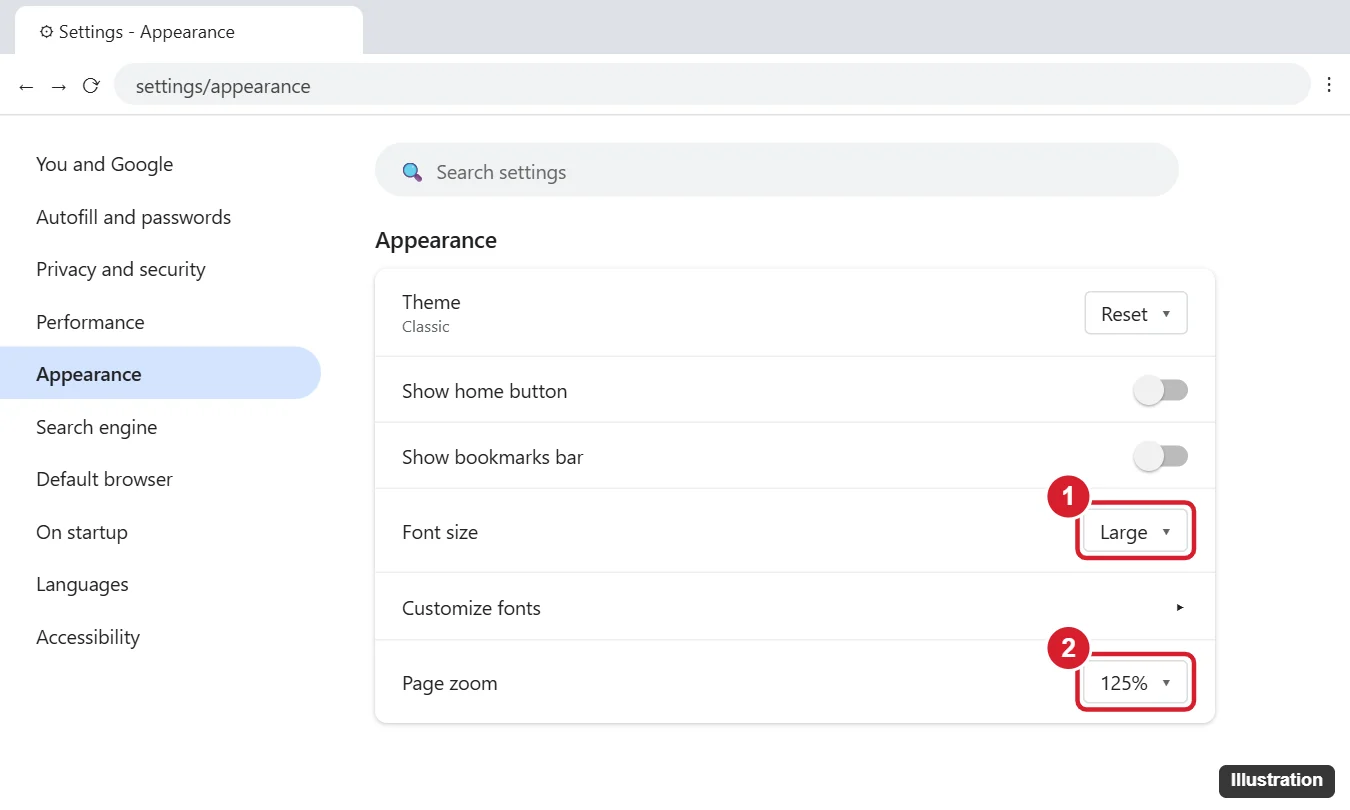
Open Chrome’s menu (⋮) and go to Settings > Appearance. Set Font size to Large or Very large to enlarge text. Or set Page zoom to 125% or more to enlarge everything. For a quick change on the current site, press Ctrl + Plus (Cmd + Plus on Mac).
Which Option Should You Use?
| Option | What gets bigger | Best for |
|---|---|---|
| Font size | Text on pages that use default font sizes | Slightly larger text without changing layouts |
| Minimum font size | Only very small text, which is raised to your minimum | Sites with tiny fine print |
| Page zoom (default) | Everything on every site | The most consistent result across the web |
| Zoom one site (Ctrl +/-) | Everything on the current site only | One site that is hard to read |
| Windows or macOS text scaling | Text across the whole computer | When every app feels too small |
Many websites set their own font sizes, which is why changing Font size alone sometimes seems to do nothing. Page zoom works on almost every site.
Make Text Bigger with Font Size (Desktop)
- Click the three-dot menu (⋮) in the top-right corner and choose Settings.
- Click Appearance in the left sidebar.
- Open the Font size menu and choose Large or Very large.
The change applies right away. You can also type chrome://settings/appearance in the address bar to go straight there.
Fine-Tune Fonts and Set a Minimum Size
- In Settings > Appearance, click Customize fonts, or go to
chrome://settings/fonts. - Drag the Font size slider for exact control over the default text size.
- Drag the Minimum font size slider to the right. Text smaller than this is enlarged.
- Optionally choose different standard, serif, sans-serif, and fixed-width fonts.
A minimum of around 12 to 14 is a good starting point. Higher values can break some page layouts.
Zoom All Pages with Page Zoom
- Go to Settings > Appearance. In some newer versions, this setting is under Accessibility instead.
- Set Page zoom to 110%, 125%, 150%, or higher.
This becomes the default for every site that you have not zoomed separately.
Zoom a Single Website
| Action | Windows / Chromebook | Mac |
|---|---|---|
| Zoom in | Ctrl + Plus (or Ctrl + scroll up) | Cmd + Plus |
| Zoom out | Ctrl + Minus | Cmd + Minus |
| Reset to default | Ctrl + 0 | Cmd + 0 |
| Full-screen | F11 | Ctrl + Cmd + F |
Chrome remembers the zoom level for each site. A magnifying glass icon appears in the address bar when a site is zoomed. Click it to see the level or reset it. To review or clear saved per-site zoom levels, go to Settings > Privacy and security > Site settings > Additional content settings > Zoom levels.
Bigger Text in Chrome on Android
- Tap ⋮ > Settings > Accessibility.
- Adjust Page zoom or Text scaling. The label depends on your Chrome version.
- Turn on Force enable zoom to pinch-zoom on sites that normally block it.
Bigger Text in Chrome on iPhone and iPad
- Tap the ⋯ menu and look for Zoom Text, then use the + and – buttons. It may be under the menu’s action list.
- Chrome on iOS also follows the system text size. Go to Settings > Display & Brightness > Text Size, or Accessibility > Display & Text Size > Larger Text.
- Pinch to zoom on any page.
Troubleshooting
Font size changed but the site looks the same
The site sets fixed font sizes. Use Page zoom or Ctrl + Plus instead.
Text is blurry or the layout is broken after zooming
Try a smaller zoom step such as 110% or 125%, or use Minimum font size instead of a large zoom.
Everything, including the Chrome toolbar, is too small
Increase your operating system’s scaling. On Windows, go to Settings > System > Display > Scale. On a Mac, go to System Settings > Displays and choose a larger text option.
One site keeps opening at the wrong size
Click the magnifying glass in the address bar and choose Reset, or remove the site from the Zoom levels list.
Related: Change the font size on your iPhone.
Frequently Asked Questions
What is the keyboard shortcut to make text bigger in Chrome?
Ctrl + Plus on Windows and Chromebook, Cmd + Plus on Mac. It zooms the current site.
Does changing Chrome’s font size affect other browsers?
No. Chrome settings only affect Chrome. They sync to other devices where you use the same Chrome profile with sync turned on.
How do I make Chrome text bigger permanently?
Set Font size or Page zoom in Settings. These are saved and apply every time you open Chrome.
Summary
- Settings > Appearance > Font size for larger text.
- Customize fonts for exact sizes and a minimum font size.
- Page zoom to enlarge everything on every site.
- Ctrl/Cmd + Plus to zoom just the current site.
- On phones, use Chrome’s Accessibility or Zoom Text options, or your system text size.

Kermit Matthews runs Live2Tech from just outside Philadelphia. He is an IT specialist with over 20 years of experience, from a university help desk to small-business IT, IT management and his own consulting practice, and has written tech guides full time since 2020. Steps are checked against the current software on a real device or the maker’s official documentation. More about Kermit.