Google Docs can’t lock a single page, but you can stop people from changing the whole document. The simplest way is to share it as Viewer or Commenter instead of Editor. On Google Workspace accounts, you can also lock the file in Google Drive (right-click it and choose File information > Lock), which blocks edits, comments, and suggestions from everyone until it’s unlocked.
If only part of the content needs protection, move that part into a separate document or save it as a PDF, and share that copy as view-only.
Quick Answer
Select Share, change each person’s role to Viewer or Commenter, and select Save. To freeze the file completely on a Workspace account, lock it from Google Drive.
Method 1: Share as View-Only
- Open the document and select Share in the top-right corner.
- Next to each person, open the role menu and choose Viewer (can only read) or Commenter (can read and comment).
- Under General access, check that link sharing isn’t set to Editor.
- Select the gear icon and clear Editors can change permissions and share if you want to keep control.
- Select Save or Done.
Method 2: Lock the File in Google Drive (Workspace)
Locking makes the document read-only for everyone, including editors. You need edit access to lock or unlock it.
- Open Google Drive.
- Right-click the document.
- Select File information, then Lock.
- Confirm by selecting Lock.
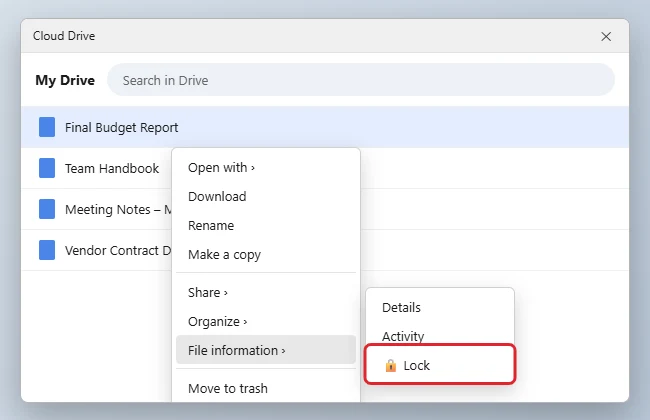
To unlock it, repeat the steps and choose Unlock. Google announced the feature in its Workspace Updates blog. If you don’t see Lock, your account type or admin settings don’t offer it.
Method 3: Protect Just One Section
Docs doesn’t have protected ranges like Google Sheets does. These workarounds get close:
- Split it out: Cut the section into its own document, share that one as view-only, and link to it from the main document.
- Use a PDF: Select File > Download > PDF Document to share a fixed copy.
- Use Suggesting mode: Share as Commenter so others can only suggest changes, which you accept or reject.
Which Option Fits?
| Goal | Best option |
|---|---|
| Others can read but not change it | Share as Viewer |
| Others can suggest changes | Share as Commenter |
| Nobody, including editors, can change it for now | Lock the file (Workspace) |
| Protect only part of the content | Move it to a separate doc or PDF |
| Stop yourself from editing by accident | Switch to Viewing mode (pencil icon in the top-right) |
Google Sheets can protect specific sheets and ranges, and removing that protection works differently. See how to unlock a Google Sheet.
Troubleshooting
- Viewers can still download or print: In Share settings, select the gear icon and clear Viewers and commenters can see the option to download, print, and copy. They can still take screenshots.
- Someone still edited it: Check File > Version history to see who changed what and restore an earlier version.
- The Lock option is missing: It’s tied to Workspace accounts and admin settings. Use view-only sharing instead.
Building a form people fill in without touching the rest? See how to create a fillable PDF form from Google Docs.
Frequently Asked Questions
Can I password-protect a Google Doc?
No. Google Docs controls access through sharing permissions, not passwords.
Does locking a file stop the owner from editing?
Yes, until someone with edit access unlocks it.
Summary
- Docs can’t lock a single page.
- Share as Viewer or Commenter to prevent edits.
- Lock the file in Drive on Workspace accounts to freeze it for everyone.
- Move sensitive sections to a separate view-only doc or PDF.

Kermit Matthews is a freelance writer based in Philadelphia, Pennsylvania with more than a decade of experience writing technology guides. He has a Bachelor’s and Master’s degree in Computer Science and has spent much of his professional career in IT management.
He specializes in writing content about iPhones, Android devices, Microsoft Office, and many other popular applications and devices.