Google Docs counts words, characters and pages for you, which is handy when an essay, article or application has a word limit. You can open the count with a shortcut, keep a live counter on screen while you type, count just a selection, and choose whether footnotes and footers are included. This guide covers all of it on a computer and in the mobile app.
Quick Answer
Press Ctrl + Shift + C (Command + Shift + C on Mac), or click Tools > Word count. Check Display word count while typing to keep a live counter in the lower-left corner.
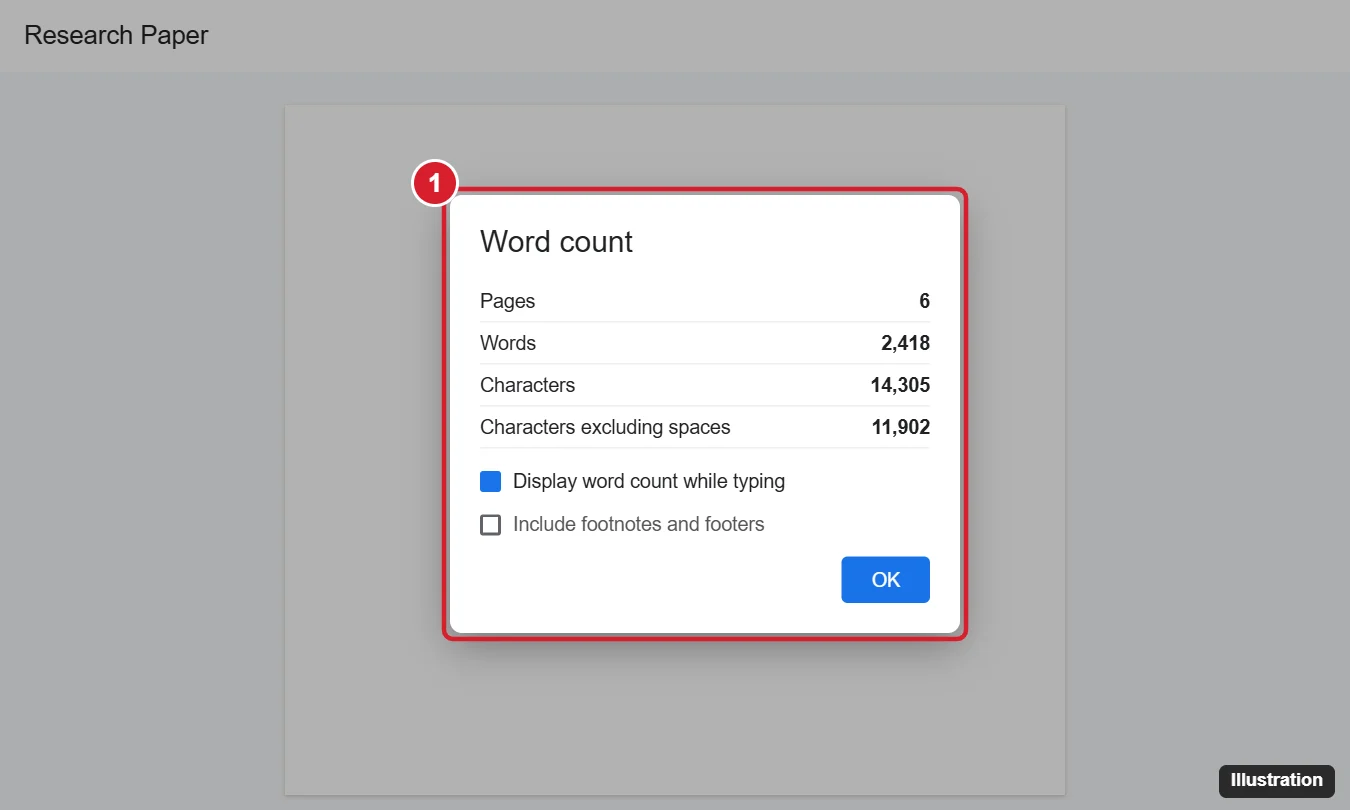
Check the Word Count
- Open your document in Google Docs.
- Click Tools > Word count, or press Ctrl + Shift + C.
- See Pages, Words, Characters and Characters excluding spaces.
Show a Live Word Count While Typing
- Open the Word count dialog.
- Check Display word count while typing and click OK.
A small box appears at the bottom left. Click it to switch between words, characters and pages, or to hide it.
Count Words in a Selection
Highlight part of the text, then open Word count. The dialog shows “X of Y words” for the selection. The live counter updates for selections too.
Include or Exclude Footnotes
By default, footnotes, headers and footers aren’t counted. In the Word count dialog, check Include footnotes and footers if your assignment requires them. See also how to include footnotes in word count in Google Docs.
Word Count on iPhone, iPad and Android
- Open the document in the Google Docs app.
- Tap ⋮ (More) at the top right.
- Tap Word count.
What Counts as a Word?
- Words are separated by spaces; hyphenated words usually count as one.
- Numbers, URLs and email-style text separated by spaces each count as words.
- Text in tables counts; text in drawings and images doesn’t.
- Counts can differ slightly from Microsoft Word, so check with the tool your teacher or editor uses.
Tips for Word Limits
- Use the live counter while writing to stay on target.
- For character limits (applications, social posts), check Characters or Characters excluding spaces as required.
- Copy only the body text into a separate document if titles and references shouldn’t count.
Frequently Asked Questions
Why is the word count different from Word?
Apps treat hyphens, dashes, symbols and some punctuation differently.
Does Google Docs count comments?
No. Comments and suggestions in the margin aren’t counted.
Can I count words in Google Slides or Sheets?
Not with a built-in tool; copy text into a Doc or use a formula in Sheets.
Summary
- Press Ctrl + Shift + C or use Tools > Word count.
- Turn on Display word count while typing.
- Select text to count part of the document.
- Include footnotes if required.

Kermit Matthews is a freelance writer based in Philadelphia, Pennsylvania with more than a decade of experience writing technology guides. He has a Bachelor’s and Master’s degree in Computer Science and has spent much of his professional career in IT management.
He specializes in writing content about iPhones, Android devices, Microsoft Office, and many other popular applications and devices.