If every new workbook starts with one sheet and you immediately add two more so each month of a quarter has its own sheet, Excel can do that for you. In Excel for Microsoft 365 on Windows (and Excel 2013 and later), open File > Options > General, find When creating new workbooks, and change Include this many sheets. New blank workbooks then open with that many sheets.
What this setting changes
The setting applies only to blank workbooks you create after changing it. Workbooks you already have, files other people send you, and workbooks created from a template keep their own sheets. Current Excel starts new workbooks with one sheet by default; Excel 2010 and earlier started with three.
Set the default number of sheets in Excel for Windows
- Open Excel and select the File tab at the top left.
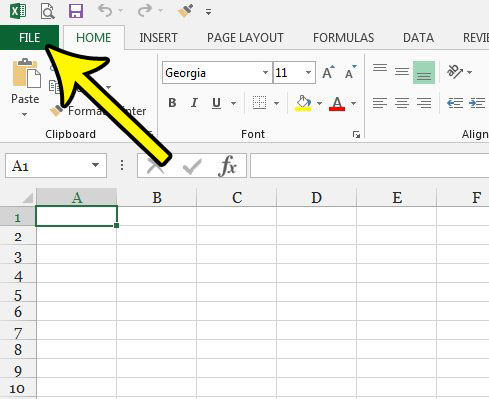
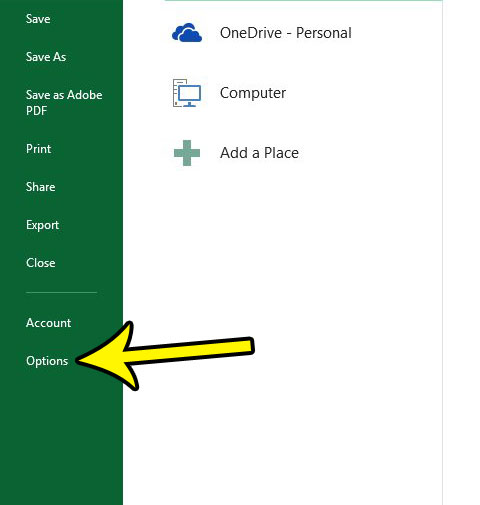
Older Excel version shown; current screens look different. - Select Options at the bottom of the left column. If you do not see it, select More first.
Older Excel version shown; current screens look different. - Make sure General is selected on the left side of the Excel Options window.
- In the When creating new workbooks section, type a number in Include this many sheets, or use the arrows.
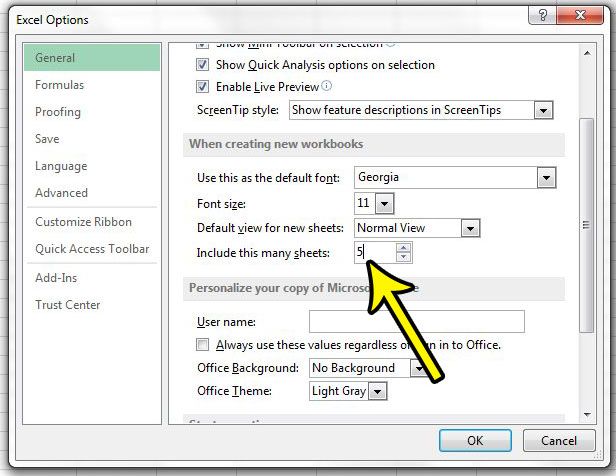
Older Excel version shown; current screens look different. - Select OK.
- Test it: select File > New > Blank workbook (or press Ctrl+N) and count the sheet tabs.
The same section also sets the default font, font size and view for new workbooks, so it is worth a look while you are there.
Excel for Mac and Excel for the web
Mac: on the Excel menu, select Preferences (Microsoft’s label; if your menu shows Settings instead, use that), then under Authoring select General and enter a number in Sheets in new workbook. Microsoft’s page on customizing how Excel starts on a Mac lists these steps.
Web: Microsoft notes that Excel for the web does not show the same startup options as the desktop app, so set the sheet count in desktop Excel. In the browser, add sheets with the plus button.
Use a Book template instead
A default workbook template controls more than the sheet count. Microsoft documents that a template can store the number and type of sheets, along with formatting, headers and other settings. This suits a team that wants every new workbook to start with, say, sheets named Jan, Feb and Mar and a standard header.
- Create a workbook with the sheets and formatting you want.
- Select File > Save As and choose Excel Template as the file type.
- Name the file Book and save it in your XLStart folder. To find that folder, go to File > Options > Trust Center > Trust Center Settings > Trusted Locations.
In Excel for Mac, select File > Save as Template, name it Book, save it in the Excel Start-up folder Microsoft lists on its Mac startup page, then close and reopen Excel.
When a Book template is in place, new blank workbooks are based on it, so its sheets can take priority over the Include this many sheets number. If the count you set is ignored, check XLStart for a Book template and delete or rename it to undo.
Add sheets quickly when you need one more
For a one-off extra sheet, select the plus (New sheet) button to the right of the sheet tabs, or press Shift+F11. More options are in inserting a new worksheet in Excel, and you can then rename the sheet tabs. If the tabs are missing altogether, see fixes for missing sheet tabs.
Older versions
Excel 2013 through 2021 use the same File > Options > General path. In Excel 2007, the setting is under the Office button > Excel Options > Popular.
New workbook questions
How do I go back to one sheet?
Repeat the steps and set Include this many sheets to 1.
Do extra empty sheets make files bigger?
Blank sheets add very little, but they can clutter printing and navigation. If unused sheets print blank pages, review Excel’s printing options, or hide sheets you are not using yet.
Set the number once, open a blank workbook to confirm, and every new file will start the way you work. Microsoft’s page on customizing how Excel starts covers the template and startup folder options in more depth.

Kermit Matthews runs Live2Tech from just outside Philadelphia. He is an IT specialist with over 20 years of experience, from a university help desk to small-business IT, IT management and his own consulting practice, and has written tech guides full time since 2020. Steps are checked against the current software on a real device or the maker’s official documentation. More about Kermit.