A worksheet tab that was there yesterday is gone, but the formulas that use it still work. The sheet is most likely hidden, not deleted. To bring it back in Excel for Microsoft 365, right-click any visible sheet tab, select Unhide, pick the sheet in the list and select OK. The rest of this page covers unhiding several sheets at once, the ribbon route, Mac and the web, and what to do when Unhide is unavailable.
Unhide a sheet from the tab bar
This route works in every current version of Excel for Windows and takes a few seconds. It does not matter which tab you right-click; the Unhide list always shows every sheet hidden the normal way.
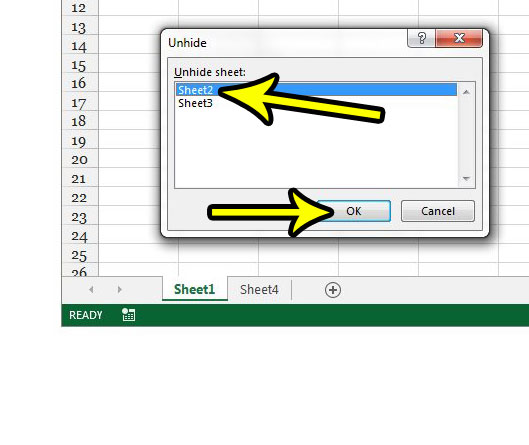
The screenshots in this section show Excel 2013. Current versions look different, but the menu names are the same.
- Open the workbook and find the row of sheet tabs at the bottom of the window, just above the status bar.

- Right-click any visible tab and select Unhide.

- In the Unhide dialog, select the sheet you want back, then select OK. The tab reappears.
If you do not see a tab bar at all, the sheets are probably not hidden. A narrow window, a resized horizontal scroll bar or a turned-off Show sheet tabs option can hide the whole bar; see these fixes for missing sheet tabs in Excel.
Bring back several sheets in one go
In Excel for Microsoft 365 the Unhide dialog accepts more than one selection, which saves repeating the steps above for each sheet. Microsoft’s hide or unhide worksheets page describes two ways to select:
- Pick individual sheets: hold Ctrl (Command on a Mac) and click each sheet name.
- Pick a block of sheets: hold Shift and use the Up and Down arrow keys to extend the selection.
For example, a budget workbook with three hidden monthly sheets (Jan, Feb and Mar) and a hidden Lookup sheet: hold Ctrl, click Jan, Feb and Mar, leave Lookup unselected and select OK. Only the three monthly tabs come back.
To show every hidden sheet, click the first name in the list, then hold Shift and press the Down arrow until the last name is selected.
Use the Home tab instead of right-clicking
If right-clicking is awkward (on a touchpad, for example), the same command is on the ribbon:
- Select the Home tab.
- In the Cells group, select Format.
- Under Visibility, point to Hide & Unhide and select the unhide sheet command (Microsoft’s page calls it Unhide; some versions label it Unhide Sheet).
- Pick the sheet or sheets and select OK.
The Hide & Unhide menu also lists rows and columns. Choosing the row or column entries here will not bring back a sheet, so pick the sheet entry.
If Unhide is greyed out, or the dialog opens but the sheet you need is missing, one of these is usually the cause. Work through them in order.
No sheets are hidden the normal way
Unhide only has something to show when at least one sheet in the active workbook is hidden. Check that you are in the right workbook (switch with View > Switch Windows if several are open), and check whether the data you are missing is really a sheet. Hidden rows and columns look similar at a glance; see how to hide and unhide rows and columns in Excel or unhide columns if that is the real problem.
The workbook structure is protected
When someone protects the workbook structure, Microsoft notes that other users cannot view hidden worksheets, or add, move, delete or hide sheets. Insert, Delete, Rename, Hide and Unhide on the tab menu stop working. To check:
- Select the Review tab.
- Look at Protect Workbook. If it appears selected (highlighted), the structure is protected.
- Select Protect Workbook again and enter the password if Excel asks for one.
- Right-click a tab and use Unhide as usual.
Excel cannot recover a lost workbook password, so if you do not have it, ask the person who protected the file. Microsoft’s protect a workbook page explains what structure protection blocks. How to apply this protection is covered in hiding a worksheet in Excel.
The sheet is very hidden
A sheet hidden through VBA can be set to very hidden (the xlSheetVeryHidden value). Microsoft states that the Unhide command will not display those sheets, so they never appear in the dialog. If the workbook came from someone else, the safest step is to ask its owner why the sheet is hidden; it may hold lookup data the author did not want edited.
If it is your own file and you need the sheet back, you can change its Visible property in the Visual Basic Editor:
- Save a copy of the workbook first.
- Press Alt+F11 to open the Visual Basic Editor (Option+F11 on a Mac).
- In the project list on the left, find the workbook and select the sheet.
- In the properties list (View > Properties Window if it is not showing), set Visible to xlSheetVisible (-1).
- Close the editor. The tab is back.
Microsoft’s XlSheetVisibility reference lists the three values: visible, hidden (unhide from the menu) and very hidden (only code or the property can show it again). If structure protection is also on, remove it first.
Unhide on a Mac or in Excel for the web
Excel for Mac: right-click (or Control-click) any visible tab, select Unhide, pick the sheet and select OK. Hold Command to pick more than one. The ribbon route is the same as on Windows: Home > Format > Visibility > Hide & Unhide > Unhide.
Excel for the web: right-click any visible tab and select Unhide, then choose the sheet. You may need edit access to the file; in a view-only copy, the tab menu may not offer it. To recover a very hidden sheet, open the file in the Excel desktop app, which has the Visual Basic Editor.
Working in Google Sheets instead? The menus differ; see how to unhide a sheet in Google Sheets.
Sometimes the whole workbook seems empty or will not show, even though it opened without errors. That is a hidden window, not a hidden sheet. In Excel for Windows, select View, then in the Window group select Unhide and pick the workbook. On a Mac the command is under the Window menu. Microsoft notes that if this Unhide is unavailable, the workbook has no hidden windows.
Older versions of Excel
Excel 2013, 2016 and other older perpetual versions use the same right-click Unhide and Home > Format route. In those versions the Unhide dialog may let you select only one sheet at a time, so repeat the steps for each sheet you need.
Unhide questions
Can I tell which sheets are hidden without unhiding them?
Yes. Right-click a tab, select Unhide, read the list and then select Cancel. Nothing changes. Very hidden sheets will not be in that list, but they do show in the project list of the Visual Basic Editor.
Will unhiding change the sheet order or names?
No. The sheet returns with its original name. If you want to tidy up afterward, you can rename a sheet tab.
With every tab back in view, you may want to print the workbook; the Excel printing guide covers page setup settings for large sheets. And if you need to add more sheets rather than reveal existing ones, see ways to insert a new worksheet in Excel.

Kermit Matthews runs Live2Tech from just outside Philadelphia. He is an IT specialist with over 20 years of experience, from a university help desk to small-business IT, IT management and his own consulting practice, and has written tech guides full time since 2020. Steps are checked against the current software on a real device or the maker’s official documentation. More about Kermit.