You print a wide sheet, pick up the stack, and the pages make no sense: every page of the left-hand columns comes first, and the right side of the report shows up at the end. Excel is following its default page order. To change it, open the Page Setup dialog, go to the Sheet tab, and choose Over, then down under Page order. The steps below cover Excel for Microsoft 365, Excel 2024 and 2021 on Windows, plus Excel for Mac.
What the two page orders do
When a worksheet is too big for one sheet of paper, Excel splits it into a grid of pages. The page order decides which direction Excel walks through that grid when it numbers and prints the pages. There are only two choices:
- Down, then over (the default): Excel prints the first column of pages from top to bottom, then moves one column of pages to the right and starts at the top again.
- Over, then down: Excel prints the first row of pages from left to right, then drops down to the next row of pages and starts at the left again.
Picture a monthly sales report with about 150 rows and 24 columns that prints as three pages tall and three pages wide. Here is how the nine pages get numbered in each order:
| Position in the grid | Left pages | Middle pages | Right pages |
|---|---|---|---|
| Top rows, Down, then over | 1 | 4 | 7 |
| Middle rows, Down, then over | 2 | 5 | 8 |
| Bottom rows, Down, then over | 3 | 6 | 9 |
| Top rows, Over, then down | 1 | 2 | 3 |
| Middle rows, Over, then down | 4 | 5 | 6 |
| Bottom rows, Over, then down | 7 | 8 | 9 |
With the default order, a reader holding pages 1 and 2 sees the same months for different customers, and has to flip to page 4 to see the rest of the first customer’s row. With Over, then down, pages 1, 2 and 3 sit side by side and form one complete band of rows, which is usually what people expect from a wide report.
A quick rule for choosing:
- Pick Over, then down for wide layouts that people read across, such as month-by-month budgets, timelines and schedules.
- Keep Down, then over for long lists where the extra columns on the right are secondary, such as an inventory list with a few notes columns.
The setting does not move your data, change the worksheet, or affect the order of worksheet tabs at the bottom of the window. It only controls how the printed pages are sequenced.
Change the page order in Excel for Windows
Microsoft documents the same path for Excel for Microsoft 365, Excel 2024 and Excel 2021. The setting belongs to one worksheet, so start on the sheet you plan to print.
- Open the workbook and click the tab of the worksheet you want to print.
- Click the Page Layout tab on the ribbon.

Older Excel version shown; current screens look different. - In the Page Setup group, click the small Dialog Box Launcher (the tiny arrow in the bottom-right corner of the group). The Page Setup dialog opens.
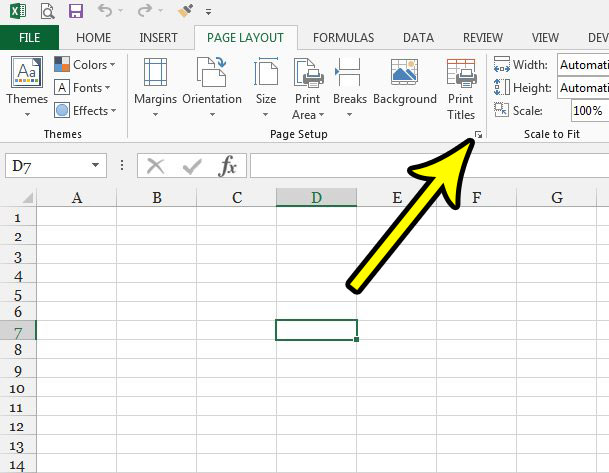
Older Excel version shown; current screens look different. - Click the Sheet tab at the top of the dialog.

Older Excel version shown; current screens look different. - Under Page order, select Over, then down (or Down, then over to go back to the default). The small preview picture next to the options shows the direction Excel will follow.
- Click OK.
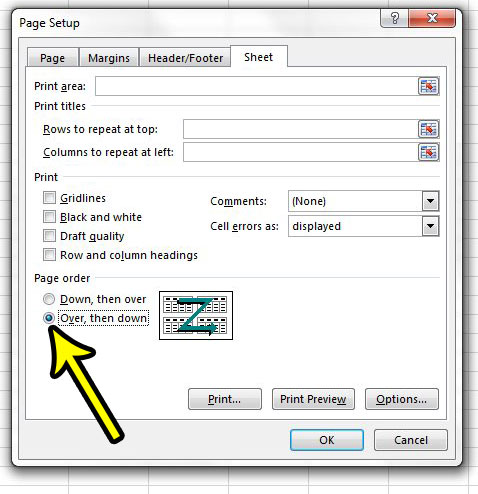
Older Excel version shown; current screens look different. - Save the workbook so the choice is still there the next time you print it.
If your workbook has several sheets that print across multiple pages, repeat the steps on each of them. Excel 2013, 2016 and 2019 use the same Page Layout tab and Sheet tab route, so the older screenshots above still match the path even though the ribbon looks different today.
Change the page order in Excel for Mac
The Mac version uses a Page Setup window with the same Sheet section.
- Open the workbook and select the worksheet you want to print.
- On the Page Layout tab, click Page Setup.
- Select Sheet.
- Under Page order, choose the order you want, then click OK.
Microsoft describes this option on the Mac as the page numbering order, which is a useful reminder that numbering and printing always change together.
Excel for the web
Excel for the web appears to offer only some Page Setup options on its Page Layout tab, and none of the Microsoft pages we checked list a page order choice for the web version. If you need Over, then down, open the file in the Excel desktop app (the Open in Desktop App option, if your account has one), change the setting there, and save. Then check the printout before relying on it.
Check the order before you print
Paper is the slowest way to find out the order is still wrong. Two quick checks help first:
- Print preview. Click File, then Print, and use the page arrows under the preview to step through the pages. Page 2 should now be the page to the right of page 1, not the one below it.
- Page Break Preview. This view, found on the View tab with the other workbook views, shows the worksheet with the page boundaries drawn on it, so you can see the whole grid of pages at once. Switch back with Normal on the same tab.
If you add page numbers in a header or footer, they follow the page order too. A footer that reads “Page 2 of 9” will appear on the top middle page with Over, then down, and on the middle left page with the default.
Settings that work well with page order
Page order decides the sequence; other settings decide how many pages there are and how readable each one is. These are worth a look when you reorder a multi-page printout:
- Repeat headings on every page. Once pages print across, the right-hand pages lose the labels in column A and the headings in row 1. Setting rows or columns to repeat keeps each page understandable. See how to print the top row on every page.
- Limit what prints. Fewer pages means less to reorder. You can set a print area or print only part of a spreadsheet.
- Start numbering at a different page. The First page number box on the Page tab of the same dialog is handy when the printout joins a larger report. Here’s how to change the first page number.
- Fix odd page boundaries. Manual page breaks change where pages split, not the direction Excel walks through them. If the grid looks wrong, remove the page breaks and let Excel recalculate them.
Orientation and scaling matter as well. Switching to landscape or shrinking the sheet can turn a three by three grid into a single row of pages, and then the page order no longer makes any difference. For a wider tour of print settings, see this complete walkthrough of printing in Excel.
Page order questions
I changed the setting but the printout looks the same. Why?
Page order only matters when the sheet is more than one page tall and more than one page wide. If everything fits in a single column of pages, or a single row of pages, both orders produce the same sequence. Check the grid in Page Break Preview.
Does page order rearrange my worksheet tabs?
No. Tab order is changed by dragging the tabs at the bottom of the window. Page order affects only printed pages from a single sheet.
Can I choose a custom order, such as page 5 before page 2?
Excel offers only the two directions. For anything else, print the pages you need as separate ranges, or rearrange the data on the sheet so it falls into the right pages.
Will a page range in the print settings use the new numbers?
Because Excel numbers the pages in the order it prints them, a range such as pages 1 to 3 should follow the new sequence. Confirm in the print preview before printing a large job.
Next time you build a wide report, set Over, then down before the first print, then turn on repeating headings so every page can stand on its own. Microsoft’s own notes on the setting are on its printing order help page, and the Mac steps appear in its article on inserting page numbers on worksheets.

Kermit Matthews runs Live2Tech from just outside Philadelphia. He is an IT specialist with over 20 years of experience, from a university help desk to small-business IT, IT management and his own consulting practice, and has written tech guides full time since 2020. Steps are checked against the current software on a real device or the maker’s official documentation. More about Kermit.