Thin system text can be hard to read in bright sunlight, on a dim screen at night, or when your eyes are tired at the end of the day. To make it heavier, open Settings > Accessibility > Display & Text Size and turn on Bold Text. The switch thickens the letters across your iPhone’s menus and supporting apps; it does not make text bigger, and it does not change anything other people see in your messages or documents.
Turn on Bold Text in Settings
These steps match Apple’s current instructions for iPhone. The screenshots below come from an older version of iOS, so your screens will look different, but the switch has the same name.
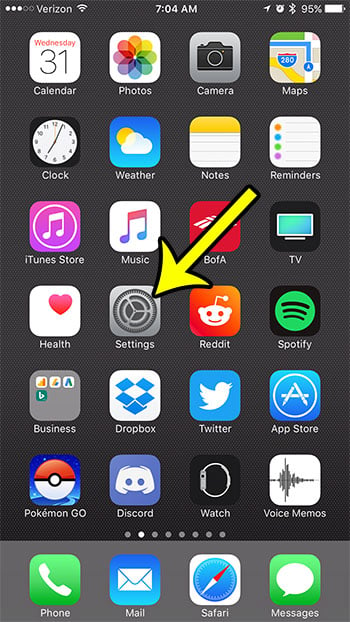
- Open the Settings app from your Home Screen or App Library.
How to Turn On Bold Text on iPhone 6 - Tap Accessibility. If you can’t spot it, type “bold” into the search field at the top of Settings and tap the Bold Text result.
- Tap Display & Text Size.
- Tap the switch next to Bold Text to turn it on.

How to Turn On Bold Text on iPhone 7
Apple’s current guide, Make text easier to read on iPhone, describes this as making text heavier and does not mention a restart.
If your iPhone runs an older version of iOS
Older iOS releases put the switch in different places, which is why some instructions you find online don’t match your phone:
- Display & Brightness: around iOS 10, Bold Text sat on the Settings > Display & Brightness screen, as in the older screenshot below.
- General > Accessibility: on older releases, Accessibility lived inside General instead of on the main Settings list.
- Restart prompt: those older versions asked you to tap Continue so the phone could restart and redraw the text in bold.


Both images above show the older layout and the older restart prompt. On current versions of iOS, use the Accessibility path from the first section, or search Settings for “bold.”
What Bold Text changes, and what it leaves alone
Apple’s display accommodations article sums the setting up in three words: “Makes text bold.” Apple doesn’t list where it applies. You’ll see heavier text in Settings and Apple’s apps; third-party apps may not change, depending on how each app draws its text.
Bold Text is a display setting on your device only. It does not add bold formatting to anything you type, so a friend reading your text message still sees the normal weight on their phone. It also does not change text size; that is a separate control on the same screen.
Turn Bold Text off again
Go back to Settings > Accessibility > Display & Text Size and tap the Bold Text switch so it turns gray. Nothing else on your phone is affected, so it is safe to try the setting for a day or two and switch it off if you prefer the lighter look.
Other settings on the Display & Text Size screen
If bold letters help but don’t solve the problem, the same screen has more options. Apple lists these alongside Bold Text:
| Setting | What it does | Try it when |
|---|---|---|
| Larger Text | A slider for text size in apps that support Dynamic Type; turn on Larger Accessibility Sizes for even bigger steps | Text is heavy enough but too small |
| Button Shapes | Adds shapes to buttons, such as an underline beneath Back buttons | You can’t tell which words are tappable |
| On/Off Labels | Adds on/off labels to the switches on settings screens | Green and gray switches are hard to tell apart |
| Increase Contrast | Improves color contrast between app content and its background | Gray text on light backgrounds looks washed out |
| Reduce Transparency | Reduces transparency and blur on some backgrounds | Text over blurred backgrounds is hard to pick out |
For a full walkthrough of size changes, see how to make the font bigger on your iPhone, or the shorter piece on how to change font size on an iPhone. You can also add a Text Size control to Control Center for quick changes: open Control Center, tap the add icon in the top-left corner, tap Add a Control, then choose Text Size. The Button Shapes setting explained covers that option in detail, and when even large text isn’t enough, the Zoom accessibility feature magnifies part of the screen.
Can you bold text for just one app?
Apple offers per-app display settings at Settings > Accessibility > Per-App Settings: tap Add App, choose an app, then change its options. Apple’s per-app settings guide describes these as color, text size and motion settings and does not list Bold Text among them, so treat Bold Text as a whole-phone switch. Per-App Settings is still useful if one app needs larger text while the rest of your phone stays as it is.
Bold a word in a note, email or message
If you meant bold formatting inside something you’re writing, that is a different feature. The Bold Text switch won’t help; you format the words themselves.
Notes
- Double-tap a word, or drag the selection handles over the text you want.
- Tap the formatting button (Apple’s guide shows it as an icon).
- Choose the bold style. Apple’s Notes formatting guide lists headings, bold, italic and highlighting among the options.
While writing an email, select the text, tap the formatting button above the keyboard, then choose bold. The same panel offers italic, font and color changes and lists.
Messages
On iOS 18 and later, select the words in your message, tap the formatting button above the keyboard, then pick bold, italic, underline or strikethrough (the same panel also holds animated effects). Apple’s guide to formatting text in Messages notes that you and your recipients must use iMessage; in an SMS or other plain-text conversation the message arrives without formatting.
Bold Text on iPhone: questions
Why does one app still look thin?
The app probably draws text with its own fonts instead of the system’s text styles, so it ignores the setting. Check the app’s own display or font options.
Does Bold Text work on iPad?
Yes. Apple’s display accommodations article covers iPhone, iPad and iPod touch, and the switch sits at the same Settings > Accessibility > Display & Text Size path on iPad.
Does my Apple Watch follow the iPhone setting?
No, the watch has its own switch. See how to turn on Bold Text on an Apple Watch.
Once Bold Text is on, spend a few minutes in your most-used apps and decide whether you also want larger text or higher contrast. If formatting text is what you’re after on a computer, the guide to curving text in Microsoft Word covers a related (if very different) Word effect.

Kermit Matthews runs Live2Tech from just outside Philadelphia. He is an IT specialist with over 20 years of experience, from a university help desk to small-business IT, IT management and his own consulting practice, and has written tech guides full time since 2020. Steps are checked against the current software on a real device or the maker’s official documentation. More about Kermit.