If small text is a problem in every app, not just one, a single slider fixes most of it: Text Size, in Settings > Appearance on iOS 27 and Settings > Display & Brightness on iOS 26 and earlier. When its largest setting is still too small, Larger Text in Accessibility goes further; Bold Text makes letters heavier, and Display Zoom enlarges icons and buttons too. If only one app is the trouble, the one-app section below leaves the rest alone.
Where the text settings live in your iOS version
Apple moved the main text controls in iOS 27. If your Settings app has an Appearance item, use the iOS 27 column; if it does not, you are on iOS 26 or earlier and the controls are in Display & Brightness.
| Setting | What it does | iOS 27 | iOS 26 and earlier |
|---|---|---|---|
| Text Size | Sets one preferred text size for supported apps | Settings > Appearance > Text Size | Settings > Display & Brightness > Text Size |
| Larger Text | Adds sizes beyond the normal maximum | Settings > Accessibility > Display & Text Size > Larger Text (same in both) | |
| Bold Text | Makes letters heavier | Settings > Appearance > Bold Text | Settings > Display & Brightness > Bold Text |
| Display Zoom | Enlarges text, icons, and buttons together | Settings > Appearance > Display Zoom | Settings > Display & Brightness > Display Zoom |
| Text Size control | Changes text size from Control Center while you are in an app | Control Center (add the Text Size control if it is missing) | |
A good order to try them: Text Size first, Larger Text if you hit the end of the slider, Bold Text if letters look thin at any size, and Display Zoom only if the buttons and icons are also hard to see.
Set the system text size
Text Size changes the type in Apple’s own apps (Apple names Calendar, Mail, Messages, Notes, and Settings, among others) and in other apps built to follow Apple’s Dynamic Type system. You see a preview as you drag, so you can stop at the size that reads comfortably.
On iOS 27
- Open the Settings app.
- Tap Appearance.
- Tap Text Size.
- Drag the slider to the right to make text bigger (left makes it smaller).
On iOS 26 and earlier
- Open Settings.
- Tap Display & Brightness.
- Tap Text Size.
- Drag the slider to the right.
Apple’s own caution applies here: text that is very large can make buttons harder to tap, so open a couple of apps you use every day before you settle on the size. For a walkthrough written for iOS 17, see changing font size on an iPhone in iOS 17; owners of that model can also follow how to make the font larger on an iPhone 14.
Go past the maximum with Larger Text
The standard slider stops at a size that is still small for some readers. The accessibility version goes further, and its location did not change in iOS 27.
- Go to Settings > Accessibility > Display & Text Size.
- Tap Larger Text.
- Turn on Larger Accessibility Sizes for the extra sizes.
- Drag the slider at the bottom until the sample text is easy to read.
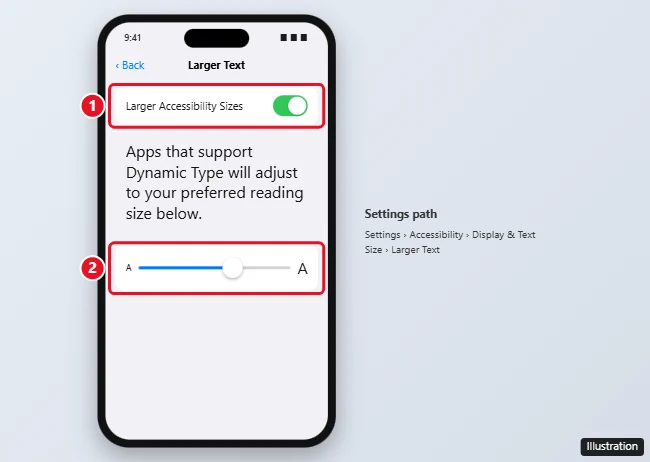
At the largest sizes, some screens show fewer items at once and long labels may wrap or get shortened. Step down one or two notches if menus start to feel cramped.
Bigger text in one app only
Sometimes only one app is the problem, such as a news reader with small type. There are two Apple routes that leave the rest of the iPhone alone.
Change the size while the app is open
- Open the app you want to change.
- Open Control Center and adjust the Text Size slider.
- If the slider is not there, tap the add button in the top-left corner of Control Center, tap Add a Control, then tap the Text Size control. Open the app again and repeat step 2.
- If your iOS version shows a choice below the slider between the current app and all apps, pick the one you want.
This is the fastest way to bump up the size for a single reading session and put it back afterward.
Give one app its own size in Accessibility
- Go to Settings > Accessibility > Per-App Settings.
- Tap Add App and choose the app from the list.
- Tap the app’s name to open its settings and change its text size.
Per-App Settings also holds that app’s color and motion options, so it is the place to look later if one app looks different from the rest.
When size alone is not enough: weight and zoom
Two more settings help when bigger letters are not the whole fix: one changes how heavy the letters are, the other enlarges the whole interface.
Make letters thicker with Bold Text
Thin letters can be hard to read even when they are big. Bold Text makes every letter heavier without changing its size:
- iOS 27: Settings > Appearance, then turn on Bold Text.
- iOS 26 and earlier: Settings > Display & Brightness, then turn on Bold Text.
- Any recent version: the same switch also appears in Settings > Accessibility > Display & Text Size.
Bold Text works alongside any text size. For screenshots and older-iOS locations, see how to turn on Bold Text on iPhone.
Enlarge buttons and icons too with Display Zoom
Text Size and Larger Text only change the words. Display Zoom makes text bigger along with interface elements such as icons and buttons, which helps if you also miss taps. Start in Settings > Appearance on iOS 27, or Settings > Display & Brightness on iOS 26 and earlier, then:
- Tap Display Zoom.
- Tap Larger Text.
- Tap the confirm button at the top, then tap Use Zoomed.
Because everything is larger, each screen shows a little less at once. For more on that trade-off, see how to make app icons bigger with Display Zoom.
Magnify only when you need it
If you only struggle with fine print now and then, a magnifying tool can be better than making everything permanently larger:
- Hover Text lets you temporarily hover on text to see it larger. Apple lists it with the other options for making text easier to read.
- Zoom (in Settings > Accessibility) magnifies part or all of the screen; see how to zoom in on the iPhone screen and how to zoom back out.
- Magnifier is an Apple app that uses the camera to enlarge printed text, such as a menu or a medicine label.
Undo the change or fix text that did not grow
- Text too big now: go back to Text Size (or Larger Text) and drag the slider left. Turning off Larger Accessibility Sizes removes the extra-large steps.
- Display Zoom feels crowded: return to Display Zoom, pick the standard view instead of Larger Text, and confirm.
- One app looks different: check Per-App Settings for that app and set its text size back to the default.
- An app ignored the change: Apple says Text Size applies to supported apps. If an app does not follow it, look for a text size option inside that app’s own settings.
- Web pages still small in Safari: Apple’s Safari guide says to tap the Page Menu button on the left side of the search field, tap Page Zoom, then tap the large A to increase the font size.
- Web pages still small in Chrome: the browser has its own text controls; see how to use a bigger font size in Google Chrome.
iPhone text size answers
What is Dynamic Type?
It is Apple’s system that lets one preferred text size carry across every app built to support it. When you move the Text Size slider, Dynamic Type is what passes that choice to Mail, Messages, Notes, Settings, and compatible apps from other developers.
Apple’s current wording for each setting is on its pages for display and text settings in iOS 27, the same settings in iOS 26, making text easier to read, per-app visual settings, and Safari settings, including Page Zoom, plus its font size support article.

Kermit Matthews runs Live2Tech from just outside Philadelphia. He is an IT specialist with over 20 years of experience, from a university help desk to small-business IT, IT management and his own consulting practice, and has written tech guides full time since 2020. Steps are checked against the current software on a real device or the maker’s official documentation. More about Kermit.