The small red dot at the top of your Apple Watch face means you have unread notifications. It’s handy if you want to know something’s waiting, but distracting if you’d rather keep a clean watch face. You can turn the indicator off completely, clear it by dealing with your notifications, or reduce how many apps send notifications to the watch. This guide covers all three.
Quick Answer
On your iPhone, open the Watch app, tap Notifications, and turn off Notification Indicator. Or on the watch, open Settings > Notifications and turn off Notification Indicator. Notifications still arrive; the red dot just won’t appear.
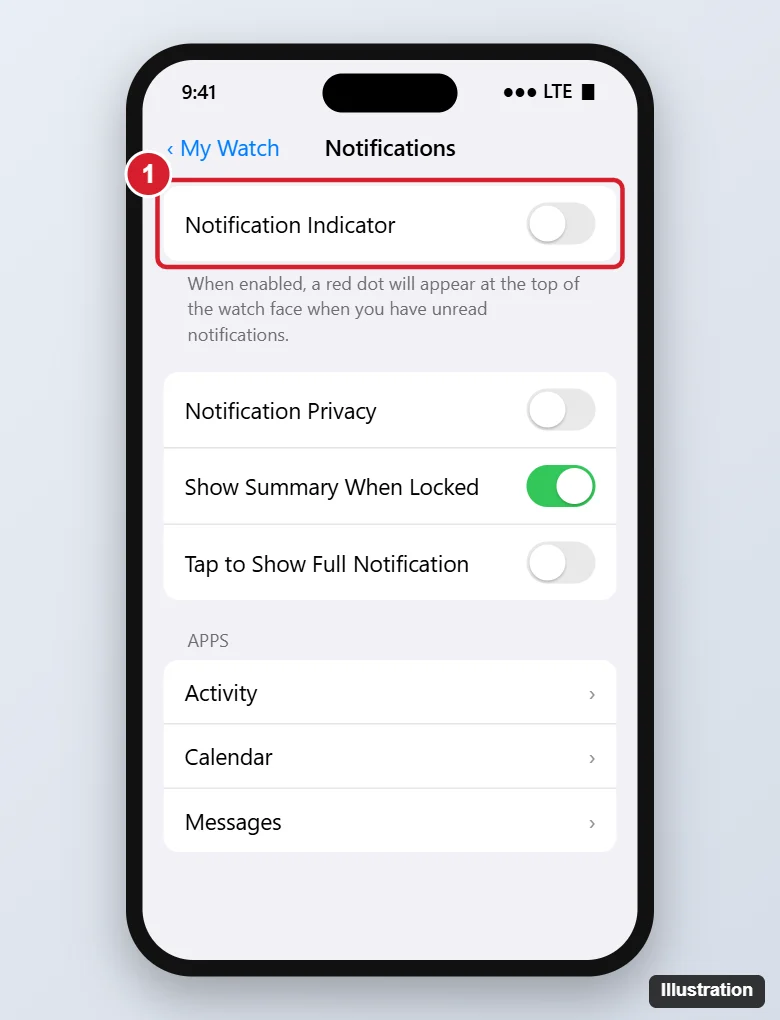
Turn Off the Red Dot From Your iPhone
- Open the Watch app on your iPhone.
- Tap the My Watch tab.
- Tap Notifications.
- Turn off Notification Indicator.
Turn It Off on the Apple Watch
- Press the Digital Crown and open Settings.
- Tap Notifications.
- Turn off Notification Indicator.
Clear the Red Dot Without Turning It Off
- On the watch face, swipe down from the top to open Notification Center.
- Tap notifications to read them, or swipe left on one and tap X to clear it.
- To clear everything, scroll to the top and tap Clear All (on older watchOS, firmly press the screen and tap Clear All).
The red dot disappears once there are no unread notifications.
Get Fewer Notifications on Your Watch
- Stop mirroring an app: in the Watch app, go to Notifications, tap an app, and choose Custom > Notifications Off (or turn off mirroring for third-party apps under Mirror iPhone Alerts From).
- Use Focus: Focus modes you set on iPhone apply to the watch, silencing notifications during work, sleep, or driving.
- Notifications go to your iPhone first: when your iPhone is unlocked and in use, notifications usually appear there instead of the watch.
Other Red Icons on Apple Watch
- Red lightning bolt: low battery. Charge the watch.
- Red iPhone with a slash: the watch is disconnected from your iPhone.
- Red dot on an app icon or complication: that app has unread items, separate from the indicator setting.
Frequently Asked Questions
Will turning off the indicator stop notifications?
No. You’ll still feel and hear notifications; only the red dot on the watch face goes away.
Why does the red dot keep coming back?
New notifications arrive and stay unread. Clear them in Notification Center, or turn the indicator off.
Does this work on all Apple Watch models?
Yes. The setting is available on all current watchOS versions, though menu wording can vary slightly.
Summary
- iPhone: Watch app > My Watch > Notifications > Notification Indicator off.
- Watch: Settings > Notifications > Notification Indicator off.
- Or clear notifications by swiping down and tapping Clear All.

Kermit Matthews is a freelance writer based in Philadelphia, Pennsylvania with more than a decade of experience writing technology guides. He has a Bachelor’s and Master’s degree in Computer Science and has spent much of his professional career in IT management.
He specializes in writing content about iPhones, Android devices, Microsoft Office, and many other popular applications and devices.