You type a name or a bit of slang, press Space, and your iPhone swaps it for a word you never meant. If that keeps happening, the fix is one switch: open Settings, tap General, tap Keyboard, and turn off Auto-Correction. This works on current and older versions of iOS, in every app that uses the built-in keyboard. If only one word is the problem, you can also fix that word and leave the rest of autocorrect alone.
Turn off Auto-Correction in Settings
Auto-Correction is on by default. It compares what you type with the keyboard dictionary and swaps in the word it thinks you meant. Turning it off stops those swaps everywhere the Apple keyboard appears, including Messages, Mail, Notes and Safari.
- Open the Settings app from your Home Screen.
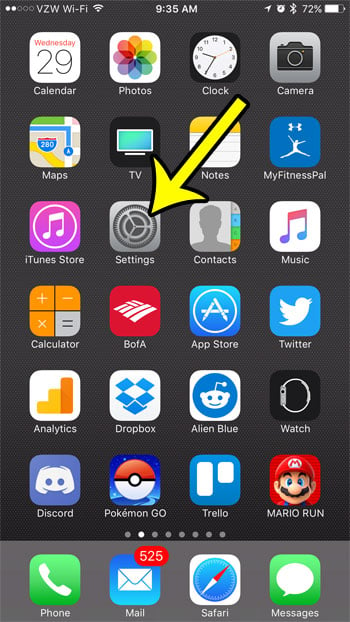
Older iOS version shown; current screens look different. - Tap General.
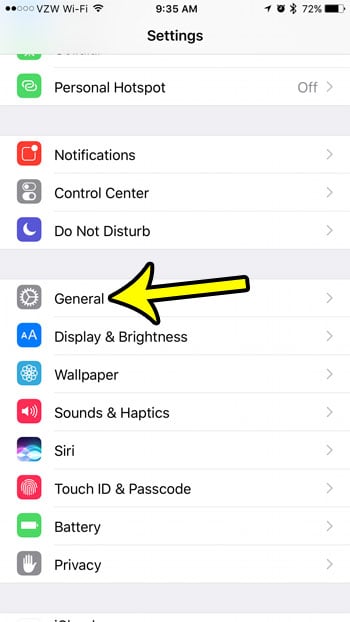
Older iOS version shown; current screens look different. - Scroll down and tap Keyboard.
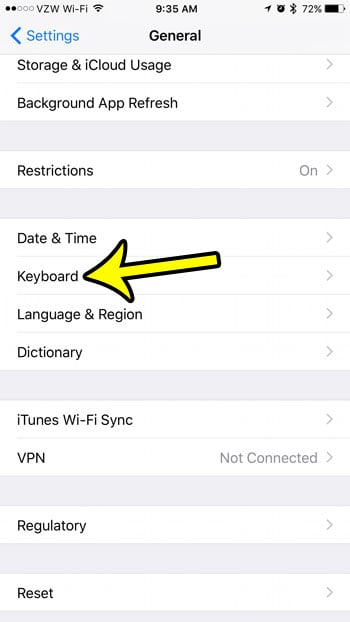
Older iOS version shown; current screens look different. - Under All Keyboards, tap the switch next to Auto-Correction so it is no longer green.
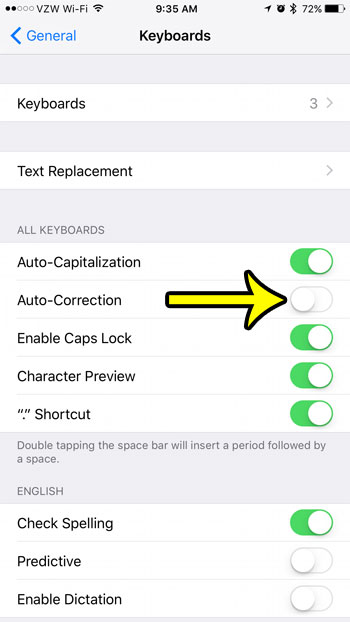
Older iOS version shown; current screens look different.
There is no Save button. The change applies the moment you flip the switch, so you can go straight back to the app you were typing in and check it. Type a deliberate misspelling such as “teh” and press Space: with Auto-Correction off, the word stays exactly as typed.
Jump to Keyboard settings without leaving your app
If you are in the middle of a message, you do not need to hunt through Settings. Apple documents a shortcut from the keyboard itself:
- With the keyboard on screen, touch and hold the globe key or the emoji (smiley face) key at the bottom left.
- Tap Keyboard Settings in the menu that appears.
- Turn off Auto-Correction, then return to your app.
This opens the same Keyboard screen as the Settings route, so the result is identical. It is simply faster when a correction has just annoyed you.
Which keyboard switch does what
The Keyboard screen holds several typing helpers, and people often turn off the wrong one. Auto-Correction is the only switch that replaces a finished word on its own. The others suggest, underline, capitalize or reformat. Exact labels can vary slightly between iOS versions.
| Switch | What it does | Turn it off if |
|---|---|---|
| Auto-Correction | Replaces words it thinks are misspelled when you press Space or punctuation | Words change after you type them |
| Predictive (or Predictive Text) | Shows suggested words in the bar above the keys; nothing changes unless you tap one | You keep tapping suggestions by accident or want a cleaner keyboard |
| Inline predictive text (iOS 18 and later) | Shows a suggested completion inline, where you are typing | Suggested text ahead of your cursor is distracting |
| Check Spelling | Underlines words it does not recognize in red | You do not want any spelling marks at all |
| Auto-Capitalization | Capitalizes the start of sentences | You prefer to type in lowercase |
| Smart Punctuation | Changes straight quotes to curly quotes and some dashes | Code, passwords or plain quotes get altered |
| Enable Caps Lock | Lets a double tap on Shift lock capitals | You keep locking capitals by accident |
| “.” Shortcut | Types a period and a space when you double-tap the Space bar | Stray periods appear in your text |
| Slide to Type and Delete Slide-to-Type by Word | Let you type by sliding across the letters, and control how a slid word is deleted | Swiping produces the wrong words |
| Character Preview | Shows a larger preview of each key as you tap it | You find the pop-ups distracting |
A useful combination for many people: turn off Auto-Correction but leave Check Spelling on. Your words are never changed, yet typos still get a red underline so you can fix them yourself. If the suggestion bar is the real annoyance, see how to shut off predictive typing. For extra periods, follow the steps to turn off the double-space period shortcut.
Fix one stubborn correction and keep the rest
Autocorrect still catches plenty of genuine typos, so switching it off completely is not always the best trade. If the trouble is a single name, slang term or work acronym, try one of these first.
Undo a correction right after it happens
On iOS 17 and later, Apple says a word that was just corrected is briefly underlined. Tap the underlined word, then choose an option from the pop-up menu, such as the word you originally typed.
On older versions, delete the corrected word and retype it, or save the word with Text Replacement as described next.
Add the word with Text Replacement
Text Replacement lets you store a phrase and a shortcut that expands into it. You can also use it to save a word or name you type often.
- Go to Settings > General > Keyboard > Text Replacement.
- Tap the Add button (the plus sign).
- Type the word or phrase in Phrase and a shortcut in Shortcut.
- Tap Save.
For example, someone who works on a project called “Zentrix” can save that name as a phrase with a short shortcut that expands into it. To remove an entry later, open Text Replacement, tap Edit, tap the Remove button beside the entry, tap Delete, then tap Done. There are more options in the walkthrough on how to add a word to the iPhone dictionary.
Clear words the keyboard has learned
Sometimes the keyboard learns a mistake, such as a typo you accepted many times, and keeps offering it. Resetting the keyboard dictionary clears those learned words.
Before you do this, know that it removes every word the keyboard has picked up from your typing, including correct names and slang you rely on. On current versions of iOS the option is usually found at Settings > General > Transfer or Reset iPhone > Reset > Reset Keyboard Dictionary. On older versions it sits under Settings > General > Reset. More detail is in the guide to resetting the keyboard on iPhone.
Words still change after you turn it off
If text keeps changing with Auto-Correction off, one of these is usually responsible:
- Text Replacement entries. An old shortcut can expand into a phrase whenever you type it. Check the Text Replacement list and delete anything you do not recognize.
- Smart Punctuation. If quotes or dashes change, this switch is the cause, not autocorrect.
- Predictive suggestions. Tapping the suggestion bar by accident inserts a different word. Turn off Predictive if this keeps happening.
- A third-party keyboard. Keyboards from other developers have their own settings, so check the keyboard’s own app. The iPhone switch only controls the Apple keyboard.
Turning autocorrect back on
If you miss the help later, return to Settings > General > Keyboard and turn Auto-Correction on again. There is a separate walkthrough on how to enable autocorrect on iPhone that covers turning it back on.
Autocorrect questions
Does turning off Auto-Correction affect every app?
It affects every app that uses the Apple keyboard, because the setting is system-wide. Third-party keyboards follow their own settings.
Can I keep autocorrect for one language and turn it off for another?
Apple’s Keyboard settings show a single Auto-Correction switch under All Keyboards, so the choice applies to all of your keyboard languages at once.
Will turning it off erase the words my iPhone learned?
Turning the switch off only stops automatic replacements. Resetting the keyboard dictionary is the option that clears learned words.
Does turning off Auto-Correction also turn off predictive text?
No. Predictive (or Predictive Text) is a separate switch on the same Keyboard screen, so suggestions keep appearing until you turn it off too.
Apple’s own explanation of these features is on its support page about using Auto-Correction and predictive text on iPhone, and the iPhone User Guide covers the rest of the onscreen keyboard settings. While you are on the Keyboard screen, you may also want to set up caps lock, and if you want more expressive messages after fixing your typing, there is a walkthrough on how to get the Bitmoji keyboard on an iPhone.

Kermit Matthews runs Live2Tech from just outside Philadelphia. He is an IT specialist with over 20 years of experience, from a university help desk to small-business IT, IT management and his own consulting practice, and has written tech guides full time since 2020. Steps are checked against the current software on a real device or the maker’s official documentation. More about Kermit.