To use Bitmoji on an iPhone you need three things: the Bitmoji app with an avatar you’ve created, the Bitmoji keyboard added in Settings, and Allow Full Access turned on for it. The manual path is Settings > General > Keyboard > Keyboards > Add New Keyboard > Bitmoji, and after that you reach your stickers by touching and holding the globe key while you type.
Before you start
The Bitmoji keyboard isn’t a separate download. It comes inside the Bitmoji app, and it only appears in your keyboard list after the app is installed. A few things to have ready:
- A Bitmoji account. Bitmoji’s help pages say you can sign up with an email address or continue with Snapchat. A Snapchat account isn’t required.
- An avatar. The keyboard shows stickers built from your avatar, so you need to finish creating one in the app first.
- A few minutes on Wi-Fi or cellular data. The stickers are downloaded from Bitmoji’s servers, which is also why the keyboard asks for Full Access (more on that below).
If you only want Apple’s built-in smileys, you don’t need any of this; see how to add the emoji keyboard on iPhone instead. For a quick comparison of the two, the difference between emoji and Bitmoji sums it up.
Install Bitmoji and make your avatar
The App Store and the Bitmoji app have both been redesigned since the pictures below were taken, so treat them as a rough guide to where things are, not an exact match.
- Open the App Store.
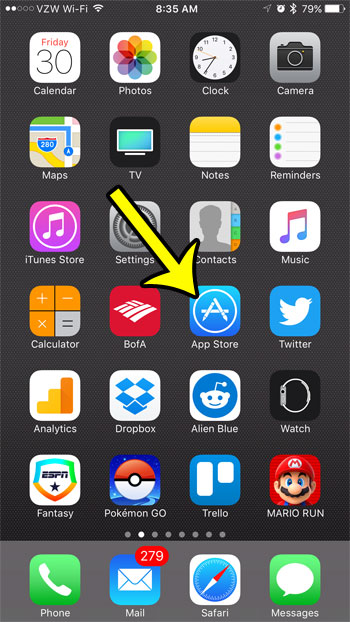
Older iOS version shown; current screens look different. - Tap Search.

The Search tab in an older version of the App Store. - Type bitmoji and choose the Bitmoji app in the results. Check that the developer listed is Bitstrips, the company behind Bitmoji, so you don’t install a look-alike sticker app.
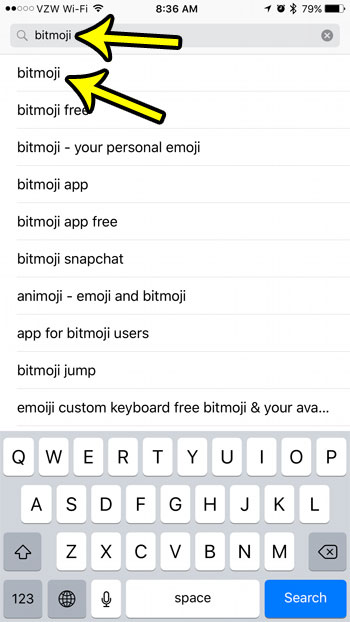
Older App Store search results; current screens look different. - Tap Get (or the cloud icon if you’ve downloaded it before) and confirm with Face ID, Touch ID or your password if asked.
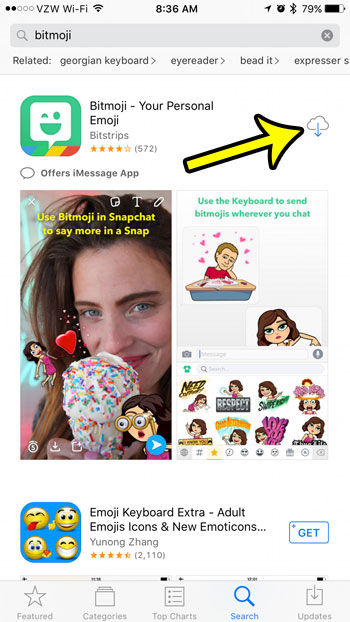
Older iOS version shown; current screens look different. - When the download finishes, tap Open.

Older iOS version shown; current screens look different. - Sign up or log in. Choose the email option or continue with Snapchat.

An older Bitmoji sign-up screen; the current app looks different. - Build your avatar. The app walks you through face, hair, outfit and other features; you can change any of it later.

An older version of the Bitmoji avatar editor. - Older versions of the app then asked whether to skip or turn on Bitmoji updates. If you see a prompt like this, either choice is fine; it doesn’t affect the keyboard.

A prompt from an older Bitmoji version; current versions may not show it.
Set it up from inside the Bitmoji app
Once your avatar is saved, Bitmoji’s own instructions start inside the app. Bitmoji support says to tap the Globe icon at the bottom of the screen to open the Keyboard tab, then follow the on-screen instructions. Those instructions send you to the same Settings screens described next, so if the in-app route confuses you, the manual route below gets you to the same place.
Add the Bitmoji keyboard in Settings
- Leave the Bitmoji app and open Settings.

Older iOS version shown; current screens look different. - Tap General.

The General row in an older version of Settings. - Tap Keyboard. You may need to scroll to find it.

Older iOS version shown; current screens look different. - Tap Keyboards at the top of the screen. This lists every keyboard you have now.

Older iOS version shown; current screens look different. - Tap Add New Keyboard.

Older iOS version shown; current screens look different. - Find Bitmoji in the list of keyboards from installed apps and tap it. You return to the Keyboards list, now with Bitmoji in it.
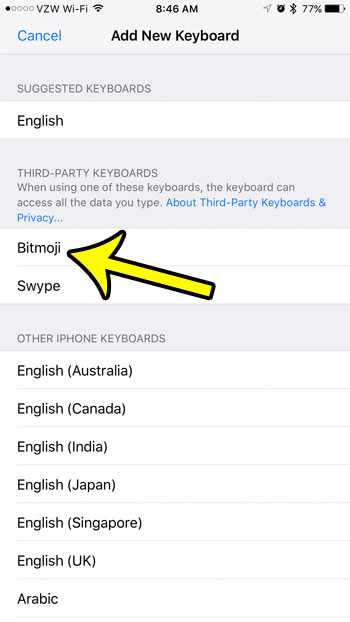
Bitmoji in the list of new keyboards on an older iOS version.
Apple’s page on adding or changing keyboards describes the same Add New Keyboard route for every kind of keyboard.
Turn on Allow Full Access
Adding the keyboard isn’t enough. Without Full Access the Bitmoji keyboard can’t load your stickers.
- On the Keyboards screen, tap Bitmoji again.

Older iOS version shown; current screens look different. - Turn on Allow Full Access.
- iOS shows a warning about what full-access keyboards can do. Read it, then tap Allow if you’re comfortable going ahead.
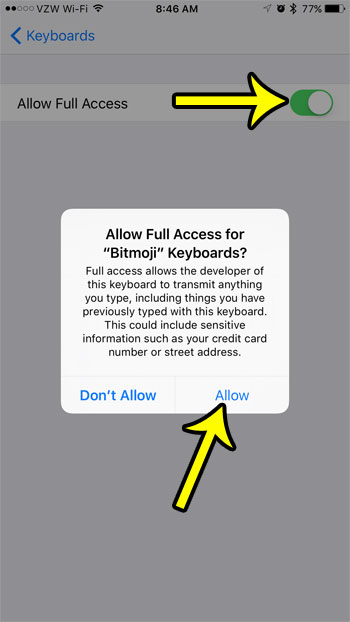
The Allow Full Access switch and confirmation in an older iOS version.
What Full Access means here
The warning comes from Apple, not from Bitmoji. Bitmoji’s support page calls it a standard pop-up from Apple, required for any keyboard that connects to the internet. Bitmoji’s support page on keyboard permissions says it asks for Full Access so it can download your custom Bitmoji images from its servers, and that the Bitmoji keyboard can’t read or access anything you type with the iPhone keyboard or any other third-party keyboard.
That’s the company’s own statement, and it’s the information there is to go on. If you’d rather not grant the permission, you can still send Bitmoji without the keyboard: Bitmoji’s help pages describe opening the app, tapping a sticker and choosing a messaging app to share it to. It’s slower, but no keyboard permission is involved.
Switch to Bitmoji and send a sticker
With the keyboard added and Full Access on, here’s how to use it in Messages or any other chat app:
- Open a conversation and tap the message field so the keyboard appears.
- Touch and hold the globe key in the bottom-left corner, then tap Bitmoji in the list that pops up. A single tap on the globe also works, but it cycles through your keyboards one at a time, so you may need to tap more than once.

Older iOS version shown; current screens look different. - Browse your stickers, or use the search bar above them to find one by word, such as “thanks” or “happy birthday”.
- Tap a sticker. Bitmoji copies it.
- Touch and hold the message field, tap Paste, and send.
- To get back to normal typing, tap the globe key again or touch and hold it and pick your usual keyboard.
Bitmoji says you can paste a sticker into any chat message; an app that only accepts plain text won’t take it.
Bitmoji also offers Friendmoji, stickers that show your avatar together with a friend’s. Its help center covers linking a friend; the sending steps are the same tap-and-paste.
Bitmoji keyboard not showing or not working
Work through these in order. The first four are the fixes Bitmoji’s own troubleshooting page lists.
- Stickers don’t load or the keyboard is blank. Go to Settings > General > Keyboard > Keyboards > Bitmoji, turn Allow Full Access off, then on again.
- You’re asked to log in, or see no avatar. Open the main Bitmoji app (not the keyboard) and make sure you’re signed in to the account that holds your avatar.
- It worked yesterday but not in one app. Close that messaging app fully and open it again, or restart the iPhone.
- Still broken. Update Bitmoji from the App Store.
- Bitmoji isn’t in the Add New Keyboard list. The keyboard only appears once the app is installed. Check that Bitmoji is on your iPhone, open it once and finish creating your avatar, then look again.
- You can’t find Bitmoji when you hold the globe key. It may have been removed from your keyboard list. Repeat the Settings steps above to add it back.
If the whole keyboard is acting oddly, not just Bitmoji, resetting the iPhone keyboard explains the broader options.
Reorder or remove the Bitmoji keyboard
If Bitmoji keeps popping up when you just want to type, move it down the list instead of deleting it. In Settings > General > Keyboard > Keyboards, tap Edit and drag Bitmoji by its handle; changing the order of keyboards on iPhone covers this in detail. To remove it completely, Apple says to swipe left on the keyboard in that list and tap Delete. Deleting the keyboard doesn’t delete the Bitmoji app or your avatar.
Bitmoji keyboard: things people ask
Is Bitmoji free?
At the time of writing, the Bitmoji app is listed as Free on the App Store.
Can I turn off keyboard clicks too?
Clicks and vibration for Apple’s keyboard are set separately; see keyboard sounds and vibration on iPhone.
Will Bitmoji change my word suggestions?
No. Apple’s suggestion bar belongs to the Apple keyboard, and its switch is explained in turning off predictive text on iPhone. The Bitmoji keyboard is for stickers, not for typing words.
Does my avatar update in old messages if I change it?
No. A sticker you’ve already sent is an image, so it stays as it was. New stickers use your updated look.

Kermit Matthews runs Live2Tech from just outside Philadelphia. He is an IT specialist with over 20 years of experience, from a university help desk to small-business IT, IT management and his own consulting practice, and has written tech guides full time since 2020. Steps are checked against the current software on a real device or the maker’s official documentation. More about Kermit.