This article contains affiliate links. If you buy through one of them, Live2Tech may earn a commission at no extra cost to you. As an Amazon Associate, Live2Tech earns from qualifying purchases. Details are in our disclaimer.
If your keyboard shows a globe key but no smiley, or emoji vanished after you changed keyboards, check Settings > General > Keyboard > Keyboards. If Emoji isn’t listed, tap Add New Keyboard > Emoji, then tap the emoji or globe key while typing.
Check your keyboard list first
Before adding anything, see what your iPhone already has. The emoji keyboard is one entry in a list of keyboards, and the key you tap to reach it changes with what’s in that list.
- Open the Settings app and tap General.
- Tap Keyboard, then tap Keyboards.
- Look for Emoji in the list.
If Emoji is there, you don’t need to add it again. Skip ahead to switching to emoji while you type. If it’s missing, follow the next section.
Add the Emoji keyboard in Settings
This works the same way on current versions of iOS. The screenshots below come from a much older iOS version, so the screens on your iPhone look different, but the menu names along the path are the same ones Apple lists today.
- Open Settings.
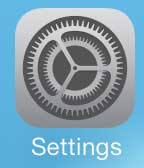
Older iOS version shown; current screens look different. - Tap General.
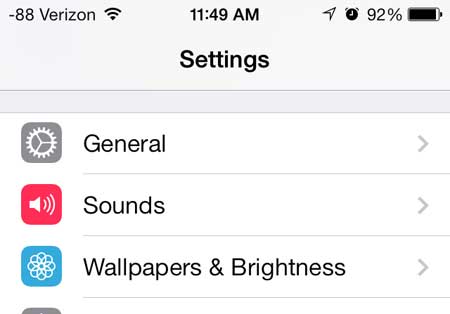
The General row in an older version of Settings. - Tap Keyboard.
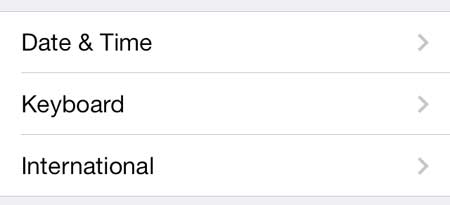
Older iOS version shown; on current iPhones you may need to scroll to reach Keyboard. - Tap Keyboards.
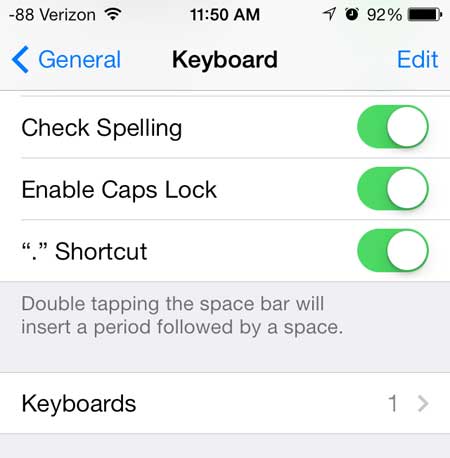
The Keyboards row in an older iOS version. - Tap Add New Keyboard.
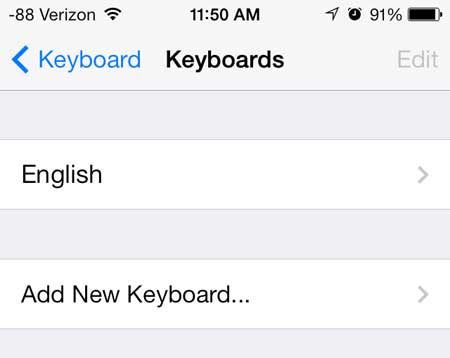
Older iOS version shown; current screens look different. - Find Emoji in the list of keyboards and tap it. Emoji now appears in your Keyboards list, and you can leave Settings.
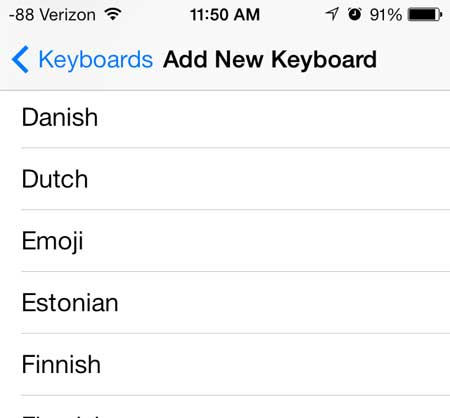
Choosing Emoji in an older iOS version.
The Emoji keyboard is part of iOS, so adding it costs nothing and needs no download. Apple’s own walkthrough is on its emoji support page.
Switch to emoji while you type
Open any app where you can type, such as Messages, Notes or Mail, and tap a text field so the keyboard appears. At the bottom left of the keyboard you’ll see one of two keys: a smiley face, which Apple calls the Emoji button, or a globe. Which one appears depends on the keyboards you have installed, so either is normal.
- Tap the key to switch keyboards. With the smiley, you go straight to emoji. With the globe, each tap moves to the next keyboard in your list, so you may need to tap more than once.
- Touch and hold the key to see every installed keyboard, then tap Emoji. This is the quickest route when you have several languages added.
- Tap ABC on the emoji keyboard to go back to letters.
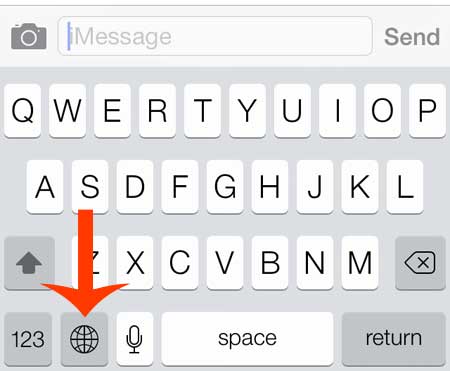
Apple’s guide to adding and switching keyboards covers the same touch-and-hold menu.
Find the emoji you want quickly
The emoji keyboard holds far more than fits on one screen. These shortcuts save a lot of swiping:
- Category icons: the small gray icons along the bottom jump to a group, such as smileys, animals, food or flags. You can also swipe left and right to browse.
- Recently used: tap the clock icon to see the emoji you’ve picked lately.
- Search: Apple’s emoji page describes a Search Emoji field where you type a word such as “pizza” or “heart” to filter the list.
- Skin tones and variations: touch and hold an emoji to see its other versions, then tap the one you want.
- Suggestions: as you type a word, an emoji that matches it can appear in the suggestions above the keyboard. Tap it to add the emoji.
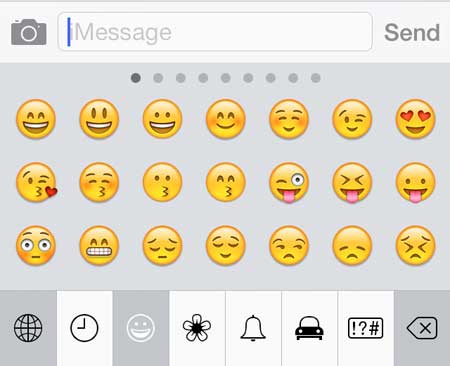
Emoji suggestions come from Predictive text. If you’d rather not see them, touch and hold the emoji or globe key, tap Keyboard Settings, and turn off Predictive. That also turns off word suggestions, so it’s a trade-off. In Messages, you can also have whole words swapped for emoji, which is covered in using emoji in text messages.
Stickers, Memoji and Genmoji
The same keyboard is also the way into Apple’s stickers. Apple’s emoji, Memoji and stickers guide shows where stickers and Memoji sit and how to make a sticker from a photo.
Genmoji lets you describe an emoji and have the iPhone create it. According to Apple’s Genmoji guide, you switch to the emoji keyboard and tap Genmoji at the top right. It needs Apple Intelligence, which on iOS 27 or later Apple lists for iPhone 15 Pro, iPhone 15 Pro Max and iPhone 16 models or later, and it isn’t available in every language or region. If you don’t see the Genmoji option, your iPhone, language or region is the likely reason. Genmoji you make are saved with your stickers.
When the emoji key is still missing
- Emoji isn’t in the Keyboards list: add it with the steps above. Emoji can drop off the list if it was deleted along with other keyboards.
- Emoji is listed but you can’t reach it: touch and hold the globe key and look for Emoji in the menu. If it still won’t appear, you can try removing the Emoji keyboard and adding it back with the steps above.
- A new emoji you’ve seen elsewhere isn’t on your keyboard: new emoji arrive with iOS updates. Check Settings > General > Software Update.
Remove the Emoji keyboard or change its place
If you never use emoji and the extra key gets in your way, you can take it off. Go to Settings > General > Keyboard > Keyboards, swipe left on Emoji, and tap Delete. You can add it back at any time with the same Add New Keyboard steps.
To change where Emoji sits in the order, tap Edit on the Keyboards screen, drag Emoji by its handle to a new spot, and tap Done. More detail is in changing the order of your iPhone keyboards.
Emoji keyboard FAQs
Why do I see a globe instead of a smiley face?
Apple shows either the Emoji button or the globe at the bottom of the keyboard, and either one gets you to emoji. If you see the globe, touch and hold it and choose Emoji.
Will people without an iPhone see my emoji?
Generally, yes. Emoji are standard characters, so Android phones and computers show them too, drawn in their own style. A very new emoji can show up as a box or blank symbol on a device with older software.
Is Bitmoji the same thing?
No. Bitmoji is a separate app with its own keyboard and personal cartoon avatars. See how emoji and Bitmoji differ, or how to get the Bitmoji keyboard if you want both.
Do you need a new case for your iPhone? Amazon has tons of them, often for much lower prices than you can find in a brick and mortar store. Click here to see their collection.
Are you looking for a great gift for the Apple lover in your life? The Apple TV lets you mirror content from your iPhone or iPad, plus stream videos from Netflix, iTunes and more. Find out more about the Apple TV here.
Once emoji are set up, a good next tidy-up is storage: if old songs are taking up space, you can delete music from your iPhone.

Kermit Matthews runs Live2Tech from just outside Philadelphia. He is an IT specialist with over 20 years of experience, from a university help desk to small-business IT, IT management and his own consulting practice, and has written tech guides full time since 2020. Steps are checked against the current software on a real device or the maker’s official documentation. More about Kermit.