You’re writing an email or a chat message on your PC and want a quick thumbs-up or a laughing face, without hunting for one on a website and copying it. Windows has an emoji picker built in. Click where you’re typing, press Windows key + . (period) or Windows key + ; (semicolon), type a word like “thumbs” to search, and click the emoji. This works in Windows 11 and Windows 10, in nearly any app you can type in.
Open the emoji panel in Windows 11
The emoji panel is a small pop-up window that appears beside your cursor. It only opens where you could type text, so the first step matters.
- Click inside the message, document, search box or file name where you want the emoji. The text cursor should be blinking there.
- Hold the Windows key and press . (the period key on the main keyboard). Windows key + ; does the same thing, which helps on keyboard layouts where the period sits in an awkward spot.
- The panel opens on the emoji tab, showing your most recently used emoji first.
- Click an emoji to insert it. The panel stays open, so you can click several in a row.
- Press Esc, or click back in your text, to close it.
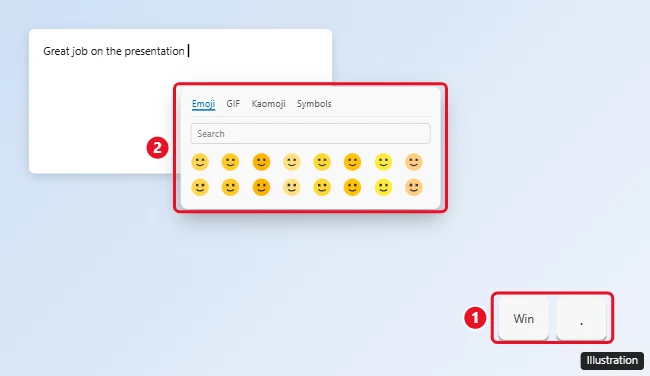
Microsoft’s Windows keyboard tips page describes the same shortcut: press Windows key + period during text entry and the emoji keyboard appears.
Search instead of scrolling
Scrolling through hundreds of tiny faces is slow. As soon as the panel opens, just start typing; you don’t need to click a search box first. The panel filters as you type.
- Type heart to see every heart color and style.
- Type party for the party popper, party face and similar emoji.
- Type pizza, dog or rain for objects, animals and weather.
You can stay on the keyboard the whole time. Use the arrow keys to move between results and press Enter to insert the highlighted one. In many versions, Tab and Shift + Tab move between the panel’s categories and tabs. A useful habit for frequent messages: press Windows + period, type “thumbs”, press Enter. Once an emoji appears in your recently used list, it’s usually right at the top the next time.
Pick a skin tone
Emoji showing people and hands, such as a wave or thumbs-up, come in several skin tones. Windows offers a skin tone choice in the panel, and the way it’s shown has changed between versions; look for a skin tone option near the top of the panel or the people emoji, choose a tone, and Windows applies it to the people emoji you insert after that. If you can’t see the option, search for a people emoji first, since the control often appears once those are on screen.
GIFs, kaomoji and symbols
The emoji panel is more than emoji. In Windows 11 it has tabs along the top for other kinds of content.
| Tab | What it inserts | Good for |
|---|---|---|
| Emoji | Color emoji, with categories and recently used | Chats, email, social posts |
| GIFs | Animated GIFs from an online search | Apps that accept pasted images, such as many chat apps |
| Kaomoji | Text faces built from characters, like ¯\_(ツ)_/¯ | Places that show plain text only |
| Symbols | Punctuation, currency, math, Latin and Greek characters | Signs like ©, €, ° and → |
A few things to know about these tabs:
- GIFs need an internet connection, because the panel searches for them online. They also only paste into apps that can accept an image; a plain text field such as Notepad won’t show them.
- Kaomoji are ordinary text, so they work anywhere, including places where color emoji don’t display.
- Symbols are handy for one-off characters. The Symbols tab is one of several ways to get a degree sign; the keyboard methods and Alt code are covered in how to get the degree symbol on Windows.
Clipboard history, the list of things you’ve recently copied, opens with Windows key + V. Clipboard history is off by default, and Windows asks you to turn it on the first time; the details are in viewing clipboard history on Windows.
What’s different in Windows 10
The same two shortcuts open the panel in Windows 10, and searching by typing works the same way. The differences are mostly in layout and extras:
- The emoji categories (smileys, people, celebrations, food, travel, symbols) sit in a row of icons at the bottom of the panel, rather than at the top.
- There are tabs for emoji, kaomoji and symbols, but no GIF search.
- Clipboard history is a separate Windows + V panel, not part of the emoji panel.
- The emoji set is older. Some newer emoji that other people send you may show as an empty box or as two separate emoji side by side, because Windows 10 no longer gets feature updates.
Windows 10 reached end of support on October 14, 2025. Microsoft offers Extended Security Updates for home users through October 12, 2027, but those are security fixes, not new emoji. If seeing newer emoji matters, Windows 11 is the route to them.
Use emoji on a touchscreen
On a tablet or 2-in-1 laptop, the touch keyboard has its own emoji key, so you don’t need a physical keyboard.
- Tap in a text field. On a tablet or with the keyboard folded back, the touch keyboard usually appears on its own.
- If it doesn’t appear, turn on the touch keyboard icon in the taskbar settings (right-click the taskbar, open the taskbar settings, and look for the touch keyboard option), then tap the keyboard icon near the clock.
- Tap the smiley face key on the touch keyboard.
- Tap an emoji to insert it, then tap the keyboard key to switch back to letters.
The touch keyboard works with a mouse too, which is a fallback if a key on your physical keyboard is broken.
Apps where the panel behaves differently
The emoji panel inserts characters into whatever field has the cursor, so most apps accept it. A few situations trip people up:
- Word and Outlook: the panel works normally. Word and Outlook also have AutoCorrect, which can turn 🙂 into a smiley as you type. If an emoji lands in Word as a black-and-white symbol, that’s down to the font, and the character is still correct.
- Teams, Slack, Discord and web chat apps: these have their own emoji buttons and colon codes such as :smile:. The Windows panel still works in their message boxes; use whichever is quicker.
- Older desktop programs: some show emoji in black and white or as boxes, because they don’t use a font that draws color emoji. The emoji usually looks fine once the recipient sees it.
- Games and full-screen apps: the panel may not appear over a full-screen game or may close straight away.
- Password fields and some sign-in boxes don’t accept the panel at all.
- Copy and paste still works: you can still copy an emoji from a web page and paste it with Ctrl + V; it arrives as the same standard character.
If you only need a location pin in a Word document, the panel’s pin emoji works, but Word has other options too; see adding a location symbol in Word. For Word’s own symbol library, accented letters and special characters, inserting symbols and special characters in Word goes through the Insert tab options.
When the shortcut does nothing
Work through these in order. Most fixes take seconds.
- Click in a text field first. The panel won’t open on the desktop or in an area where you can’t type.
- Use the period on the main keyboard. The period or decimal key on the number pad doesn’t trigger the shortcut.
- Try Windows key + ; instead. If one key is mapped differently on your layout, the other often still works.
- Check your input language. The panel depends on the active keyboard language. Press Windows key + Space to switch between installed keyboards and try again. Switching keyboards on Windows 10 is covered in how to switch keyboard language in Windows 10.
- Check for keyboard software. Gaming keyboards and some laptop utilities can turn off the Windows key (often called a game mode or Win Lock). If Windows key + E doesn’t open File Explorer either, the Windows key is probably turned off.
- Restart the PC. The panel is part of Windows’ text input system, and a restart reloads it.
- Install updates. In Windows 11, open Settings > Windows Update. In Windows 10, it’s Settings > Update & Security > Windows Update.
If none of these help, the cause is usually the keyboard itself, its software, or a restriction on a work or school PC, so test with another keyboard or ask your IT team.
Windows emoji questions
Why does a flag emoji show as two letters?
Country flags are built from two special letter characters. Windows doesn’t draw those as flag pictures in its own emoji font, so you may see letters such as “US” or “FR” instead. The person receiving your message on a phone usually sees the flag.
Will the emoji look the same to the person I send it to?
Not exactly. An emoji is a standard character, and each device draws it in its own style. The meaning carries over, but a smiley from Windows can look a little different on an iPhone or Android phone.
Do Alt codes work for emoji?
No. Alt codes on the number pad type older symbols and accented letters, such as Alt + 0176 for the degree sign, but not modern color emoji. Use the panel instead.
Can I put an emoji in a file or folder name?
Yes. Start renaming the file, then press Windows key + period and pick an emoji. Some older programs and backup tools may show the name oddly, so keep important file names plain.
Can I make my own shortcut for one emoji?
Windows doesn’t have a built-in setting for that. In Word and Outlook you can add an AutoCorrect entry that swaps a short code for an emoji, and searching the panel by one word gets you most emoji in a couple of seconds.
Try it now in this order: Windows key + period, type a word, press Enter. Once those three keys are a habit, you’ll rarely need to copy an emoji from a website again.

Kermit Matthews runs Live2Tech from just outside Philadelphia. He is an IT specialist with over 20 years of experience, from a university help desk to small-business IT, IT management and his own consulting practice, and has written tech guides full time since 2020. Steps are checked against the current software on a real device or the maker’s official documentation. More about Kermit.