You’re typing a forecast of 72° or a 45° angle, and there’s no degree key anywhere on the keyboard. The quickest fix on a full keyboard: hold Alt and type 0176 on the numeric keypad with Num Lock on. On any keyboard, including laptops, press Windows + . (period) and pick ° from the Symbols tab. Both work in current versions of Windows 11 and in Windows 10, and Word, Excel and a few other routes are covered below.
Which method should you use?
Every method below produces the same character, the degree sign (Unicode U+00B0). The best one depends on your keyboard and where you’re typing.
| Method | Needs a numeric keypad? | Works where | Best for |
|---|---|---|---|
| Alt + 0176 | Yes | Almost any Windows app | Desktop keyboards, frequent use |
| Windows + . (Symbols tab) | No | Most apps with a text box | Laptops and compact keyboards |
| 00B0 then Alt + X | No | Word (and Outlook messages) | Writing documents |
| Insert > Symbol | No | Word, Excel, PowerPoint | Finding it once and reusing it |
| Character Map | No | Copy into any app | Older apps where nothing else works |
| Copy and paste | No | Anywhere | A one-off: copy this one: ° |
Method 1: Alt + 0176 on the numeric keypad
This is Microsoft’s documented keyboard method, and it works in browsers, email, chat apps and Office alike. It needs the separate block of number keys on the right of a full keyboard. The number row above the letters won’t work.
- Click where you want the symbol to appear.
- Make sure Num Lock is on. Most keyboards have a small light that shows it.
- Press and hold the Alt key (either Alt works on most keyboards, but the left one is the safest bet).
- While holding Alt, type 0, 1, 7, 6 on the numeric keypad.
- Release Alt. The ° appears.
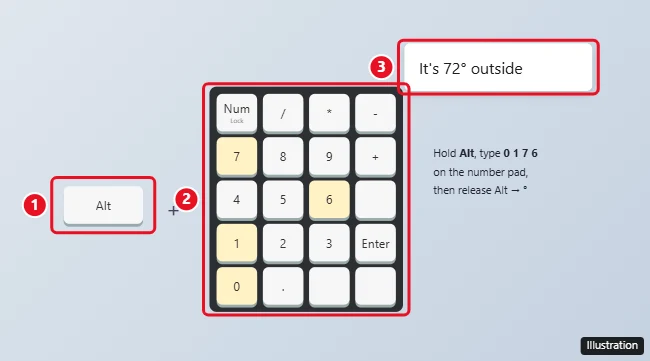
The leading zero matters. With it, Windows uses the standard Windows character set, where 176 is the degree sign. A shorter code, Alt + 248, comes from an older character set and also gives ° in many apps, but Alt + 0176 is the one to learn because it behaves the same everywhere.
Method 2: The emoji panel (no numeric keypad needed)
The emoji panel isn’t only for emoji. It has a Symbols tab with punctuation, math and currency signs, and it works on any keyboard.
- Click where you want the symbol.
- Press the Windows key + . (period). The panel opens near your cursor. (On many PCs, Windows key + ; (semicolon) also opens it, though Microsoft’s keyboard tips page lists only the period.)
- Select the Symbols tab at the top of the panel.
- Browse the symbol categories until you see °, or scroll through the list. It sits with the math and measurement-type symbols.
- Click ° to insert it, then press Esc to close the panel.
Once you’ve used it, ° shows up in the panel’s recently used list, so the next time it’s one click. For a full tour of the panel, see how to use the emoji keyboard in Windows.
Method 3: Word, Outlook and Excel
Type 00B0 and press Alt + X (Word)
- Type 00B0 where you want the symbol. Use a zero, not the letter O.
- Press Alt + X right after it. Word turns the code into °.
If the code follows a number or the letters A to F with no space, Word may read those characters as part of the code. Type a space first, convert, then delete the space. Pressing Alt + X again on a symbol turns it back into its code, which is handy for checking what a character really is.
Insert > Symbol
- Go to Insert > Symbol > More Symbols.
- On the Symbols tab, keep the Font as your normal text font.
- In the Subset drop-down, choose Latin-1 Supplement.
- Select the degree sign and choose Insert, then Close.
After that, ° appears under the recently used symbols on the Symbol button, so you won’t need the dialog again. The same dialog holds other characters; see inserting symbols and special characters in Word, and for a map pin or location marker, adding a location symbol in Word.
Set up an AutoCorrect shortcut (Word)
If you type temperatures all day, you can have Word swap a short code for ° automatically. In the Symbol dialog, select the degree sign and choose AutoCorrect, then enter a code you’d never type by accident (such as /deg) in the Replace box and choose Add. From then on, typing /deg followed by a space inserts the symbol.
Excel
Alt + 0176 works in Excel cells. Insert > Symbol is there too. Alt + X does not work in Excel. For a formula, use =UNICHAR(176), which returns ° from its Unicode number, and join it to a value like this: =A2&UNICHAR(176)&”F”. If cell A2 holds 68, the result reads 68°F. Note that this produces text, so keep the original number in its own cell for calculations.
Method 4: Character Map or copy and paste
Character Map is an older Windows tool that works with any app, even those that ignore Alt codes.
- Open Start, type Character Map and open the app.
- Find ° in the grid. With the default font, it’s a few rows down among the accented letters and symbols. Checking Advanced view lets you search for “degree.”
- Double-click the symbol or choose Select, then choose Copy.
- Go back to your document and paste with Ctrl + V.
For a one-off, you can also copy the symbol from this page (°) and paste it wherever you need it. The pasted character may pick up the source formatting in Word; use Paste > Keep Text Only if it looks different.
Laptops without a numeric keypad
Most thin laptops have no separate number pad, which is why Alt + 0176 seems to do nothing. You have three options:
- Use the emoji panel (Windows + .). This is the most reliable route on a laptop.
- Use a built-in embedded keypad, if your laptop has one. Some laptops print small numbers on the letter keys (often on J, K, L, U, I, O) and turn them into a keypad with a key combination such as Fn + Num Lock or Fn plus a function key. The combination varies by maker and model, so check your laptop’s manual. When it’s on, hold Alt and type 0176 on those keys, then turn it off again.
- Plug in a USB number pad if you type symbols often.
On a touchscreen PC, the touch keyboard’s symbols view also offers a degree sign on many layouts.
Related temperature and math symbols
A few characters look like the degree sign or travel with it:
- Celsius and Fahrenheit: most style guides write 20°C and 68°F using the plain degree sign plus a letter. Unicode also has single characters ℃ (2103) and ℉ (2109), which you can make in Word with the code and Alt + X, but they’re less widely supported, so the two-character form is safer.
- Plus-minus: Alt + 0177 gives ±, as in ±2°.
- Squared: Alt + 0178 gives ², as in 40 m².
- Masculine ordinal (º): Alt + 0186 gives a character that looks almost the same as ° but is meant for Spanish and Portuguese ordinals such as 1º. Using it for temperatures can confuse screen readers and search.
When the degree symbol won’t appear
- Nothing happens: Num Lock is off, or you used the number row. Turn Num Lock on and use the keypad.
- A different character appears (such as ░ or a letter): you may have left out the leading zero, or the app uses a different character set. Type Alt + 0176 exactly, or use the emoji panel.
- The app jumps to a menu instead: some apps treat Alt as a menu shortcut. Hold Alt the whole time you type the digits, or use Character Map and paste.
- Alt + X doesn’t convert: it works in Word and Outlook, not in Notepad, browsers or Excel.
- The symbol looks like a box: the font in use lacks the character. Switch to a common font such as Calibri, Arial or Segoe UI.
Degree symbol questions
Do these methods work the same in Windows 10?
Yes. Alt + 0176, the Windows + . panel, Character Map and the Office methods all work in Windows 10. The emoji panel looks different there, and older Windows 10 releases may not show a Symbols tab, but Character Map always works. Windows 10 reached end of support in October 2025, so newer PCs will be on Windows 11.
How do I type a degree sign on a Mac?
On a Mac keyboard the usual shortcut is Option + Shift + 8. The Mac’s Character Viewer (Control + Command + Space) also lists it.
Where is the degree sign on a phone keyboard?
On many phone keyboards, switch to the numbers view and press and hold the 0 key, then slide to °.
Is ° the same as a superscript o?
No. A superscripted letter o looks close but is a different character, so it won’t match searches for °, and it can shift line spacing. Use one of the methods above instead.
For most people, two shortcuts cover everything: Alt + 0176 at a desk keyboard and Windows + . on a laptop. Microsoft’s insert a degree symbol page and its list of ASCII and Unicode symbol codes are useful references, and the same Alt-code approach works for the section symbol in Word and Windows and other characters you type often.

Kermit Matthews runs Live2Tech from just outside Philadelphia. He is an IT specialist with over 20 years of experience, from a university help desk to small-business IT, IT management and his own consulting practice, and has written tech guides full time since 2020. Steps are checked against the current software on a real device or the maker’s official documentation. More about Kermit.