When your iPhone reads an article, a message or a menu aloud and the words run together, the fix depends on which feature is doing the talking. Speak Screen and Speak Selection, VoiceOver and Siri each have their own speaking rate slider, and moving one leaves the others alone. For text the iPhone reads on request, go to Settings > Accessibility > Read & Speak and drag Speaking Rate to the left. The other voices are covered below.
Which voice is talking too fast?
Work out what triggered the speech first, then use the matching row.
| What you hear | Feature | Where to slow it |
|---|---|---|
| Selected text or a whole page read aloud after you tap Speak or swipe down with two fingers | Speak Selection or Speak Screen | Settings > Accessibility > Read & Speak > Speaking Rate |
| Every item you touch is announced, and you double tap to open things | VoiceOver | Settings > Accessibility > VoiceOver > Speaking Rate |
| Spoken answers after you ask Siri something | Siri | Settings > Accessibility > Siri > Speaking Rate (iOS 17 or later) |
| A podcast episode | Apple Podcasts playback | Playback Speed button in the player |
Slow down Speak Screen and Speak Selection
These two features read text on demand: Speak Selection reads what you highlight, and Speak Screen reads everything on the current screen. Both use the same rate setting.
- Open the Settings app.

Older iOS version shown; current screens look different. - Tap Accessibility. On current versions of iOS it is a main item in Settings, not inside General.

Older iOS version shown; current screens look different. - Tap Read & Speak. Older versions call this screen Spoken Content or Speech.
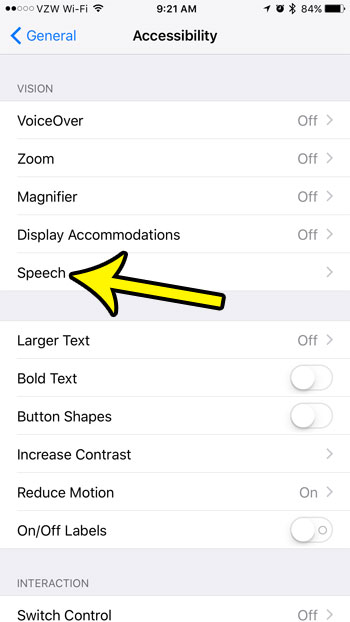
Older iOS version shown, where the item was named Speech. - Find Speaking Rate and drag the slider to the left. Left is slower and right is faster.
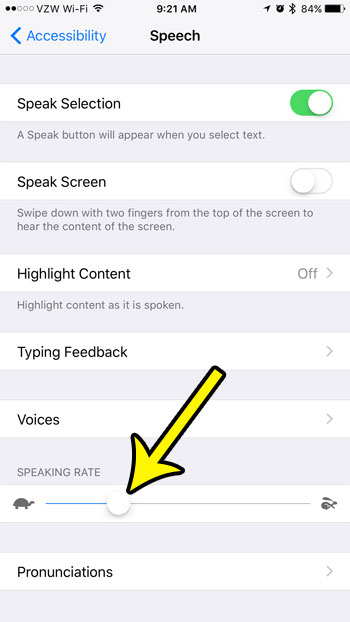
Older iOS version shown; current screens look different. - If they are not already on, turn on Speak Selection, Speak Screen or both on the same screen. The rate only matters when one of them is reading.
- Test the new speed. Select some text in Notes or Safari and tap Speak, or swipe down with two fingers from the top of the screen to start Speak Screen.
Apple lists every option on this screen in its guide to having iPhone read the screen or typed text.
Change the speed while it is reading
Turn on Show Controller on the Read & Speak screen to get a small set of on-screen controls during Speak Screen. Apple says the controller lets you pause speaking and adjust the rate, which is handy when one dense page needs a slower pace than your usual setting. Turning on Highlighting also marks words as they are read, which makes a fast voice easier to follow.
On older versions of iOS
Phones running iOS 10 and nearby releases put this setting under Settings > General > Accessibility > Speech > Speaking Rate. Later versions moved Accessibility to the top level of Settings and renamed Speech to Spoken Content.

Slow down VoiceOver
VoiceOver is the screen reader that announces whatever you touch. It has its own rate, separate from Read & Speak.
- Go to Settings > Accessibility > VoiceOver.
- Drag the Speaking Rate slider to the left.
If VoiceOver is already on, keep in mind that gestures change: you tap once to select an item and double tap to activate it. If VoiceOver turned on by accident, see how to turn off VoiceOver and other double tap features.
Apple’s VoiceOver settings guide covers the rest of these options. If you use more than one VoiceOver voice, go to Settings > Accessibility > VoiceOver > Speech: Apple notes you can set the speaking rate for each voice, so if one language sounds faster than another, check that voice’s own setting.
Slow down Siri
Siri ignores the Read & Speak slider. Starting with iOS 17, it has a slider of its own.
- Go to Settings > Accessibility > Siri.
- Drag Speaking Rate to the left for slower speech.
Per Apple’s Siri speech settings article, Apple Watch and CarPlay follow the rate you set on the iPhone, so there is nothing separate to change in the car. If you would rather change how Siri sounds than how fast it talks, you can also pick a different Siri voice.
Slow down podcasts and other recordings
Recorded speech, such as a podcast host, is not controlled by any accessibility slider. In Apple Podcasts, open an episode, tap the mini player to expand the controls, tap the Playback Speed button and choose a slower speed. You can also press and drag on the speed menu for an in-between value, as described in Apple’s Podcasts playback guide. Other audio apps put their speed control in their own player, if they have one.
If it still sounds too fast
- Try another voice. On the Read & Speak screen, tap Voices and pick a different one. A different voice may be easier for you to follow.
- Download an enhanced voice. Apple says enhanced quality voices can be 100 MB or larger, so connect to Wi-Fi before downloading.
- Check you changed the right slider. A slower Read & Speak setting does nothing for VoiceOver or Siri, and the reverse is true too.
- Turn it up. If the speech is also hard to hear, see how to make your iPhone louder.
Speech speed questions
Siri cuts me off before I finish talking. Is that a speed setting?
No. That is about how long Siri waits for you, not how fast it speaks. Apple’s Siri article lists a separate Siri Pause Time option (Default, Longer, Longest) that requires iOS 27 and gives you more time before Siri stops listening.
Does the speaking rate change directions in Maps?
Apple doesn’t document a speaking rate setting for Maps spoken directions, so the speaking rate sliders above aren’t known to change it.
My iPhone reads every word I type. Is that the same feature?
No, that is typing feedback, a separate option. Here is how to stop your iPhone from speaking words while you type.
Once the speed feels right, a few related settings are worth knowing: you can turn off Siri completely if you never use it, or stop podcasts from playing automatically. And if you’ve noticed the battery icon turn yellow, that is the yellow battery icon that marks Low Power Mode.

Kermit Matthews runs Live2Tech from just outside Philadelphia. He is an IT specialist with over 20 years of experience, from a university help desk to small-business IT, IT management and his own consulting practice, and has written tech guides full time since 2020. Steps are checked against the current software on a real device or the maker’s official documentation. More about Kermit.