If every search you type into Safari’s address bar opens a Yahoo results page, or you would simply rather use Google, Bing or DuckDuckGo, the fix is one setting. On current versions of iOS, go to Settings > Search > Search Engine, or Settings > Apps > Safari > Search Engine, and tap the engine you want. On older iOS versions, Safari is listed directly in Settings. Below: both routes, why Yahoo can come back, and the separate Private Browsing setting.
Change Safari’s search engine in Settings
Apple’s documentation for current iOS describes two routes to the search engine choice. One page of Apple’s iPhone User Guide uses a Search entry in Settings, while its Safari page goes through Safari’s own settings. Use whichever you find first; both end on a list of search engines where you tap the one you want.
Route 1: Settings > Search
- Open the Settings app.
- Tap Search.
- Tap Search Engine.
- Tap the search engine you want to set as the default.
This is the route in Apple’s article Change your default search engine on iPhone.
Route 2: through Safari’s settings
The screenshots in this section come from an older iOS version, where Safari sat directly in the Settings list. The steps note where current screens differ.
- Open the Settings app.
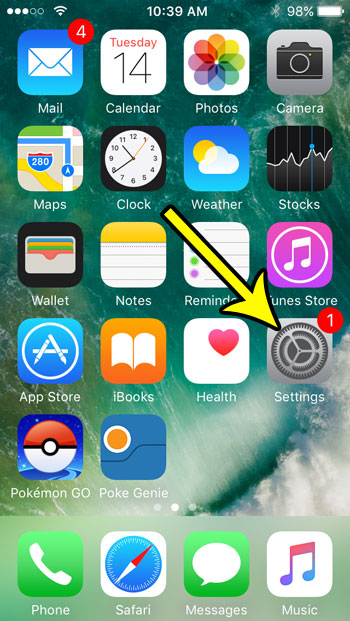
- Tap Apps, then tap Safari. On older iOS versions, scroll down and tap Safari in the main Settings list, as shown below.
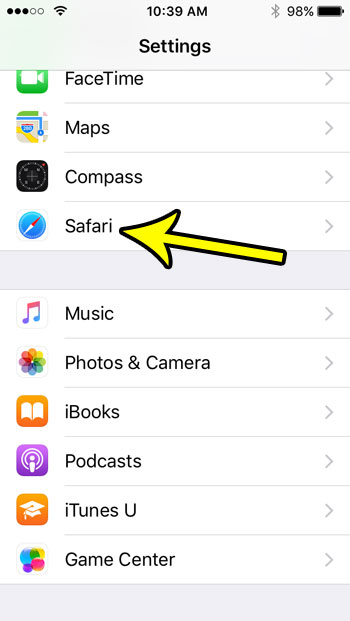
- Tap Search Engine.
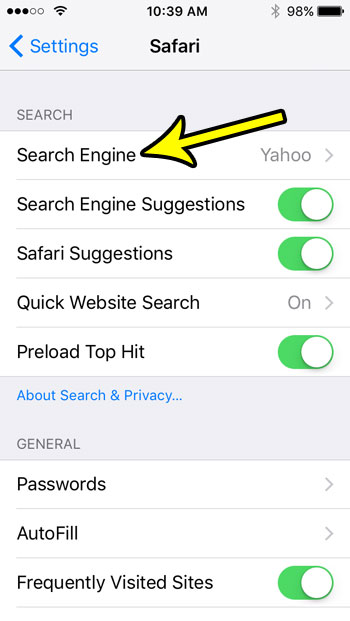
- Choose the search engine you want. A check mark shows the current choice.
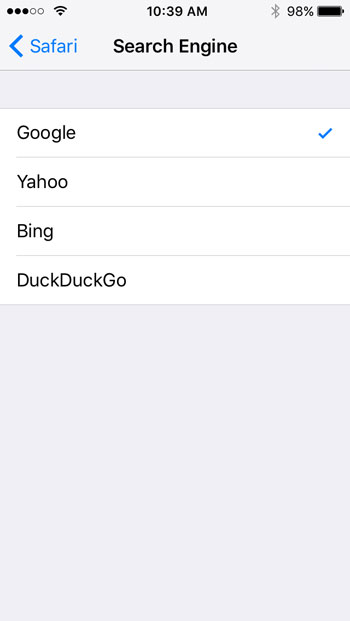
Apple describes this route in the “Choose a search engine” section of Search for websites in Safari on iPhone.
Which engines can you pick?
Apple’s pages only say to tap the engine you want from the list; they don’t publish the list itself. Third-party guides commonly show Google, Yahoo, Bing, DuckDuckGo and Ecosia. You can only choose from what the list shows. To use an engine that isn’t listed, bookmark its website or install its app and search there.
Older iOS versions
If your Settings app has no Search entry and no Apps entry, you are on an older version of iOS. Go to Settings > Safari > Search Engine instead and pick the engine the same way.
Confirm the change
Open Safari, tap the address bar, type a few words that are not a website address (for example, “weather tomorrow”), and tap Go. The results page should now come from the engine you picked.
Pick a separate engine for Private Browsing
Safari can use a different search engine in Private Browsing, for example DuckDuckGo for private tabs and Google for everything else. Apple documents the steps in Browse the web privately in Safari on iPhone:
- Open Settings, tap Apps, then tap Safari.
- Turn off Also Use in Private Browsing.
- Tap Private Search Engine, then choose a search engine.
If Yahoo appears only in private tabs, this is the setting to check. To leave private mode or learn what it does and doesn’t hide, see how to use Private Browsing on iPhone.
Why Safari keeps going back to Yahoo
If you change the engine and Yahoo returns a few days later, or Yahoo results appear even though the setting shows another engine, work through these causes in order. The first one is the most common and the easiest to fix.
1. The setting was changed on this iPhone
Someone else using the phone or a choice made during setup can leave Yahoo selected. In Japan, Apple notes that Safari may show a search engine choice screen; if you picked Yahoo there, you can change it later in Safari’s settings (Settings > Apps > Safari). Apple explains this in its article on default apps and choice screens. Simply pick a different engine and check again after a day.
2. A configuration profile you don’t recognize
Configuration profiles can apply settings to an iPhone. Apple’s Personal Safety guide explains how to review them:
- Go to Settings > General > VPN & Device Management.
- If you don’t see any profiles, then no device management profiles are installed, and you can skip this cause.
- If you see a profile that isn’t supposed to be there, select it, tap Delete Profile, and follow the onscreen instructions.
- Restart your iPhone.
Two cautions before you delete anything. Removing a profile removes everything it set up, and if the iPhone belongs to a school or business, Apple advises checking with the system administrator first. A work phone may need its profile to reach email or company apps, and on a managed iPhone the administrator’s restrictions may also stop you from changing some settings, so ask whoever manages the device. Apple’s full steps are in Review and delete configuration profiles.
3. A Safari extension
Extensions can change what Safari does with pages you visit. To review them:
- Open Settings, tap Apps, then tap Safari.
- Tap Extensions, then tap an extension you don’t recognize.
- Turn off Allow Extension. If you use Safari profiles, check the profiles listed under Allow Extension In as well.
To remove an extension completely, Apple says to touch and hold its app icon on the Home Screen and tap Delete App. Extension details are in Apple’s page on getting extensions for Safari. After turning one off, run a test search to see if Yahoo is gone.
4. You are not actually in Safari
Chrome, Edge, Firefox and other browsers on iPhone each keep their own search engine setting, and Safari’s choice has no effect on them. If links open in another browser, check which app is set as your default in Settings > Apps > Default Apps > Browser App, then change the search engine inside that browser. For Edge, see how to change the search engine in Edge on an iPhone.
5. Yahoo is a bookmark or start page, not the engine
Some people see Yahoo because a favorite or bookmark opens a Yahoo page, not because Safari searches with it. If the Search Engine screen shows another engine and only a page you open shows Yahoo, delete or edit that bookmark instead.
Clearing Safari’s history and website data is not one of the steps Apple gives for choosing a search engine, so check the Search Engine setting first. If you want to clean up anyway, see how to delete cookies on iPhone.
Other search settings that can look like the same problem
Safari’s settings page also has Search Engine Suggestions, which Apple lists at Settings > Apps > Safari. As the name suggests, it is about the suggestions shown while you type in the address bar, not about which engine runs the search, so switching it on or off won’t move you away from Yahoo. Fix the Search Engine choice first, then decide whether you want suggestions at all.
iPad, Mac and other browsers
- iPad: look for the same Search Engine setting in the iPad’s Settings app.
- Mac: Safari on a Mac has its own Search setting. See how to change the default search engine in Safari on a Mac.
- Chrome on a computer: if Yahoo also took over Chrome, follow the steps to get rid of Yahoo in Google Chrome, which covers search settings, startup pages and extensions.
Yahoo and Safari search FAQ
Does changing the search engine delete my bookmarks or history?
No. The setting controls which engine handles searches you type in the address bar, and Apple’s steps describe no other effect. Bookmarks and history are separate.
Is Yahoo a virus on my iPhone?
Yahoo is one of the search engines Safari can use, so seeing it is not a sign of malware by itself. Change the setting first. If it keeps switching back, check the profiles and extensions described above.
Can I search with a different engine just once without changing the default?
Apple doesn’t document a one-time engine switch in Safari on iPhone. The simple approach is to open the other engine’s website (for example, bing.com) in a tab and search from its page, or bookmark it for quick access.

Kermit Matthews runs Live2Tech from just outside Philadelphia. He is an IT specialist with over 20 years of experience, from a university help desk to small-business IT, IT management and his own consulting practice, and has written tech guides full time since 2020. Steps are checked against the current software on a real device or the maker’s official documentation. More about Kermit.