How you reopen a closed window in Windows 10 depends on what it was. In a web browser (Chrome, Edge or Firefox), press Ctrl + Shift + T to reopen the last closed tab or window; press it again to reopen earlier ones. For a closed File Explorer folder, press Windows + E and look under Quick access > Recent. For an app, right-click its taskbar icon to see its recent files. Minimized or hidden windows aren’t closed at all, just out of sight.
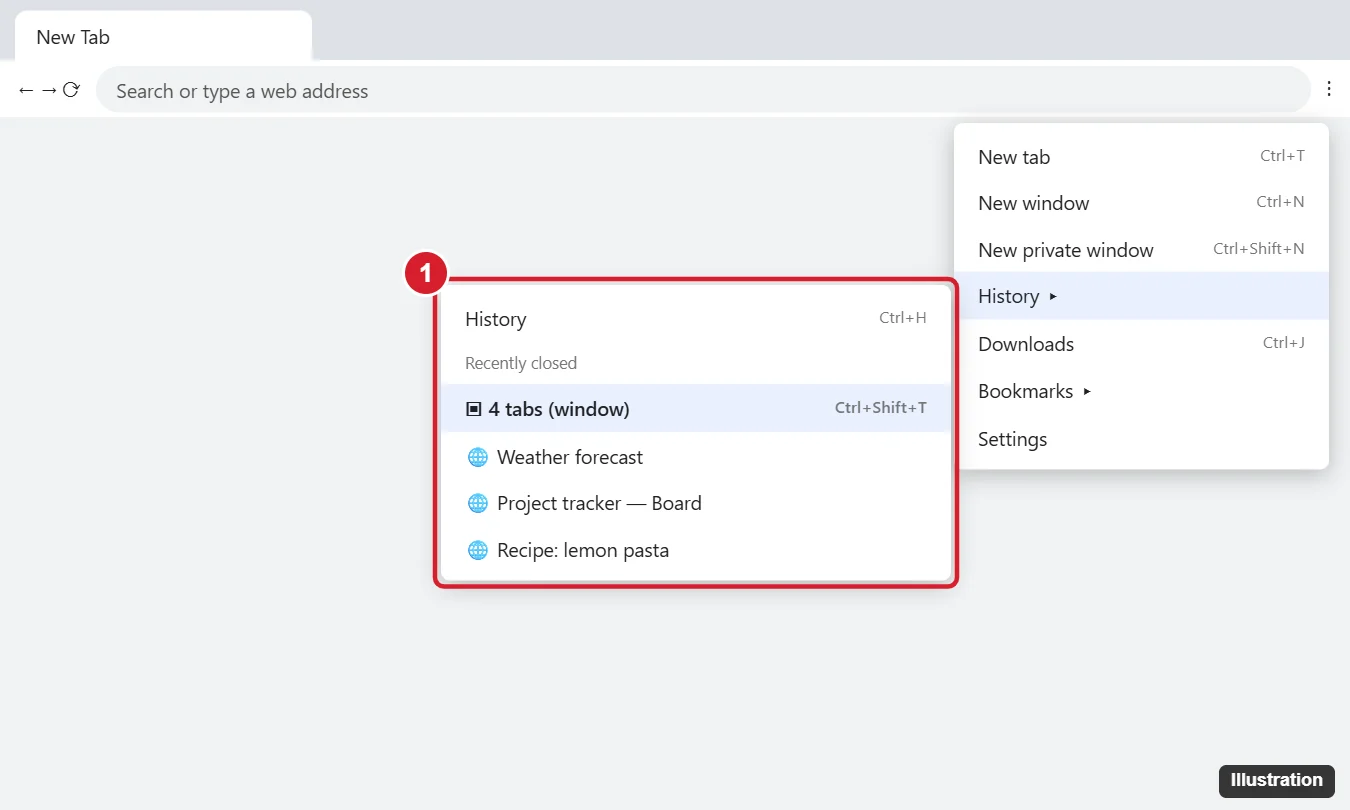
To keep Firefox pages together in one window in the first place, turn on the Firefox setting that opens links in tabs instead of new windows.
Reopen a Closed Browser Window or Tab
- Keyboard: press Ctrl + Shift + T. If you closed a whole window, the whole window returns with all its tabs.
- Menu: open the browser menu (⋮ or ⋯) > History and pick an item under Recently closed.
- Right-click the tab bar: choose Reopen closed tab (or Reopen closed window).
- History page: press Ctrl + H to find pages from earlier.
Private (Incognito/InPrivate) windows can’t be reopened after closing.
Reopen a Closed File Explorer Window
- Press Windows + E.
- Check Quick access for Frequent folders and Recent files.
- Or right-click the File Explorer icon on the taskbar to see frequent folders.
To reopen all folders automatically after restarting: in File Explorer, click View > Options > View and check Restore previous folder windows at logon.
Reopen a Closed App or Document
- Taskbar jump list: right-click the app’s taskbar icon (or its Start menu tile) to see recent documents.
- Office apps: open the app and look under Recent on the start screen or File > Open. For unsaved work, use File > Info > Manage Document > Recover Unsaved Documents.
- Timeline: on Windows 10, Windows + Tab may show recent activities from earlier Windows 10 versions; Microsoft has since reduced this feature.
Can I recover an unsaved Notepad window?
The Windows 11 Notepad can restore sessions; classic Notepad on Windows 10 can’t recover unsaved text after closing.
Window Not Closed, Just Hidden?
- Alt + Tab shows all open windows; hold Alt and press Tab to pick one.
- Windows + Tab opens Task View with windows on all virtual desktops.
- Check the taskbar for the app’s icon with an underline, and click it.
- Off-screen window: select it in Alt + Tab, press Alt + Space, choose Move, press an arrow key, then move the mouse to bring it back.
- Windows + D toggles the desktop; press it again to bring windows back.
Restore Apps After a Restart
Go to Settings > Accounts > Sign-in options and turn on Restart apps (Automatically save my restartable apps when I sign out and restart them after I sign in). In browsers, set startup to Continue where you left off in Settings.
Is it the same on Windows 11?
Mostly. Windows 10 reached end of support on October 14, 2025.

Kermit Matthews runs Live2Tech from just outside Philadelphia. He is an IT specialist with over 20 years of experience, from a university help desk to small-business IT, IT management and his own consulting practice, and has written tech guides full time since 2020. Steps are checked against the current software on a real device or the maker’s official documentation. More about Kermit.