To open a single link in a new tab in Firefox, middle-click it (press the mouse wheel) or hold Ctrl while you click it (Command on a Mac). To stop Firefox from opening new windows, turn on Open links in tabs instead of new windows in Settings. A page that asks for a window of a set size can still open one, and Firefox lets you choose whether new tabs come to the front.
Open one link in a new tab
These methods work in current Firefox on Windows, Mac and Linux (iPhone and iPad come later). Firefox has no setting that makes every ordinary click open a new tab. Normal links load in the tab you are using, and you choose a new tab link by link. Pick whichever of these fits the way you browse:
| Method | Windows and Linux | Mac | Where the new tab opens |
|---|---|---|---|
| Mouse wheel | Middle-click the link | Middle-click, if your mouse has a wheel button | In the background |
| Modifier click | Ctrl+click the link | Command+click the link | In the background |
| Context menu | Right-click the link, then Open Link in New Tab | Control-click the link, then Open Link in New Tab | In the background |
| Keyboard only | Tab to the link, then Ctrl+Enter (or Ctrl+Shift+Enter to jump to it) | Tab to the link, then Command+Return (or Command+Shift+Return) | Background, or foreground with Shift added |
“In the background” means the new tab appears in the tab strip, but you stay on the page you were reading. That is handy for research: open five results from a search page, then read them one after another without losing the list. The next section shows how to make Firefox jump to each new tab instead.
Open a link with the mouse
- Point at the link you want.
- Press the mouse wheel straight down (a middle-click), or hold Ctrl (Windows and Linux) or Command (Mac) and click the link.
- Look at the tab strip. A new tab with the linked page appears, usually right next to the tab you are on.
- Click the new tab when you are ready to read it.
Laptop touchpads rarely have a middle button, so Ctrl+click or Command+click is the dependable option there.
Open a link from the right-click menu
- Right-click the link. On a Mac, Control-click it.
- Choose Open Link in New Tab.
Open a link with the keyboard alone
If you browse with the keyboard, press Tab until the link is highlighted, then press Ctrl+Enter (Mac: Command+Return) to open it in a background tab. Add Shift (Ctrl+Shift+Enter, or Command+Shift+Return on a Mac) to open it and switch to it right away. Mozilla’s Firefox keyboard shortcuts list notes that these two swap roles if you turn on the “switch to it immediately” setting described below. Once tabs are open, the shortcuts in this list of keyboard shortcuts for changing tabs let you move between them without the mouse.
Make Firefox use tabs instead of new windows
Some links are built to open a new window. Links in another program, such as an email app or a chat app, also hand the page to Firefox, and some pages ask for a fresh window. If new windows keep piling up on your taskbar, this checkbox sends those links to a tab in your most recent Firefox window instead. In current Firefox the setting sits in the Tabs and browsing panel; older versions kept it under General in a screen called Options.
- Open Firefox and click the menu button (three horizontal lines) at the top right of the window.

Older Firefox version shown; the menu button is in the same place, but current menus look different.
- Select Settings. On a Mac you can also open the Firefox menu in the menu bar and choose Settings.

An older Firefox menu, where this item was called Options. Current versions say Settings.
- Select Tabs and browsing in the list on the left, then find the Tabs section.
- Check Open links in tabs instead of new windows. Firefox saves the change right away; there is no Save or OK button.
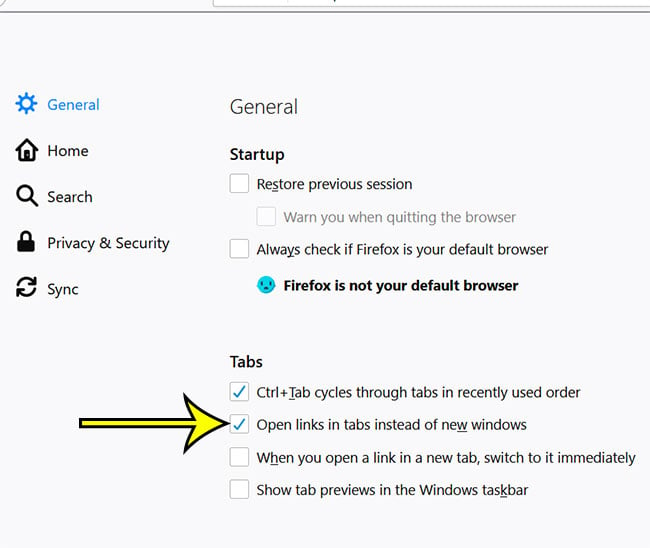
The checkbox in an older version of Firefox, under General. Current versions list it under Tabs and browsing.
- Close the Settings tab and go back to browsing.
Can’t find the panel? Type tabs in the search box at the top of the Settings page, and Firefox highlights the matching options.
What this checkbox does not do: it does not change ordinary links that load in the same tab. Those still replace the page you are on. Use one of the click methods above for those.
Stay on the page or jump to the new tab
By default, a middle-click, Ctrl+click or Command+click opens the new tab behind the one you are reading. The same is true for Open Link in New Tab from the right-click menu. Some people prefer to see the new page at once. Firefox has a checkbox for that in the same Tabs section:
- Open the menu button and select Settings.
- Select Tabs and browsing.
- Check When opening links or media in a new tab, switch to it immediately to jump to each new tab, or clear it to stay where you are.
Which to choose? If you open several links from one page, such as search results, a product list or a news front page, leave it off so you can collect tabs without bouncing back and forth. If you usually open one link and read it straight away, turn it on. Either way, the keyboard shortcuts above still let you choose the other behavior for a single link.
The Tabs section of Mozilla’s tab preferences article describes a few more choices that affect where links land:
- Open links from apps next to your active tab: when you click a link in another program, the new tab appears beside the tab you are using instead of at the far end of the tab strip. That keeps related pages together if you have many tabs open.
- Ctrl+Tab cycles through tabs in recently used order: this changes how Ctrl+Tab moves between tabs. With it on, Ctrl+Tab goes back to the tab you used last, which is handy for flipping between a page and a link you opened from it.
Neither setting is needed to open links in tabs, but both help once you start working with many of them.
Why a link still opens in a new window
Even with Open links in tabs instead of new windows checked, you may still see a separate window now and then. The usual reasons:
- The page asked for a window of a set size. Mozilla says Firefox still opens a new window when a page specifies the window’s size. Sign-in boxes, payment confirmations, chat pop-outs and media players often work this way, and many of them need their own window to work properly.
- You used a new-window command. Shift+Enter on a focused link (Shift+Return on a Mac; Mozilla lists it as “Open Focused Bookmark or Link in New Window”) or a new-window choice in the right-click menu opens a window on purpose.
- An extension is handling links. Tab managers and some privacy add-ons change how links open. To test this, restart Firefox in Troubleshoot Mode, which turns extensions off for that session, and try the link again. If it behaves, turn your extensions back on one at a time to find the cause.
Firefox on iPhone and iPad
Mozilla’s help for Firefox for iOS lists no “open links in tabs” switch, and its guide to tabs in Firefox for iOS only covers opening a blank tab: tap the tab icon, then tap the Add (+) icon. For a link on a page:
- Touch and hold the link. A menu of link actions should appear; look for an option to open it in a new tab (or a new private tab). Mozilla’s help doesn’t list the exact wording, so go by what your screen shows.
Check the change and undo it
To confirm the Settings change worked, open a link that used to start a new window, such as a link in an email program on your computer. It should now appear as a tab in your current Firefox window. To test the switch-immediately setting, Ctrl+click (or Command+click) any link and watch whether Firefox jumps to it.
To go back to the old behavior, return to Settings > Tabs and browsing and clear the checkbox. Nothing else changes, and your open tabs stay where they are.
Firefox tab questions
Can I make a normal left-click always open a new tab?
Not with a built-in Firefox setting. The checkbox only redirects links that would have opened a new window. For ordinary links, use a middle-click, Ctrl+click or Command+click.
What is the difference between a background tab and a foreground tab?
A background tab opens quietly in the tab strip while you stay on the current page. A foreground tab opens and takes over the screen at once. The switch-immediately checkbox decides which one you get by default, and adding Shift to the keyboard shortcut gives you the other.
I closed a tab I opened by accident. Can I get it back?
Yes. Press Ctrl+Shift+T (Command+Shift+T on a Mac); Mozilla’s shortcut list calls it Undo Close Tab, and it reopens tabs in the order you closed them. For other browsers and closed windows, see reopening a closed window or tab in Windows.
Too many tabs open now. What is the fastest cleanup?
Right-click a tab you want to keep and close the others from the menu, or close the whole window and start fresh. There are more options in closing all browser tabs at once on Windows.
Next, if you spend most of your browsing time searching, it is worth choosing the engine Firefox uses: see setting the default search engine in Firefox. And if sites keep asking to send you alerts, Mozilla explains how to manage web push notifications in Firefox.

Kermit Matthews runs Live2Tech from just outside Philadelphia. He is an IT specialist with over 20 years of experience, from a university help desk to small-business IT, IT management and his own consulting practice, and has written tech guides full time since 2020. Steps are checked against the current software on a real device or the maker’s official documentation. More about Kermit.