Printing every tab of a Google Sheets file takes one change in the print settings: after File > Print, switch the range from Current sheet to Workbook, then click Next. Steps follow Google’s current Docs Editors Help pages for Sheets on a computer, Android, iPhone and iPad.
What each print range covers
The print range at the top of the print settings decides how much of the file goes to the printer. Google lists three choices, and the default is the one most people don’t want when they need the whole file.
| Range | What prints | Use it when |
|---|---|---|
| Current sheet | Only the tab that was open when you chose File > Print | You need one tab, such as a single month |
| Workbook | The full spreadsheet, every tab in one job | You need a complete paper or PDF copy of the file |
| Selected cells | Only the cells you highlighted before opening print settings | You need one table or one block of figures |
Two things are not on Google’s page: how hidden tabs are treated, and whether you can untick individual tabs inside the Workbook option.
Print every tab from a computer
- Open the spreadsheet in Google Sheets in your browser.
- At the top, click File > Print. The print settings open with a preview of the pages.
- Click the range at the top of the settings. It shows Current sheet.
- Click Workbook.
- Look through the preview. The page count and layout now cover the whole file, so this is the moment to fix margins, orientation or page breaks (see the settings section below).
- Click Next.
- In Chrome, click Print in the window that appears. In Firefox or Safari, a PDF file downloads instead: open it and use File > Print in your PDF viewer.
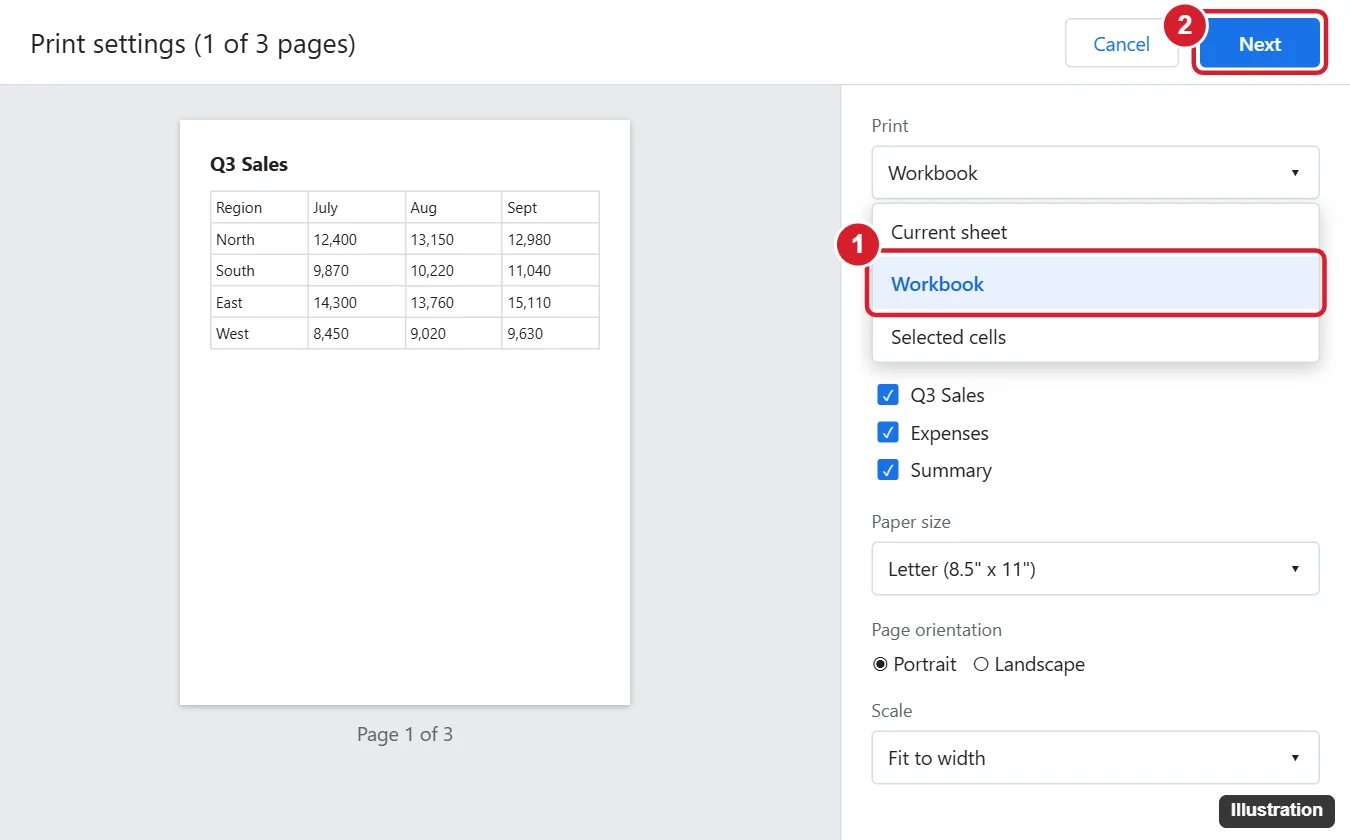
The illustration above is an older capture of the print settings, so your screen may look a little different. If you see a list of tabs with checkboxes under Workbook, as in the illustration, that list is your chance to leave tabs out before you click Next.
Print some tabs and skip the rest
When only part of the file matters, you have a few options that stay within what Google documents:
- One tab at a time: open the tab, choose File > Print, leave Current sheet selected, and repeat for each tab you need.
- One block of cells: highlight the cells first, then choose File > Print and pick Selected cells.
- Several tabs in one job: choose Workbook and, if your print settings show a checkbox for each tab, clear the ones you don’t need. Google’s help page doesn’t describe this list, so confirm in the preview that only the tabs you want are there.
Tab names often end up in printed headers, so short, clear names help a stack of printed pages make sense. Renaming a Google Sheets worksheet tab takes a few seconds per tab.
Hidden tabs are a gray area. Google doesn’t say whether Workbook includes them, so if a tab must be on paper, unhide it before printing and check the preview; unhiding a sheet in Google Sheets shows where hidden tabs are listed.
Settings that apply to the whole print job
With Workbook selected, the choices in the print settings shape every page of the job. Google documents these:
- Margins: under Margins, open the menu that shows Normal and choose another margin type, or click Custom numbers and type your own.
- Orientation: choose Landscape or Portrait. Wide tabs with many columns usually read better in landscape; printing a Google Sheets spreadsheet in landscape covers this one setting in more depth.
- Paper size: pick a standard size or Custom size and enter the height and width.
- Headers and footers: click Headers and footers and choose the information to include, such as page numbers or the sheet name, which is especially helpful when many tabs print in one stack. Use Edit custom fields to change the format or position, then Confirm. For numbering at the top of the page, see putting Google Sheets page numbers at the top of the page.
- Column titles on every page: freeze the title row (or column) in the sheet first, then in the print settings open Headers and footers and select Repeat frozen rows or Repeat frozen columns.
- Page breaks: click Set custom page breaks, drag the break lines to where each page should end, then click Confirm breaks. To take one out, point at the line and click Remove.
Scaling and gridline options also appear in the print settings, but Google’s print page does not describe them, so check their effect in the preview rather than relying on a label. Printed cell lines have their own walkthrough in printing with gridlines in Google Sheets, and centering a small table is covered in printing in the middle of the page in Google Sheets.
Google’s page doesn’t say whether different tabs can use different settings inside one Workbook job. If two tabs need different orientation, the reliable approach is to print them separately with Current sheet.
A worked example: a twelve-month budget
Picture a household budget file with twelve monthly tabs and a summary tab. Each month has about forty rows and eight columns, and the summary tab is wide.
- Freeze the first row on each monthly tab so the column titles repeat if a month runs onto a second page.
- Open File > Print, choose Workbook, and set Landscape so the wide summary tab fits across.
- In Headers and footers, add the sheet name and page numbers so the stack can be put back in order if it is dropped.
- Scroll the preview. If one month spills a single row onto an extra page, set a custom page break or reduce the margins with Custom numbers.
- Click Next and print, or keep the PDF if your browser downloads one.
The result is a single job with every month in order, labeled, with titles on each page.
Keep the whole workbook as one PDF
There are two routes to one PDF of the full file:
- From the print settings: choose Workbook and click Next. In Firefox or Safari, the PDF downloads automatically. In Chrome, choose a save-to-PDF destination in the print window instead of a printer.
- From the File menu: Google’s help says to click File > Download and select the file format you want. Google’s pages don’t describe which tabs a downloaded PDF covers, so open the PDF and check that every tab is there.
Either way, check the downloaded or saved file before you delete anything from the spreadsheet, since that file is only a snapshot of the data at that moment.
If the goal is a copy someone can edit rather than a printout, a spreadsheet format is the better choice; saving Google Sheets on a PC or Mac covers the download formats.
Print from the Sheets app on a phone or tablet
Google documents printing from the Google Sheets app on both platforms:
- Android: open the spreadsheet, tap More, then tap Share & export > Print. At the top, tap Paper size to choose print settings, follow the instructions to choose a printer, and tap Print.
- iPhone and iPad: open the spreadsheet, tap More, then tap Share & export > Print. Follow the instructions to choose the printer, choose your print settings, and tap Print.
Google’s app instructions don’t mention a Workbook option, so the app’s print preview is the place to check what will print. When every tab must be included, a computer browser with the Workbook range is the documented route.
When the printout is not what you expected
- Only one tab printed: the range was still Current sheet. The print settings open on Current sheet, so switch it to Workbook each time you need the whole file.
- A tab spills onto many pages: switch to landscape, narrow the margins with Custom numbers, or set custom page breaks, and watch the preview change.
- Extra pages with almost nothing on them: check the end of the tab for stray content or formatting, then print that tab with Selected cells or clear the stray cells and check the preview again.
- No PDF and no print window: look at your browser’s download list. In Firefox or Safari the job arrives as a downloaded PDF, not a print window.
- Print or Download is missing: the owner of a shared file can turn off printing and downloading for some people with the sharing setting for who can download, copy and print. Ask the owner for access, or for a copy of the file.
Workbook printing questions
Can I get the workbook as an Excel file instead of paper?
Yes. Downloading an Excel version of a Google Sheets file keeps every tab in an editable file.
Google’s help for each platform: printing from Google Sheets on a computer, on Android and on iPhone and iPad, plus printing and downloading files in the Docs editors.
Next step: open your spreadsheet, choose File > Print, switch to Workbook and scroll the preview from the first page to the last before you click Next.

Kermit Matthews runs Live2Tech from just outside Philadelphia. He is an IT specialist with over 20 years of experience, from a university help desk to small-business IT, IT management and his own consulting practice, and has written tech guides full time since 2020. Steps are checked against the current software on a real device or the maker’s official documentation. More about Kermit.