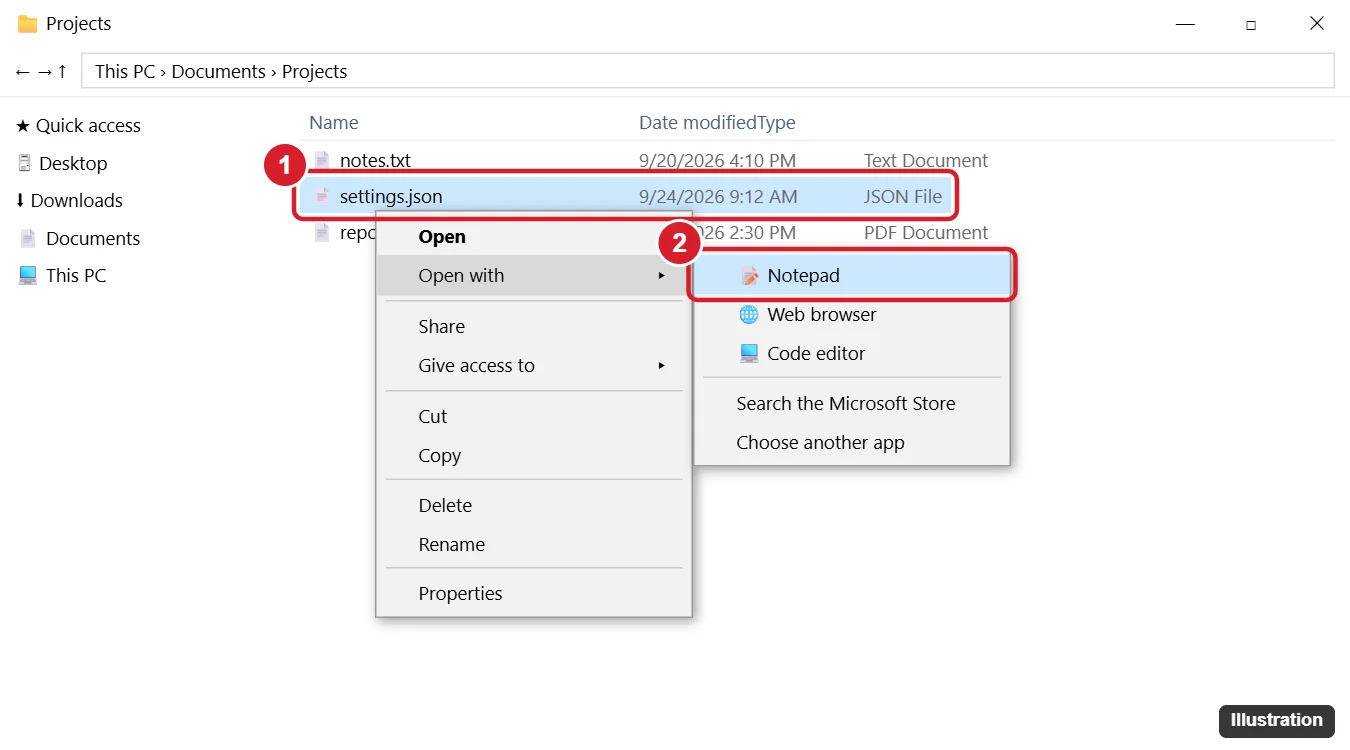
A JSON file (.json) is a plain-text file that stores structured data, such as app settings, exported data, or information passed between programs. To view or edit one on Windows 10, right-click it, choose Open with, and pick Notepad. For a formatted, easy-to-read view, drag the file into Microsoft Edge or Firefox. For regular editing, install a free code editor such as Visual Studio Code.
Which App Should You Use?
| App | Best for | Pros | Cons |
|---|---|---|---|
| Notepad | Quick view or small edits | Built in, fast | No formatting or error checking |
| Web browser | Reading JSON | Built in; Firefox and Edge can show formatted, collapsible JSON | Read-only |
| Code editor (VS Code, Notepad++) | Editing and validating | Syntax colors, formatting, error highlighting | Needs installing |
| Excel or Power Query | Tabular data in JSON | Turns JSON into rows and columns | Setup takes a few steps |
Method 1: Open With Notepad
- Find the .json file in File Explorer.
- Right-click it and choose Open with.
- Click Notepad. If it is not listed, click Choose another app, scroll to Notepad, and click OK.
Minified JSON may appear as one long line. Turn on Format > Word Wrap to see it all, or use a browser or code editor for a formatted view.
Method 2: Open in a Web Browser
- Open Firefox, Microsoft Edge, or Chrome.
- Drag the JSON file into the browser window, or press Ctrl + O and select it.
Firefox shows a built-in JSON viewer with collapsible sections, a raw view, and a filter. Newer versions of Edge can also format JSON with a Pretty-print option. In other browsers, you may see plain text unless you add a trusted JSON viewer extension.
Method 3: Use a Code Editor
- Install a free editor such as Visual Studio Code or Notepad++ from its official website.
- Right-click the JSON file and choose Open with > [editor name].
- In VS Code, press Shift + Alt + F to format the document. Errors, such as a missing comma, are underlined.
Code editors are the best choice if you need to edit configuration files, since a single misplaced comma or quote can make the JSON invalid.
Method 4: Import JSON Into Excel
- Open Excel and go to Data > Get Data > From File > From JSON.
- Select the file and click Import.
- In the Power Query Editor, click To Table, expand the columns, and click Close & Load.
This works best for JSON that contains a list of similar records. The From JSON option is available in Excel 2016 and later, including Microsoft 365.
Can I convert JSON to CSV?
Yes. Import it into Excel with Power Query, then save as CSV.
Set a Default App for JSON Files
- Right-click any .json file and choose Open with > Choose another app.
- Select the app you want.
- Check Always use this app to open .json files and click OK.
You can also go to Settings > Apps > Default apps > Choose default apps by file type and set an app for .json.
Tips for Editing JSON Safely
- Back up first: copy the file before editing, especially app or game settings.
- Keep the syntax valid: use double quotes around keys and text, commas between items, and no trailing comma after the last item.
- Validate it: code editors highlight errors; you can also use a validator tool, but avoid pasting sensitive data into websites.
- Save with UTF-8 encoding: in Notepad, choose Save As and select UTF-8.
Is it safe to open a JSON file?
Yes. JSON is plain text and does not run code when opened in a text editor or browser.

Kermit Matthews runs Live2Tech from just outside Philadelphia. He is an IT specialist with over 20 years of experience, from a university help desk to small-business IT, IT management and his own consulting practice, and has written tech guides full time since 2020. Steps are checked against the current software on a real device or the maker’s official documentation. More about Kermit.