With the right setting, the iPhone keyboard shows small letters while you type in lowercase and switches to capitals only when Shift or Caps Lock is on. With it off, every key shows a capital letter no matter what you will actually type. The switch is Show Lowercase Keys in Settings > Accessibility > Keyboards & Typing on current versions of iOS.
This applies to Apple’s built-in keyboard; it changes only how the keys look, never what gets typed.
Turn Show Lowercase Keys on or off
Apple’s keyboard accessibility settings page describes this as an accessibility option for people who find uppercase letters easier to read, so it lives in Accessibility rather than in the general keyboard settings.
- Open the Settings app.
- Tap Accessibility.
- Tap Keyboards & Typing. On iOS 17 and iOS 18 the same row is called Keyboards.
- Turn on Show Lowercase Keys so the switch is green. To get a keyboard that shows only capital letters, turn it off instead.
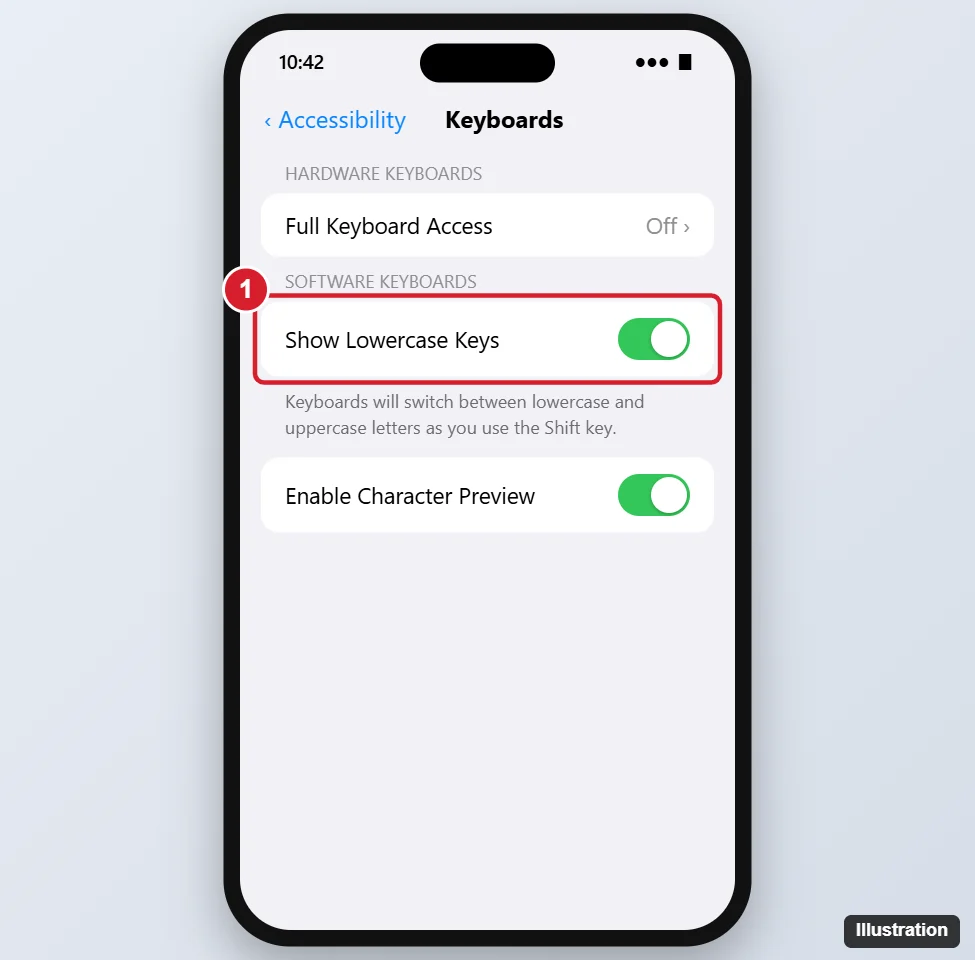
To confirm, open Notes or Messages and start a new line. The first letter of a sentence is usually capitalized automatically, so the keys may show capitals at first. Type one letter and the keys should switch to lowercase.
On older iOS versions
The setting has been around for many years, but its location has moved:
| iOS version | Path |
|---|---|
| Current versions | Settings > Accessibility > Keyboards & Typing > Show Lowercase Keys |
| iOS 17 and iOS 18 | Settings > Accessibility > Keyboards > Show Lowercase Keys |
| iOS 12 | Settings > General > Accessibility > Keyboard, where Apple’s guide describes the option as showing only uppercase keys |
If you can’t find the row, type “lowercase” into the search field at the top of Settings. On recent versions, the results should include Show Lowercase Keys.
Read the Shift key at a glance
Once lowercase keys are on, the letters on the keys tell you what you will get, and the Shift key (the upward arrow at the left of the bottom letter row) tells you why. Apple documents what the key does but not exactly how each state looks, so treat the descriptions below as a general guide; the letters on the keys are the reliable signal.
| What you see | Shift state | What you will type |
|---|---|---|
| Lowercase letters, plain Shift arrow | Off | Lowercase letters |
| Capital letters, highlighted Shift arrow | On for one letter | One capital letter, then the keys go back to lowercase |
| Capital letters, Shift arrow with a line under it | Caps Lock | Capitals until you tap Shift again |
Two typing shortcuts from Apple’s guide to typing with the onscreen keyboard are worth knowing:
- One capital letter: tap Shift, then the letter. You can also touch Shift and slide your finger to the letter.
- Caps Lock: double-tap Shift. Tap it once more to go back to lowercase.
If double-tapping Shift does nothing, Caps Lock may be switched off in the keyboard settings. The fix, plus what to try when it still won’t stick, is covered in how to use Caps Lock on an iPhone keyboard.
Here is a simple example. Suppose you type the word “iPhone” with lowercase keys on. You start a new line, so the keyboard shows capitals: tap Shift once to cancel the automatic capital, and the keys drop to lowercase. Type “i”, tap Shift (the keys show capitals for one letter), type “P”, and the keys return to lowercase for “hone”. Each change is visible on the keys before you tap.
Type everything in lowercase
Show Lowercase Keys changes only the look of the keys. If the goal is text that stays all lowercase, such as a username, a casual message or a code, the setting you want is automatic capitalization.
- Open Settings and tap General.
- Tap Keyboard.
- Below All Keyboards, find the switch for automatic capitalization (labeled Auto-Capitalization on recent versions) and turn it off.
After that, the iPhone no longer capitalizes the first letter of a sentence for you, so the keys stay lowercase unless you tap Shift. A quicker way to reach the same screen from any keyboard is to touch and hold the globe or emoji key and tap Keyboard Settings.
Keep in mind that autocorrect can still change words, for example turning a lowercase name into a capitalized one. If that is the problem, see how to turn off autocorrect on iPhone.
If the keys still look wrong
- Every key shows capitals all the time. Check that Show Lowercase Keys is on. If it is, look at the Shift key: Caps Lock may be on. Double-tap or tap Shift to clear it.
- The keys show capitals only at the start of a line. That is automatic capitalization doing its job. Tap Shift to cancel it for one letter, or turn the feature off as described above.
- Nothing changed after you flipped the switch. Try closing the app you were typing in and opening it again.
- You use Gboard, SwiftKey or another keyboard. Show Lowercase Keys is a setting for Apple’s own keyboard. Third-party keyboards draw their own keys and may have a similar option in their app, or none at all. Swap back to Apple’s keyboard with the globe key to compare.
- The keyboard behaves oddly in several ways. Resetting the keyboard dictionary or keyboard settings can help; see how to reset the keyboard on iPhone before you try it, because a reset clears learned words.
Related keyboard settings
If you are adjusting the keyboard to make it easier to use, these settings often come up next:
- Larger keys: Apple’s guide suggests turning the iPhone to landscape for a bigger keyboard.
- One-handed typing: touch and hold the globe or emoji key, then pick a left or right layout. The details, including how to turn it back off, are in the one-handed keyboard walkthrough.
- Typing sounds and vibration: go to Settings > Sounds & Haptics > Keyboard Feedback, or see how to turn off keyboard clicks on iPhone.
- Several keyboards installed: you can pick which one appears first; see how to change the order of keyboards on iPhone.
- Double-space period: if extra periods appear when you tap the space bar twice, see how to turn off the double-space period shortcut.
Lowercase keyboard: short answers
Does Show Lowercase Keys change what I type?
No. It changes only the letters printed on the keys. Whether a letter comes out as a capital still depends on Shift, Caps Lock and automatic capitalization.
Why would anyone turn it off?
Apple presents the uppercase-only look as an accessibility option: some people find capital letters easier to read on small keys. With it off, use the Shift key’s appearance to tell what case you will type.
Does it affect a hardware keyboard?
No. It applies to the onscreen keyboard. A Bluetooth keyboard prints its own key labels, and external keyboard options such as Key Repeat, Sticky Keys and Slow Keys sit in the same Keyboards & Typing screen.
Is there the same option on iPad?
iPad has an onscreen keyboard with similar accessibility settings. Search for “lowercase” in the iPad’s Settings to find the switch on your version of iPadOS.
Once the keys show the case you expect, open a note and type a short sentence with a capital or two to make sure everything looks right.

Kermit Matthews runs Live2Tech from just outside Philadelphia. He is an IT specialist with over 20 years of experience, from a university help desk to small-business IT, IT management and his own consulting practice, and has written tech guides full time since 2020. Steps are checked against the current software on a real device or the maker’s official documentation. More about Kermit.