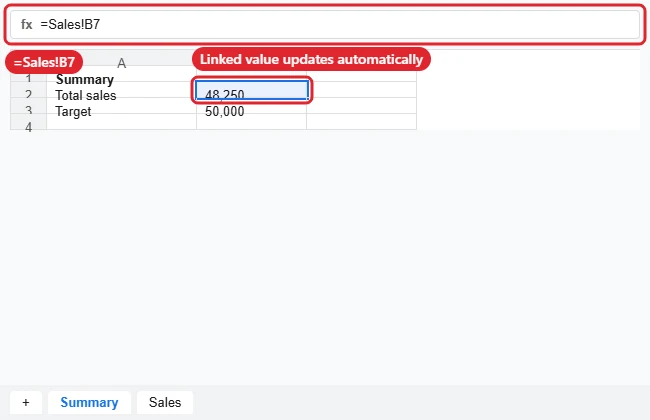
To link cells in Google Sheets, type = in a cell and click the cell you want to link to, then press Enter. The linked cell shows the same value and updates whenever the original changes. For a cell on another tab, the formula looks like =Sales!B7. For a cell in a different spreadsheet file, use IMPORTRANGE. To add a clickable link that jumps to a cell, use Insert > Link > Sheets and named ranges.
Quick Answer
Type =, click the source cell, press Enter. Other tab: =SheetName!A1. Other file: =IMPORTRANGE(“URL”,”Sheet1!A1″).
Link to a Cell on the Same Tab
- Click the cell where you want the linked value.
- Type =.
- Click the source cell (or type its address, like B7).
- Press Enter.
Link to a Cell on Another Tab
- Type = in the destination cell.
- Click the other sheet tab at the bottom and click the source cell.
- Press Enter. The formula reads like =Sales!B7. If the tab name has spaces, it’s wrapped in quotes: =’Q3 Sales’!B7.
Link to a Cell in Another Spreadsheet
- Copy the other spreadsheet’s URL.
- In your sheet, type =IMPORTRANGE(“paste-URL-here”, “Sheet1!B7”).
- Press Enter, then click Allow access the first time.
Linking Options Compared
| Goal | Method |
|---|---|
| Show the same value | =A1 or =Sheet!A1 |
| Pull a range from another file | IMPORTRANGE |
| Clickable jump to a cell or range | Insert > Link > Sheets and named ranges |
| Keep a reference fixed when copying | Use $, like =$B$7 |
To organize linked data, see how to custom sort in Google Sheets.
Troubleshooting
- #REF! error: The source cell or tab was deleted, or IMPORTRANGE access wasn’t allowed.
- Reference shifts when copying: Add $ signs to lock it.
- Value doesn’t update from another file: IMPORTRANGE refreshes periodically; wait a moment or reload.
- Sharing the linked sheet? See making a Google Sheets file public.
Frequently Asked Questions
Does a linked cell copy formatting?
No, only the value. Use Paint format to copy formatting.
Can I link a whole column?
Yes, for example =Sales!B:B in an array-friendly spot, or IMPORTRANGE with a column range.
Summary
- Type = and click the source cell.
- Use SheetName!A1 for other tabs.
- Use IMPORTRANGE for other files.
- Use Insert > Link for clickable jumps.

Kermit Matthews runs Live2Tech from just outside Philadelphia. He is an IT specialist with over 20 years of experience, from a university help desk to small-business IT, IT management and his own consulting practice, and has written tech guides full time since 2020. Steps are checked against the current software on a real device or the maker’s official documentation. More about Kermit.