To limit user access in Windows 10, give people Standard accounts instead of Administrator accounts, so they can’t install software or change system settings. For children, add them as family members to use screen time, app and web limits. To lock a PC to a single app, use Assigned access (kiosk mode). For specific folders, change permissions in Properties > Security. Windows 10 reached end of support on October 14, 2025. Consumer Extended Security Updates (ESU) now run until October 12, 2027.
Quick Answer
Settings > Accounts > Family & other users > select the user > Change account type > Standard User. Use family settings or assigned access for tighter limits.
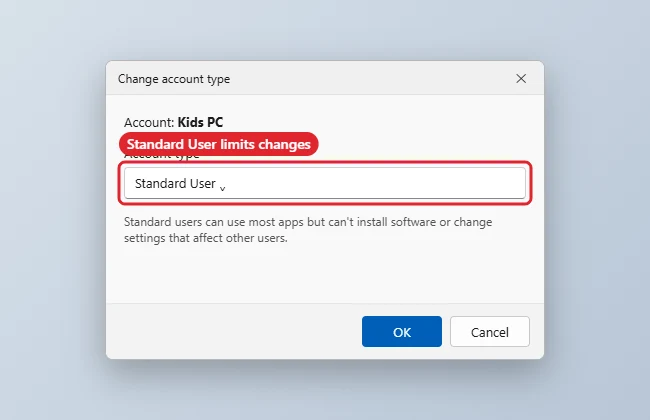
Steps to Make an Account Standard
- Open Settings > Accounts > Family & other users.
- Select the account and click Change account type.
- Choose Standard User and click OK.
- Keep at least one administrator account with a strong password.
Ways to Limit Access
| Goal | Tool |
|---|---|
| Stop installs and system changes | Standard account |
| Screen time, app and web limits for kids | Family member account with family settings |
| Run only one app | Assigned access (kiosk) |
| Protect a folder | Folder Properties > Security permissions |
| Block Control Panel or settings (Pro) | Group Policy editor |
Related: how to add a guest account on Windows 11.
Restrict Access to a Folder
- Sign in with an administrator account and right-click the folder you want to protect.
- Choose Properties and open the Security tab.
- Click Edit, then Add, type the user’s name and click OK.
- Select that user and tick Deny next to the permissions you want to block, such as Full control or Write, then click OK.
Deny rules override Allow rules, so test with the restricted account afterwards. Folder permissions only work on drives formatted with NTFS; USB sticks formatted as FAT32 or exFAT don’t support them.
Limit Access With Group Policy (Pro and Above)
On Windows 10 Pro, Enterprise and Education, the Local Group Policy Editor gives finer control. Press Windows + R, type gpedit.msc and press Enter. Useful policies under User Configuration, Administrative Templates include:
- Control Panel, Prohibit access to Control Panel and PC settings: blocks Settings and Control Panel.
- System, Don’t run specified Windows applications: blocks programs by file name.
- System, Prevent access to the command prompt: stops Command Prompt from opening.
Policies set this way apply to every user on the PC, including administrators, unless you target them with more advanced tools. Note the settings you change so you can undo them. Windows 10 Home doesn’t include the Group Policy Editor.
Set Limits for Children
Add a child’s Microsoft account as a family member under Settings, Accounts, Family & other users. Then manage screen time, app and game limits, content filters and spending from Microsoft Family Safety on the web or in the Family Safety app. If you need to undo this later, see turning off Microsoft Family Safety.
Troubleshooting
- Standard user needs an app: An administrator can install it for them.
- Folder still visible: Permissions stop access, not visibility. Remove Read permission for that user.
- Visitors: See adding a guest account.
- Adding users: See adding an account on Windows 10.
Frequently Asked Questions
Can a Standard user become admin themselves?
Not without an administrator’s password.
Do limits apply offline?
Account types and permissions do. Some family settings need an internet connection to update.
Is Group Policy available on Home?
No. Use account types and family settings instead.
Summary
- Use Standard accounts for everyday users.
- Use family settings for children.
- Use assigned access for single-app PCs.
- Set folder permissions for sensitive files.

Kermit Matthews runs Live2Tech from just outside Philadelphia. He is an IT specialist with over 20 years of experience, from a university help desk to small-business IT, IT management and his own consulting practice, and has written tech guides full time since 2020. Steps are checked against the current software on a real device or the maker’s official documentation. More about Kermit.