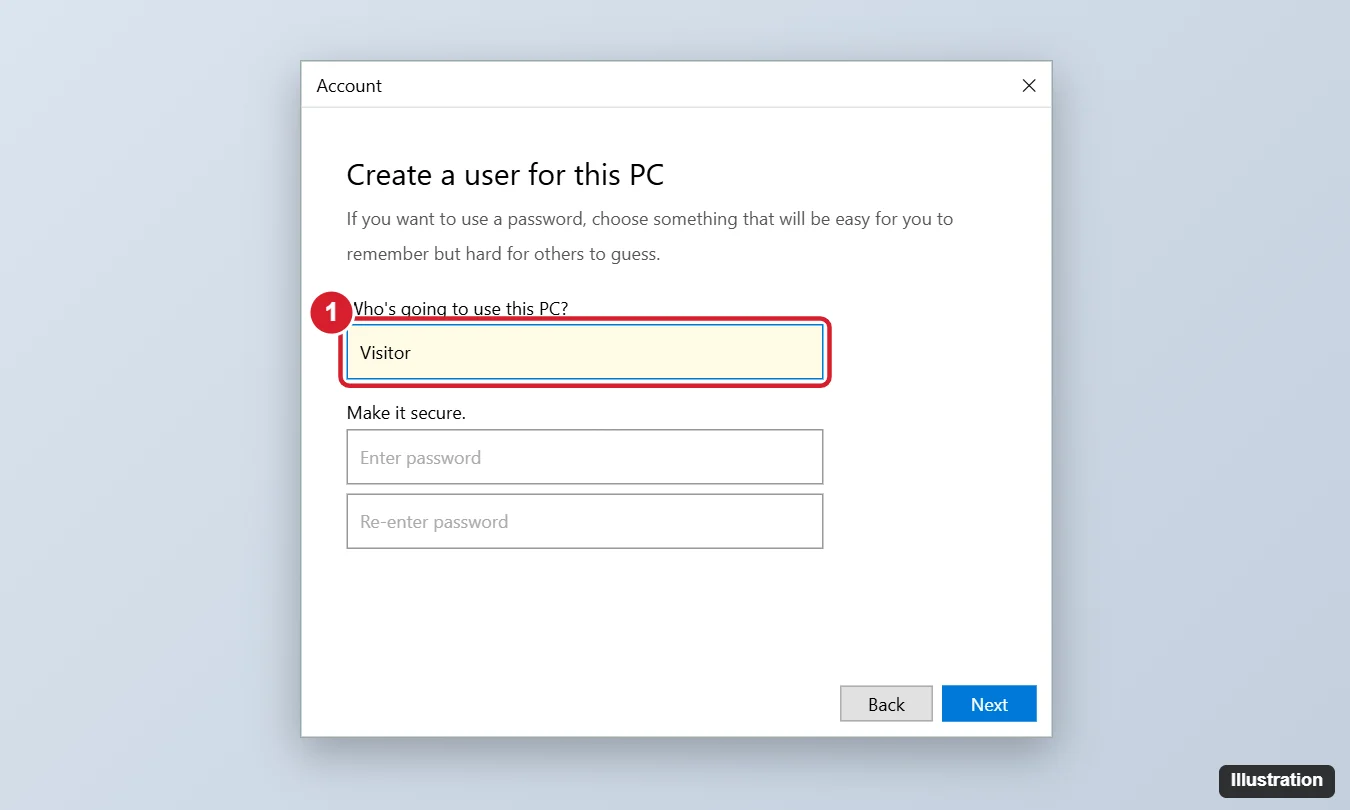
Windows 10 still has a built-in account named Guest, but since the 2016 Anniversary Update you can’t sign in to it. Create a local standard account for visitors instead: go to Settings > Accounts > Family & other users > Add someone else to this PC, click I don’t have this person’s sign-in information, then Add a user without a Microsoft account. Name it something like Visitor (not “Guest,” which is reserved) and click Next. The account is a standard user by default.
Why You Can’t Enable the Built-In Guest Account
Older Windows versions let visitors sign in as Guest. In Windows 10 version 1607 and later, the account still exists (you’ll see it in Computer Management or with net user), but even if you enable it, it won’t appear on the sign-in screen and can’t be used normally. Old command tricks that add “Guest” to groups don’t work reliably and can break things.
Is it the same in Windows 11?
Yes, the built-in Guest can’t be used there either; create a local standard account the same way. Windows 10 reached end of support on October 14, 2025.
Create a Visitor Account in Settings
- Sign in with an administrator account.
- Open Settings > Accounts > Family & other users.
- Under Other users, click Add someone else to this PC.
- Click I don’t have this person’s sign-in information, then Add a user without a Microsoft account.
- Enter a name such as Visitor. Leave the password fields blank for easy access, or set a password and security questions.
- Click Next. The account appears under Other users as a Local account.
Create It With Command Prompt
Open Command Prompt as administrator and run:
net user Visitor /add /active:yesNew accounts are added to the Users group (standard users) by default. To set a password, add it after the name, or run net user Visitor *.
What a Standard Visitor Account Can and Can’t Do
- Can: browse the web, use installed apps, save files in its own folders.
- Can’t: install most software, change system settings, or open other users’ personal folders without an admin password.
Make sure your own files are in your user folder (Documents, Pictures) rather than a shared location like C:\Users\Public.
Limit It Further
- Microsoft Family Safety controls apply to child accounts linked to a Microsoft account, not local accounts; for local accounts, rely on standard-user limits.
- On Windows 10 Pro, Assigned access (Settings > Accounts > Family & other users > Set up a kiosk) can lock the account to a single app.
- Sign out of browsers and cloud apps in the visitor account after each use, or clear browsing data.
Switch to or Remove the Account
- Switch: press Ctrl + Alt + Delete and choose Switch user, or pick the account on the sign-in screen.
- Remove: in Settings > Accounts > Family & other users, select the account and click Remove > Delete account and data.
For a full account, see how to add an account on Windows 10.
To control what users can change, see limiting user access in Windows 10.
Related: Add a guest account on Windows 11.

Kermit Matthews runs Live2Tech from just outside Philadelphia. He is an IT specialist with over 20 years of experience, from a university help desk to small-business IT, IT management and his own consulting practice, and has written tech guides full time since 2020. Steps are checked against the current software on a real device or the maker’s official documentation. More about Kermit.