Pick a filter for a run of shots, close Camera, and the next time you open it the look is back to Original. That is Camera’s default, not a fault. Turn on Creative Controls in Settings > Camera > Preserve Settings and Camera keeps the last filter you used. On iPhones with Photographic Styles, also turn on the Photographic Style switch on the same screen. Photos you already took stay exactly as they are.
Turn on Creative Controls in Preserve Settings
Apple’s guide to saving camera settings on iPhone explains that you can save “the last camera mode, filter, lighting, depth, and Live Photo settings you used so they’re not reset the next time you open Camera.” Each of those has its own switch: off means the setting goes back to its default, on means Camera remembers your last choice.
- Open the Settings app.
- Tap Camera. If Camera is not in the main list on your version of iOS, scroll down to Apps and tap Camera there.
- Tap Preserve Settings.
- Turn on Creative Controls. The switch turns green.
- If your iPhone uses Photographic Styles, also turn on Photographic Style.
- Open Camera, choose a filter or style, take a photo, and close Camera. Open it again: the same look should still be selected.
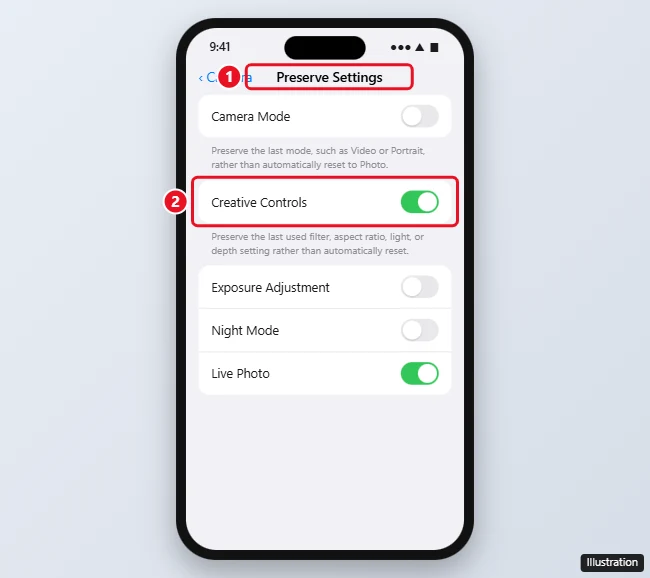
The last step is the quickest way to confirm the change worked. If the look reverts, the answers at the end of this page cover the usual causes.
Want the opposite, so every session starts clean? Turning the same switch off is covered in how to stop saving filter settings on an iPhone.
Filter or Photographic Style: which switch you need
Classic filters and Photographic Styles are different tools, and each has its own switch.
- Filters apply a fixed look, such as a warmer or black-and-white treatment, over the picture. Creative Controls is the switch that keeps the last one. In Camera, Apple shows Filter on iPhone 12 models or earlier and Styles on models that support Photographic Styles.
- Photographic Styles are available on supported models. Apple’s Photographic Styles guide describes choosing a style by tapping or swiping up from the camera modes at the bottom of the screen, tapping Styles, and fine-tuning it with Tone and Warmth. Newer models also offer Customize and, with the latest styles, a Texture option.
If you always shoot with the same style, there is a second option: set a default in Settings > Camera > Photographic Styles, where Apple says you can choose Use Standard or pick a different style.
On models that support the newer Photographic Styles, Apple says Camera must capture in High Efficiency to edit a style later in Photos (Settings > Camera > Formats > High Efficiency). If you plan to adjust styles after shooting, leave that format on.
Each look-related switch in Preserve Settings holds one kind of choice. In Apple’s own descriptions:
| Switch | Keeps | Does not keep |
|---|---|---|
| Creative Controls | “The last settings you used for a light setting”; Apple’s page introduction says the last filter is kept | Your background blur level or your Photographic Style, which have their own switches |
| Photographic Style | “The last used Photographic Style (on supported models)” | A classic filter choice |
| Depth Control | The last depth control setting in Photo, Portrait, and Cinematic modes | The filter or style |
| Night Mode | The Night mode setting, rather than resetting it to Auto (supported models) | The filter or style |
Depth has its own switch, Depth Control, which Apple says saves the last depth control setting in Photo, Portrait, and Cinematic modes. Turn it on too if you want the blur level kept. Exposure Adjustment, Live Photo and Camera Mode also have switches, but they keep your exposure, the Live setting and the last mode rather than the look; if the Live button keeps coming back on, the steps to turn Live Photos on or off explain how that switch and the button work together. Other switches, such as Macro Control, Portrait Zoom, Action Mode, and the ProRAW, resolution, and ProRes options, depend on your model and do not affect filters.
Choosing the filter itself is a separate job, and the buttons differ by model. The walkthrough to change the camera filter on iPhone shows where the control sits on each layout.
Remove or change the filter later
A filter applied in Camera is not permanent. Apple’s guide to editing photos and videos on iPhone lists adding a filter effect among the edits in Photos, and edits can be undone.
- Open the photo in the Photos app.
- Tap Edit.
- Open the filters controls and tap Original to remove a filter applied when you took the photo, or pick a different one.
- Tap Done to save. To undo saved edits later, Apple’s steps end with Revert to Original.
For a one-off monochrome version of a shot taken in color, the steps to make a photo black and white on iPhone work on any picture in your library.
Camera filter memory answers
Why does Camera still drop my filter after I turned on Creative Controls?
Check these in order:
- The wrong switch is on. Camera Mode keeps only the mode, not the look. Check that Creative Controls (for filters) or Photographic Style (for styles) is the switch that is green.
- Your phone uses styles. If your Camera shows Styles rather than filters, Creative Controls alone may not keep the look you pick. Turn on Photographic Style too.
- A default style is set. If Settings > Camera > Photographic Styles is set to something other than what you expect, that default is what Camera uses; change it there, or turn on the Photographic Style switch in Preserve Settings to keep your last used style.
- Depth or Night mode looks different. If the picture changes in a way a filter does not explain, the blur level or Night mode may have reset. Those have their own switches (Depth Control and Night Mode) in the same list.
- The switch was turned off. Someone else using the phone, or a settings change you forgot, can flip it. Repeat the steps above.
Does Creative Controls also keep Portrait Lighting?
Apple describes Creative Controls as saving the last settings you used for a light setting, which is the kind of choice Portrait Lighting makes. Apple does not list Portrait Lighting by name for this switch. For background blur, also turn on Depth Control.
Does turning on Creative Controls change photos I already took?
No. Preserve Settings only decides which settings Camera starts with next time. Existing photos keep whatever look they were taken with, and you change those in Photos.
Can I keep both a filter and a Photographic Style?
The Creative Controls and Photographic Style switches are separate, so both can be on. In Photos, Apple notes that on iPhone 16 models or later, filter effects are available only if you haven’t turned on Photographic Styles, so on those iPhones you use one or the other.
Will the Photos app remember the last filter I used when editing?
Apple does not document that. Preserve Settings applies to the Camera app only, so expect to choose a filter for each photo you edit in Photos.
Does the selfie camera keep the filter too?
Apple’s Preserve Settings page lists one set of switches and does not mention a separate setting for the front camera. After you switch between the front and back camera, check that the look you want is still selected. Selfie orientation is a different setting, covered in how to turn the iPhone camera mirror effect on or off.
Once your filter sticks, a few more Camera settings help keep shots consistent. Turning on the camera grid on iPhone is a good next step.

Kermit Matthews runs Live2Tech from just outside Philadelphia. He is an IT specialist with over 20 years of experience, from a university help desk to small-business IT, IT management and his own consulting practice, and has written tech guides full time since 2020. Steps are checked against the current software on a real device or the maker’s official documentation. More about Kermit.