Many Acer Predator gaming laptops and desktops play a loud startup sound and a Predator logo animation every time they boot. Handy the first time, less so in a library or late at night. On most models, you can turn both off in the BIOS setup, and on some newer models in Acer’s PredatorSense app. This guide shows where to find the setting and what to do if your model doesn’t have it.
Quick Answer
Restart the computer and press F2 repeatedly to enter the BIOS. On the Main tab, set Boot Sound (and Boot Animation or a similarly named option, if present) to Disabled. Press F10 to save and exit.
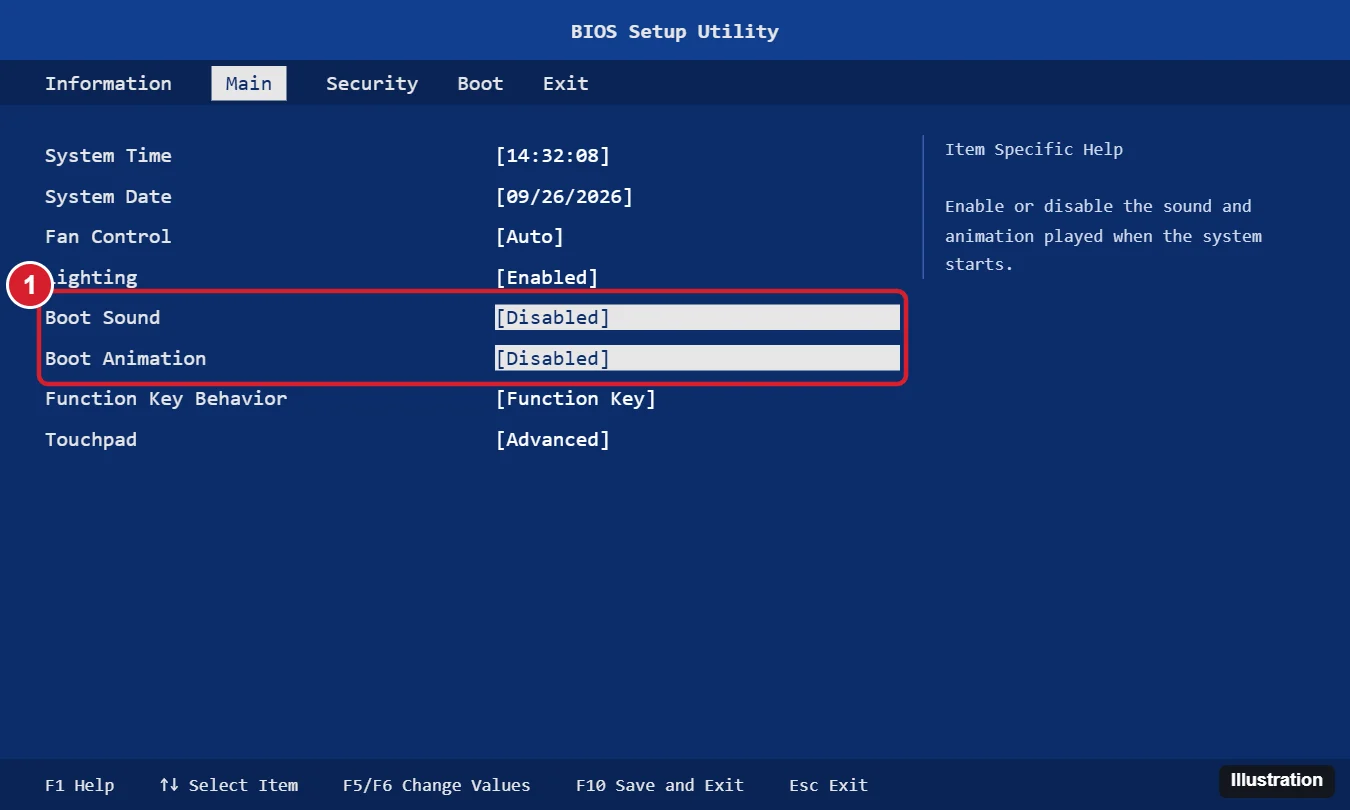
Turn Off the Boot Sound and Animation in the BIOS
- Save your work and restart the computer.
- As soon as the Acer or Predator logo appears, press F2 repeatedly until the BIOS setup utility opens. (If Windows starts instead, restart and try again, or use Windows’ Advanced startup option below.)
- Use the arrow keys to open the Main tab.
- Select Boot Sound and set it to Disabled (usually with F5/F6 or Enter).
- If you see an option for the logo or animation, such as Boot Animation or Boot Logo, set it to Disabled too.
- Press F10 and choose Yes to save and exit.
Option names vary by model and BIOS version; Acer’s knowledge base documents these settings for models such as the Predator Helios 300.
Can’t Get Into the BIOS?
- In Windows, go to Settings > System > Recovery (Windows 11) or Update & Security > Recovery (Windows 10), click Restart now under Advanced startup, then choose Troubleshoot > Advanced options > UEFI Firmware Settings > Restart.
- Turn off Windows Fast startup (Control Panel > Power Options > Choose what the power buttons do) so the F2 key has time to register.
Option Not in the BIOS?
- Update the BIOS: some models gained the option in later BIOS versions. Download updates only from Acer’s support site for your exact model, and keep the laptop plugged in during the update.
- Check PredatorSense: open the app and look in its settings for boot or startup effects; some models control the logo animation or lighting there.
- Mute before shutdown: on some models, the startup sound follows the system volume at shutdown. Muting before shutting down may silence it, depending on the model.
- Desktops: Predator Orion desktops may use different BIOS menus; check the Main or Advanced tab.
Turn Off the Windows Startup Sound Too
The Windows startup chime is separate from the Predator sound. Turn it off in Control Panel > Sound > Sounds by unchecking Play Windows Startup sound.
Frequently Asked Questions
Is it safe to change these BIOS settings?
Yes. Boot sound and animation settings only affect startup effects. Avoid changing other settings you’re unsure about.
Will disabling the animation make it boot faster?
Slightly, by a second or two on some models.
How do I undo it?
Enter the BIOS again and set the options back to Enabled, or choose Load Setup Defaults on the Exit tab.
Summary
- Restart and press F2 to enter the BIOS.
- On the Main tab, disable Boot Sound and the boot animation option.
- Press F10 to save.
- Update the BIOS or check PredatorSense if the option is missing.

Kermit Matthews is a freelance writer based in Philadelphia, Pennsylvania with more than a decade of experience writing technology guides. He has a Bachelor’s and Master’s degree in Computer Science and has spent much of his professional career in IT management.
He specializes in writing content about iPhones, Android devices, Microsoft Office, and many other popular applications and devices.