To sort programs by most recently installed in Windows 10, open Settings > Apps > Apps & features, click the Sort by menu above the app list, and choose Install date. The newest apps move to the top, with the install date shown under each app’s size. You can also do this in Control Panel by opening Programs and Features and clicking the Installed On column header.
Below are both methods step by step, plus a PowerShell command that lists every program with its install date, and what to do when a date looks wrong or is missing.
Method 1: Sort by install date in Settings
- Press Windows key + I to open Settings.
- Click Apps. Apps & features opens by default.
- Scroll down to the app list. Click the Sort by menu (it usually says Name) and choose Install date.
- The most recently installed or updated apps now appear first. The date appears under each app’s size on the right.
- Optional: use Filter by to show apps on just one drive, or type in Search this list to find a specific app.
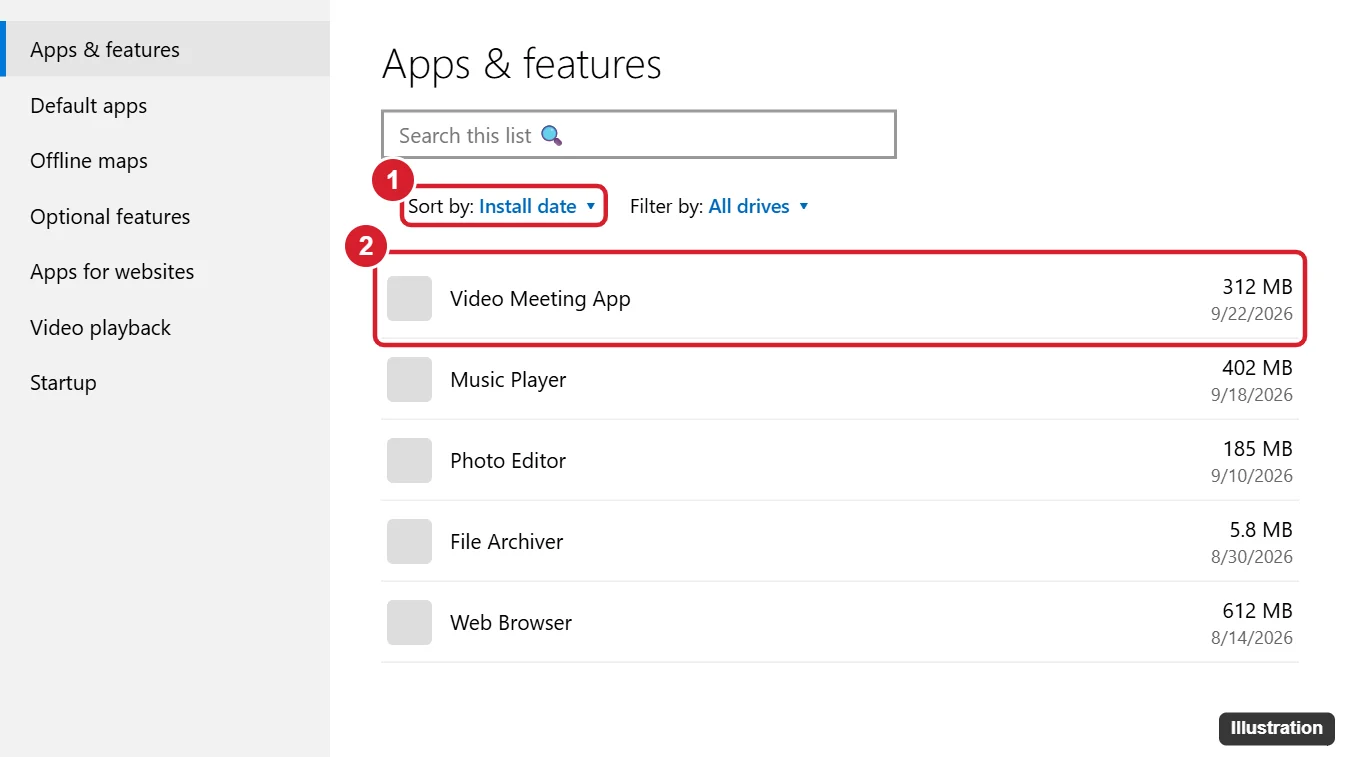
Settings lists both desktop programs and Microsoft Store apps, so it’s the most complete view. To remove something you just installed, click it and choose Uninstall.
Method 2: Sort by “Installed On” in Control Panel
- Press Windows key + R, type appwiz.cpl, and press Enter. This opens Programs and Features. You can also open Control Panel and click Programs > Programs and Features.
- Click the Installed On column header. The first click sorts oldest first, so click it again to put the newest programs on top.
- If you don’t see the column, right-click any column header and check Installed On.
Programs and Features only shows traditional desktop programs. Microsoft Store apps don’t appear here, so use Settings if you’re looking for one of those.
Method 3: List install dates with PowerShell
If you want a full list you can copy, save, or share with a tech support person, PowerShell can read the install dates that programs record in the registry.
- Right-click the Start button and choose Windows PowerShell.
- Paste this command and press Enter:
Get-ItemProperty HKLM:\Software\Microsoft\Windows\CurrentVersion\Uninstall\*, HKLM:\Software\WOW6432Node\Microsoft\Windows\CurrentVersion\Uninstall\*, HKCU:\Software\Microsoft\Windows\CurrentVersion\Uninstall\* | Where-Object DisplayName | Sort-Object InstallDate -Descending | Select-Object DisplayName, DisplayVersion, InstallDate | Format-Table -AutoSizeThe dates appear as year, month, day with no separators. For example, 20260922 means September 22, 2026. This command only reads information and doesn’t change anything. It covers desktop programs, not Store apps. Some programs don’t record an install date, so a few rows may be blank.
To save the list as a text file on your desktop, add | Out-File $env:USERPROFILE\Desktop\installed.txt to the end of the command.
Which method should you use?
| Method | Shows Store apps? | Best for |
|---|---|---|
| Settings > Apps & features | Yes | A quick look at what was added recently |
| Control Panel > Programs and Features | No | Desktop programs, with publisher and version columns |
| PowerShell | No | A full list you can save or copy |
Why an install date might look wrong
- The app was updated. Many programs reset their date when they update, so an app you installed years ago can show last week’s date.
- Windows was upgraded or reset. After a major Windows 10 feature update, some apps show the date of the upgrade instead of the original install date.
- The program didn’t record a date. Some installers leave the field empty, so the app shows no date or sorts to the bottom.
- Built-in apps. Apps that came with Windows usually show the date Windows was installed or last upgraded.
Tips
- Spot unwanted software. If your computer suddenly shows pop-ups, a new browser, or a new toolbar, sort by install date to find what arrived at the same time, then uninstall it.
- Check Windows updates separately. Updates aren’t listed with apps. Go to Settings > Update & Security > Windows Update > View update history. To remove a problem update, see how to uninstall a Windows 10 update.
- On Windows 11, the steps are similar: go to Settings > Apps > Installed apps and set Sort by to Date installed.
Frequently asked questions
Can I see the exact time a program was installed?
Not in Settings or Control Panel. They only show the date. PowerShell also shows only the date for most programs.
Why don’t I see an app in Programs and Features?
It’s probably a Microsoft Store app. Those only appear in Settings > Apps & features.
Does sorting by install date change anything?
No. It only changes the order of the list. Nothing is installed, removed, or moved.
Can I see programs installed by other users?
Programs installed for everyone appear for all users. Programs installed for just one account only show up when that person is signed in.

Kermit Matthews is a freelance writer based in Philadelphia, Pennsylvania with more than a decade of experience writing technology guides. He has a Bachelor’s and Master’s degree in Computer Science and has spent much of his professional career in IT management.
He specializes in writing content about iPhones, Android devices, Microsoft Office, and many other popular applications and devices.