The surest place to see your own number on iPhone is your contact card: open Contacts and tap My Card at the top. Settings > Apps > Messages > Send & Receive also lists the number iMessage uses, and many iPhones show a My Number line in Phone settings, though Apple’s current guide does not document it. If you use two lines, Settings > Cellular lists each plan separately with its own label.
Which number are you looking for?
“My number” can mean a few different things on an iPhone, and each lives in a different place:
| You want | Where to look |
|---|---|
| The number of your phone line | Settings > Apps > Phone (My Number, if shown), your carrier account |
| The number saved for you in Contacts | Contacts > My Card |
| The number iMessage and FaceTime reach you at | Settings > Apps > Messages > Send & Receive, and Settings > Apps > FaceTime |
| The number on each of two lines | Settings > Cellular (line labels), then My Card or your carrier account for each number |
| What other people see when you call | Settings > Apps > Phone > Show My Caller ID |
Read it off your contact card
- Open the Contacts app.
- Tap My Card at the top of the list.
- Look for your number under your name. To add or fix it, tap Edit.
If you don’t see My Card, Apple’s contact info guide says to tap the Add button and enter your information, then return to the list, touch and hold your contact, and tap Make this My Card.
The card only shows what was saved on it, so it can be out of date after a number change. Editing it works like any other contact; see how to change a contact’s phone number on iPhone. A correct card also matters when you share your details by holding two iPhones together with NameDrop.
See which number iMessage and FaceTime use
Messages and FaceTime can reach you at your phone number, your Apple Account email or both. To check:
- Go to Settings, tap Apps, then tap Messages. Make sure iMessage is on.
- Tap Send & Receive.
- Under You can receive iMessages to and Reply From, check that your phone number is listed and selected.
- Go back to Settings > Apps > FaceTime and look under You can be reached by FaceTime at.
Apple notes that you need an active SIM or eSIM for the number to appear. If your new chats go out from an email address, open Send & Receive and choose your phone number under Start New Conversations From. Conversations that already started from the email address stay that way, so start a new one.
The steps above come from Apple’s guide to adding or removing your phone number in Messages or FaceTime. If you would rather stop using iMessage on this number, see how to turn off iMessage on iPhone.
Check the My Number line in Phone settings
- Open the Settings app.
- Tap Apps, then tap Phone.
- If you see My Number at the top, your number is shown next to it.
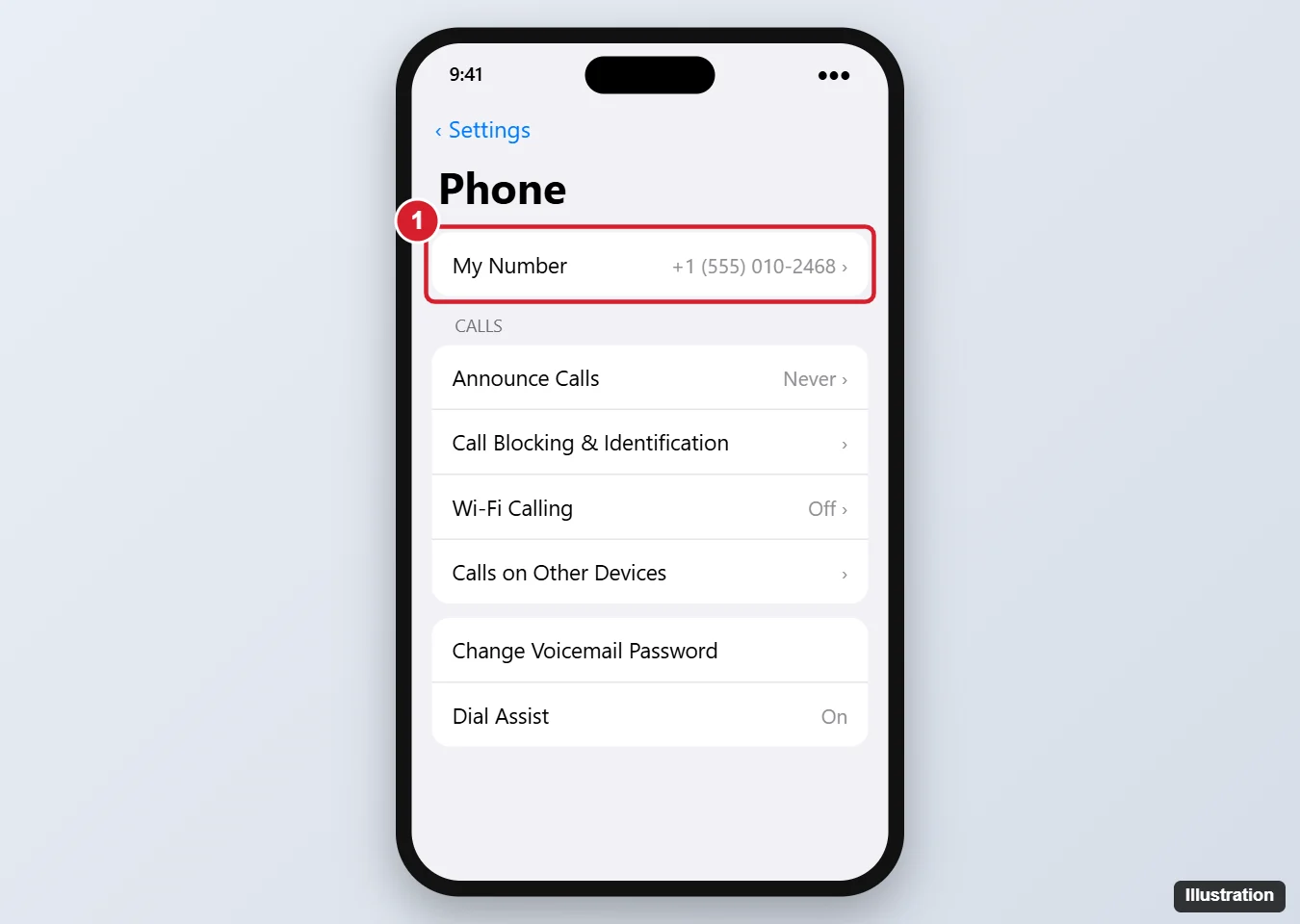
The illustration shows an older version of the Settings app; current screens may look different. On older iPhones, Phone sits directly in Settings rather than under Apps.
Apple’s Phone settings page lists Show My Caller ID, Call Blocking & Identification, Dial Assist and Default Calling App, but it does not mention a My Number row. Many iPhones still show one, and older Apple guides referred to it, so it is worth a look. If it is missing or blank, use My Card or the Messages and FaceTime settings above rather than guessing.
Two lines or an eSIM
An iPhone with two lines treats each one as its own plan. Apple’s Dual SIM guide describes these settings:
- Settings > Cellular (Mobile Data in some regions) shows your lines below SIMs. Tap a line to review it.
- Cellular Plan Label names each line, and the label appears in Phone, Messages and Contacts, which makes it clear which number a call or text uses.
- Default Voice Line sets which line your iPhone uses for calls by default.
Apple doesn’t say whether the number itself appears on the line’s screen, so if it isn’t there, use My Card or your carrier account for each line. When you place a call, the line picker on the keypad, covered in how to dial a phone number on iPhone, shows which line the call will come from.
What other people see when you call
Your caller ID is the number other people see. To check it, go to Settings > Apps > Phone > Show My Caller ID. Apple notes that if you don’t see Show My Caller ID, your carrier may not allow you to turn off your caller ID information. Hiding your caller ID changes what others see on outgoing calls; it doesn’t change your number.
When no number shows anywhere
Apple does not explain why My Number can be blank, so treat your carrier as the reliable source:
- Sign in to your carrier’s app or account website, or check a recent bill. For example, Spectrum Mobile customers can follow the steps in activating Spectrum Mobile and finding your number.
- Call or text someone you trust and ask what number appears (this only works with caller ID on).
- Look at the packaging your SIM card came in, if you still have it.
If the number is missing only from Messages or FaceTime, Apple suggests making sure you have the latest software, using the same Apple Account on all your devices, and signing out of Messages and FaceTime and back in, and then changing your Apple Account password. If that doesn’t help, contact Apple Support. And if the number on the phone is the wrong number entirely, your carrier is the one to fix it.
My Number questions
Can I change the number my iPhone shows?
Apple documents no setting for that. Your number comes from your carrier plan, and Apple’s activation page says to contact your carrier if you want to use a different number, which may need a new SIM or eSIM.
Is my phone number in Settings > General > About?
No. Apple’s About screen guide lists items such as the model, serial number, IMEI and EID, but not the phone number.

Kermit Matthews runs Live2Tech from just outside Philadelphia. He is an IT specialist with over 20 years of experience, from a university help desk to small-business IT, IT management and his own consulting practice, and has written tech guides full time since 2020. Steps are checked against the current software on a real device or the maker’s official documentation. More about Kermit.