Before you go looking for the Group Messaging switch, it helps to know which kind of group text you’re in. On many carriers it’s shown with the SMS/MMS settings in Settings > Apps > Messages, next to the switches Apple names for group MMS, the kind of group that includes someone who isn’t using iMessage. A group made only of iPhone users with iMessage turned on goes through Apple instead of your carrier.
Which kind of group is it?
Apple says the Messages app picks the message type on its own, based on your settings, your network connection and your carrier plan. If every person in the group uses an Apple device with iMessage turned on, the group is sent as an iMessage. If anyone in the group isn’t using iMessage, it goes out as MMS or SMS instead, and on iOS 18 or later it can also be sent as RCS. Apple describes four group types:
| Group type | When you get it | Bubbles | What Apple says everyone can do | Settings that matter |
|---|---|---|---|---|
| Group iMessage | Everyone uses an Apple device with iMessage on | Blue, sent through Apple with end-to-end encryption | Name the group, add or remove people, mute, leave | iMessage |
| Group MMS | At least one person isn’t using iMessage | Green, sent through your carrier | Send and receive photos and videos, see every reply, mute notifications | MMS Messaging, and a plan that supports group MMS |
| Group SMS | At least one person isn’t using iMessage; Messages picks the type from your settings, connection and plan | Green, sent through your carrier | Send text only; replies arrive as individual texts | A cellular connection (or Wi-Fi Calling) |
| Group RCS | iOS 18 or later, with a carrier that supports RCS on iPhone | Green, sent through your carrier | Send texts, high-resolution photos and videos and links, with read receipts and typing indicators | RCS Messaging |
A mixed group where replies arrive one by one matches Apple’s description of group SMS. Apple says group SMS messages can’t carry photos or videos, and every reply in one is sent as an individual text, so people in the group can’t see each other’s responses. If your mixed group of iPhone and Android phones feels broken in exactly that way, the MMS-side settings below are where to look. Apple’s page on the types of group messages on iPhone has the full description of each type.
Where the Group Messaging switch is
On current versions of iOS, the Messages settings sit inside the Apps list. On older versions, Messages was a top-level item in Settings.
- Open the Settings app.
- Tap Apps, then tap Messages. On older iOS versions, tap Messages straight from the main Settings list.
- Scroll down to the switches for text messages (MMS Messaging is one of them).
- Turn on MMS Messaging if it’s off, then turn on Group Messaging if your iPhone shows it.
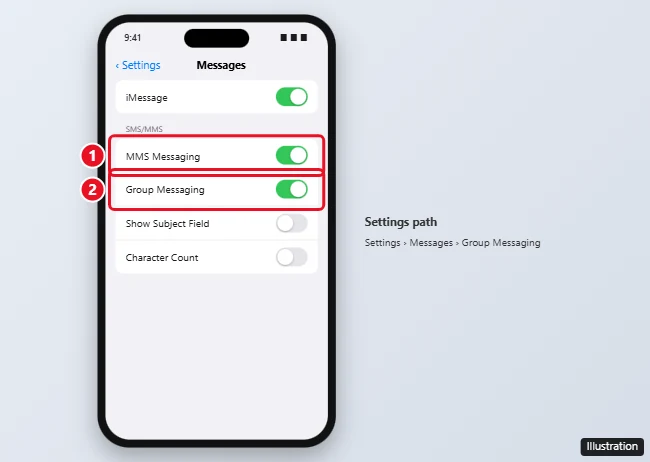
The picture above is an illustration of an older layout; on your iPhone the switches may sit in a different order or carry slightly different names. Apple’s help pages don’t describe the Group Messaging switch itself, so if your screen doesn’t match, go by the switch names rather than their position.
The other switches group texts use
These are the neighbouring settings Apple names for group texts, all in the same Messages settings screen:
- MMS Messaging. Apple says that to send a group MMS message on an iPhone you turn on MMS Messaging. If the option isn’t there, Apple suggests contacting your carrier to see if your plan supports group MMS messaging. MMS is also what carries pictures in texts, which is covered in detail in turning on MMS picture messaging on iPhone.
- Reply as Text Message. Apple’s troubleshooting page tells you to turn this on for group MMS messages, and says that if you don’t see the option, your carrier might not support the feature. Some copies of that page call it Send as Text Message. Apple also notes that messaging rates may apply when a message goes as a text.
- RCS Messaging. On iOS 18 and later, tap RCS Messaging in the same screen to turn it on or off. Apple says you need iOS 18 and a cellular plan from a carrier that supports RCS messaging on iPhone, and that availability varies by region and carrier. Apple’s RCS messaging page lists the details.
- iMessage. Apple sends a group as an iMessage only when everyone uses an Apple device with iMessage turned on. See turning iMessage off on an iPhone for what that changes.
A sensible setup for someone who texts with a mix of iPhone and Android users is iMessage on, MMS Messaging on, Group Messaging on if it appears, and RCS Messaging on if your carrier supports it.
If the switch is missing or the group still misbehaves
Apple’s help pages don’t describe the Group Messaging switch itself. For MMS, Apple says that if you don’t see the MMS Messaging option, contact your carrier to see if your plan supports Group MMS Messaging. That points to a few checks, in this order:
- Check your connection. Apple says iMessage, RCS and MMS need a cellular data or Wi-Fi connection, while SMS needs a cellular network connection. With Wi-Fi Calling turned on, SMS can also go over Wi-Fi.
- Restart your iPhone. Apple lists a restart among its basic steps for message problems.
- Look for a carrier settings update. Connect to Wi-Fi or cellular, open Settings, tap General, then tap About. If an update is waiting, follow the onscreen instructions to install it. Apple explains this on its page about updating carrier settings on iPhone.
- Ask your carrier. Apple suggests checking whether the type of message you’re sending, such as RCS, MMS or SMS, is supported on your plan. If MMS Messaging or Group Messaging is missing, ask whether your plan supports group MMS messaging.
- Check whether you left the group. If you suddenly stop getting a group’s messages, Apple says to check whether you left or were removed. You can rejoin only if someone in the group adds you back.
- Start a fresh conversation. For other group problems, Apple says you might need to delete the conversation and start a new one.
The full list is on Apple’s page for when you can’t send or receive messages on iPhone.
Start the group once the switches are set
With the settings in place, the group itself takes three taps:
- Open Messages and tap the Compose button.
- Enter the phone numbers or email addresses of the people you want in the group.
- Type your message, then tap the Send button.
Look at the bubble color after the first message goes out. Blue means a group iMessage; green means MMS, SMS or RCS. Some options only exist for one type. Apple lists naming under group iMessage, which naming a group text on iPhone walks through (on current iOS: tap the group icon, tap Edit, then Edit Name & Photo). Leaving works in a group iMessage that has at least three other people in it, as shown in leaving a group text on iPhone.
Group Messaging switch questions
Why don’t I see Group Messaging in my settings at all?
Apple’s help pages don’t describe a setting on the iPhone that adds the switch. Apple’s advice for missing MMS options is to ask your carrier whether your plan supports group MMS, and a carrier settings update is worth checking first.
If my carrier supports RCS, do I still need MMS Messaging?
Apple says Messages chooses the type automatically from your settings, connection and plan, and that RCS is available on iOS 18 and later where the carrier supports it. Apple doesn’t say MMS Messaging can be turned off once RCS is on, and its group MMS steps still start with that switch.
Can I get rid of a spam group text?
Yes. Apple says that in iOS 17 and later you can delete and block an entire group MMS message with the Delete and Block this Conversation option. To block single senders, see blocking text messages on an iPhone. Apple’s group conversations guide covers muting and the other group options.
If the switches are all on and a mixed group still splits into separate threads, the carrier is the right next call: ask specifically whether your plan includes group MMS messaging.

Kermit Matthews runs Live2Tech from just outside Philadelphia. He is an IT specialist with over 20 years of experience, from a university help desk to small-business IT, IT management and his own consulting practice, and has written tech guides full time since 2020. Steps are checked against the current software on a real device or the maker’s official documentation. More about Kermit.