When a friend gets a new phone number, the quickest fix is to edit the contact you already have rather than saving a second card. Open the Contacts app (or the Contacts tab in the Phone app), tap the person, tap Edit, tap the old number and type the new one, then tap the save control in the corner. Calls and texts from the new number will then show their name.
Replace the number in the Contacts app
These steps follow Apple’s Edit contacts on iPhone instructions for current versions of iOS. The screenshots below come from an older iOS version, so your screens will look different.
- Open the Contacts app. If you prefer, open the Phone app instead.
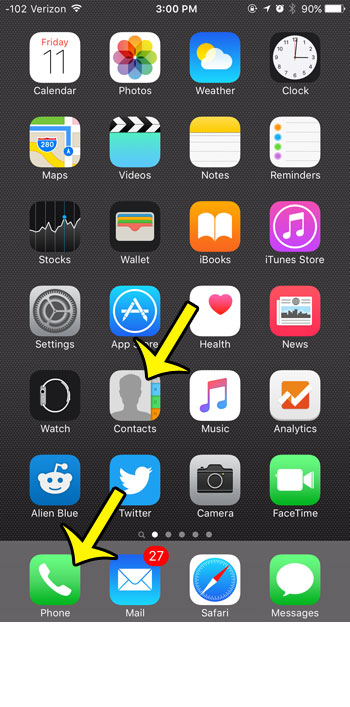
Older iOS version shown; current screens look different. - If you opened the Phone app, open its Contacts list (on older iOS versions it is a tab at the bottom of the screen; the layout varies by version). If you opened the Contacts app, skip this step.
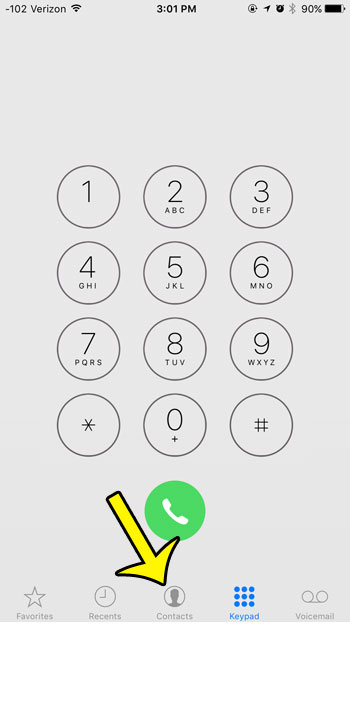
Older iOS version shown; current screens look different. - Find the person. Scroll the list or type part of their name in the search field at the top, then tap their name to open the contact card.
- Tap Edit near the top of the card.
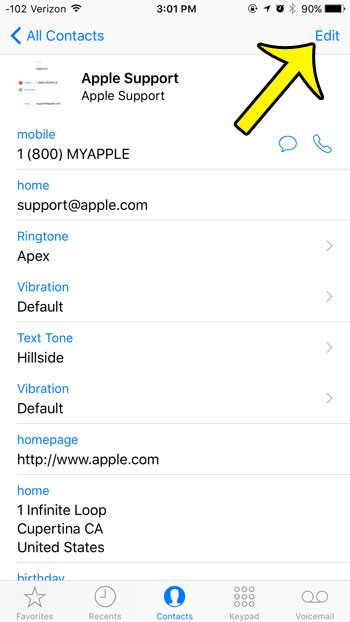
Older iOS version shown; current screens look different. - Tap the phone number you want to change to edit it.
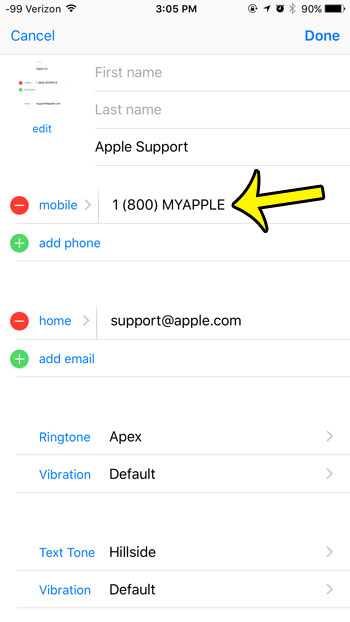
Older iOS version shown; current screens look different. - Clear the old digits and type the new number. Include the country code, such as +44, if the person lives abroad or you call them while traveling.
- Tap the save control at the top of the screen. On older iOS versions it is labeled Done; on newer versions Apple shows it as an icon.
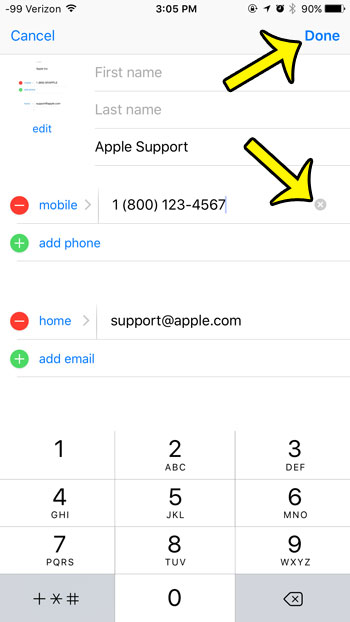
Older iOS version shown; current screens look different.
To check that it worked, look at the card after saving: the new number should be listed and the old one gone. If you change your mind before saving, tap Cancel instead to leave the card unchanged.
Keep the old number or add a second one
Sometimes the old number is still useful. A colleague might keep a desk line after getting a new mobile, or a relative might keep a landline. In that case, add the new number instead of overwriting the old one:
- Open the contact and tap Edit.
- Below the existing numbers, tap the row for adding a phone number. A new empty field appears.
- Type the new number, then set its label (see the next section) so you can tell the two apart.
- Tap the save control.
To remove a number you no longer need, tap the remove button (a red minus on recent versions) next to it in edit mode, then confirm the deletion. Removing the old row and adding a fresh one is also a handy way to change a number if editing the field in place feels fiddly.
Pick the right label and calling line
Each number on a card has a label, shown to the left of the number in edit mode. Tap the label to choose a different one from the list that appears. You can also create a custom label for numbers like “Office reception” or “Holiday home”. Labels matter in two ways:
- When a card holds more than one number, the label is how you pick the right one when you call or text.
- A clear label tells you, months later, which number is current and which is the old one you kept.
On iPhone models with Dual SIM, there is one more setting. Apple explains that your iPhone uses the same line you last used with that person by default. To choose a preferred line for calls and SMS/MMS messages, open the contact, tap default below the contact’s name, then choose a line. This picks which of your lines is used; it does not change which of their numbers is dialed.
Save a new number straight from a call or text
If the person has already called you from their new number, you do not need to type it in. Apple’s Phone app contacts guide describes adding a recent caller to someone you have saved:
- Open the Phone app and go to your list of recent calls.
- Open the details for the unknown number.
- Tap Add to Existing Contact, then choose the person.
- Open the card afterwards, check the numbers, tap Edit, and remove the old number if it no longer works.
A similar option may appear when a new number texts you: tap the number at the top of the conversation and look for Add to Existing Contact. Saving it this way avoids typos, since the digits come straight from the call or message.
If the old number keeps coming back
Every contact lives in an account: iCloud, a Google (Gmail) account, a work Exchange account, or only on the iPhone itself. When you edit a contact, the change is saved to that account and should reach other devices signed in to it. Problems usually come from accounts, not from the edit itself:
- Two cards for the same person. If one copy is in iCloud and another in Gmail, the iPhone may show them separately or link them. Search for the person and check whether a second card still has the old number.
- A work account resets it. Contacts that come from a company directory or managed account may be controlled by your employer. Changes may be overwritten at the next sync.
- Sync is off. If you edit a number on your iPhone but your iPad or Mac still shows the old one, check that Contacts sync is on for that account. Syncing iPhone contacts with iCloud walks through the settings.
To control where new contacts are saved, go to Settings > Apps > Contacts > Default Account and choose an account, as Apple describes in its contacts management support article. On older iOS versions, Contacts is listed directly in Settings.
If you would rather start over with a clean card, you can delete the contact from your iPhone and create a new one. Apple warns that deleting a contact from an email account also deletes it from every device signed in to that account, so editing is usually the safer choice.
Changing your own number is a different task
If the number you want to change is your own, there are two separate things. The number shown on your own contact card (My Card) can be edited like any other: open Contacts, tap My Card at the top, then tap Edit. That only changes what you share with others, such as when you send someone your contact card. The actual number your iPhone uses for calls comes from your carrier and SIM or eSIM, and only the carrier can change it. To check which number your iPhone currently has, see finding your own phone number on iPhone.
Contact number questions
Will my old text messages with this person disappear?
No. Editing a contact does not delete messages. Older conversations stay in Messages, though texts sent to the old number may sit in a separate thread from new ones.
Why does a call from the new number still show only digits?
Check that the edit was saved (the card should show the new number) and that the digits match the number calling you, including the country code if the caller is abroad.
Can I change the contact’s name while I am editing?
Yes, the name fields are on the same edit screen. For details, see changing a contact name on iPhone.
If you are tidying up how your iPhone looks to other people, the default email signature is another quick fix: here is how to remove the “Sent from my iPhone” email signature.

Kermit Matthews runs Live2Tech from just outside Philadelphia. He is an IT specialist with over 20 years of experience, from a university help desk to small-business IT, IT management and his own consulting practice, and has written tech guides full time since 2020. Steps are checked against the current software on a real device or the maker’s official documentation. More about Kermit.