A network printer, a game console, a router setting or a support agent may ask for your iPhone’s address on the home network. To see it, open Settings, tap Wi-Fi, tap the More Info button next to the network you’re connected to, and look for the IP Address row, usually under an IPv4 Address heading. That number is your local (private) address, not the public address websites see, and it can change unless your router reserves it.
Find the address in Settings
These steps work on current versions of iOS. Your iPhone must be connected to the Wi-Fi network you’re asking about, because the details screen describes that one network.
- Open the Settings app.

- Tap Wi-Fi. The network you’re connected to appears near the top with a check mark beside it.

- Tap the More Info button next to that network’s name. It’s the small “i” in a circle on the right side of the row.

- Scroll down to the network details. Look for a row labeled IP Address, normally in a section headed IPv4 Address. The number in that row is your iPhone’s local address on this network.
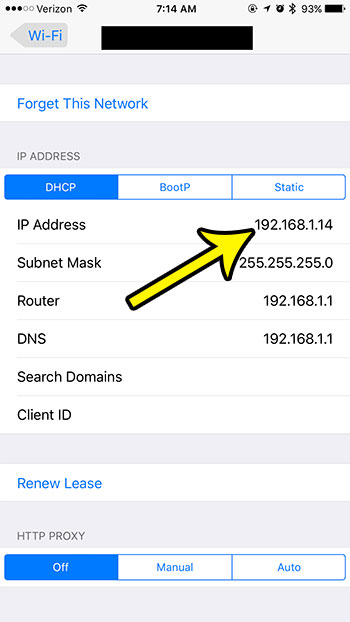
To copy the number, touch and hold it if your iOS version offers a copy option there; otherwise, write it down exactly, including every dot.
Apple’s Wi-Fi settings page in the iPhone User Guide covers this details screen but doesn’t name each field, so if your iPhone words a row a little differently, look for the number in the same position.
Reading the network details screen
The details screen shows more than one number, and people often copy the wrong one. Here is what you’re likely to see in the IPv4 section and what each value is for:
| Row | What it shows | When you’d use it |
|---|---|---|
| Configure IP | Usually Automatic, meaning the router hands out the address | Leave it alone unless you deliberately set a fixed address |
| IP Address | Your iPhone’s local address, for example 192.168.1.23 | Printer setup, game or media server apps, router rules |
| Subnet Mask | The size of the local network, often 255.255.255.0 | Rarely needed, unless an app or support agent asks for it |
| Router | The router’s own local address, for example 192.168.1.1 | Typing into a browser to reach the router’s settings page |
The same screen also has DNS settings and switches such as Low Data Mode, Private Wi-Fi Address and Limit IP Address Tracking, which Apple says hides your IP address from known trackers, plus a Forget This Network option.
IPv6 addresses
If your network supports IPv6, the screen may also have a section for IPv6 addresses, and it can list more than one. That is normal: devices can use more than one IPv6 address at a time. When a printer, console or router form asks for “the IP address” without saying which kind, it almost always means the IPv4 address with four groups of numbers separated by dots.
Local address vs. public address
Your router gives each device in the house its own local (private) address, so your iPhone, laptop and TV can find each other. To the rest of the internet, the whole household normally appears as one public address, which your internet provider assigns to the router. The router translates between the two, a job Apple’s recommended router settings article describes as network address translation (NAT).
- Local addresses commonly start with 192.168, 10 or 172.16 through 172.31. The same local number can exist in thousands of other homes without conflict.
- The public address is the one websites and online services see. Settings does not list it on the Wi-Fi details screen.
To see your public address, open Safari and search for “what is my IP address,” or visit an IP lookup site you trust. Any of them shows the same number for every device on your home Wi-Fi. If iCloud Private Relay or a VPN is on, the lookup shows a relay or VPN address instead of your real public address (see below). If you turn Wi-Fi off and check again over cellular data, you’ll see a different public address, which belongs to your carrier and may be shared with other customers. A short walkthrough for switching off Wi-Fi on an iPhone helps if you want to compare the two.
Why the number changes, and how to keep it the same
Routers hand out local addresses with DHCP, a system that loans each device an address for a set time called the lease. Apple’s router guidance explains that the lease time is how long an assigned address stays reserved for a device. After a lease ends, a router restart or a different network, your iPhone may come back with a new number, which is why a printer or app can suddenly lose track of it.
You have three ways to deal with it:
- Look it up again. Repeat the Settings steps whenever an app asks; it takes a few seconds.
- Reserve the address on the router. Most routers have a DHCP reservation (sometimes called a static lease or address reservation) feature that always gives the same device the same local address. The name and location vary by router brand, so check your router’s app or manual. The router identifies the iPhone by its Wi-Fi address, so leave Private Wi-Fi Address set to Fixed for that network (see below).
- Set it on the iPhone. You can switch Configure IP from Automatic to Manual and type an address yourself. This is easy to get wrong, so read how to set a manual IP address on an iPhone before you try it.
Some versions of iOS also show a Renew Lease option on the network details screen, which asks the router for a fresh lease and may give you a new local address. Apple’s iPhone pages don’t document it, so if you don’t see it, turning Wi-Fi off and on makes the iPhone rejoin the network, which may also get it a new address.
Private Wi-Fi Address, Private Relay and VPNs
Three privacy features change which identifiers others see, and it helps to keep them apart:
- Private Wi-Fi Address changes your phone’s Wi-Fi hardware address (its MAC address), not its IP address. According to Apple’s Private Wi-Fi Address article, on iOS 18 and later you choose Off, Fixed or Rotating for each network; Rotating changes the address over time. A router that reserves an address, or a device list that names your phone, depends on that Wi-Fi address staying put. The guide to finding the MAC address on iPhone explains the difference between the two addresses.
- iCloud Private Relay (part of iCloud+) hides your public IP address from websites in Safari by sending traffic through two relays. Apple’s iCloud Private Relay article notes it isn’t available in every country or region. Your local address in Settings stays the same.
- A VPN also changes the public address that sites see, to one belonging to the VPN service. Again, the local address on the Wi-Fi details screen doesn’t change.
Finding the iPhone on your router
Most router apps and admin pages list connected devices. To reach the admin page, type the number from the Router row into Safari while on that Wi-Fi, then sign in with the router’s admin password. Device names in the list can be generic, so match your iPhone by the local IP address from Settings or by its Wi-Fi address.
When the address is missing or looks wrong
- No address shown: make sure the phone is actually connected (a check mark next to the network). If you aren’t connected, Apple says to tap Edit in the upper-right corner to reach the More Info button for a saved network, but the address only appears once you join it.
- An address starting with 169.254: the iPhone couldn’t get an address from the router. Turn Wi-Fi off and on, or toggle Airplane Mode, then check again. Restarting the router often helps too.
- Still nothing: tap Forget This Network, rejoin with the password, and check once more. If every network misbehaves, resetting network settings on the iPhone is the last step; it erases saved Wi-Fi passwords, so have them ready. Apple notes this also gives your phone a different private Wi-Fi address.
iPhone IP address: quick answers
Can I see my cellular IP address in Settings?
Not on the Wi-Fi screen, which only covers Wi-Fi networks. With Wi-Fi turned off, an IP lookup site in Safari shows the public address your carrier is using for you at that moment, and it may change often.
Is my iPhone’s IP address the same as my computer’s?
The local addresses differ: each device on the network gets its own. The public address is usually the same for every device on your home Wi-Fi, since they all share the router’s connection. On a Windows PC, you can check the IP address in Windows to compare.
Why does an IP lookup site show the wrong city?
Location databases guess from the public address, which belongs to your provider, so the result often points to a provider’s hub elsewhere in your region. It doesn’t come from your iPhone’s GPS.
Does my address change when I use Personal Hotspot?
Devices that join your hotspot get local addresses from the iPhone, not from your home router, and the public address is the carrier’s. For setup details, see how to share your iPhone’s internet connection.
Once you have the number, enter it in the app or form that asked for it, and if you’ll need it again next month, set up a reservation on the router so it stays the same.

Kermit Matthews runs Live2Tech from just outside Philadelphia. He is an IT specialist with over 20 years of experience, from a university help desk to small-business IT, IT management and his own consulting practice, and has written tech guides full time since 2020. Steps are checked against the current software on a real device or the maker’s official documentation. More about Kermit.