Raise to Wake lights up your iPhone 7 screen when you pick it up, which is handy but can drain battery or show notifications when you do not want them to. It arrived with iOS 10 and can be turned off with one switch.
Quick Answer
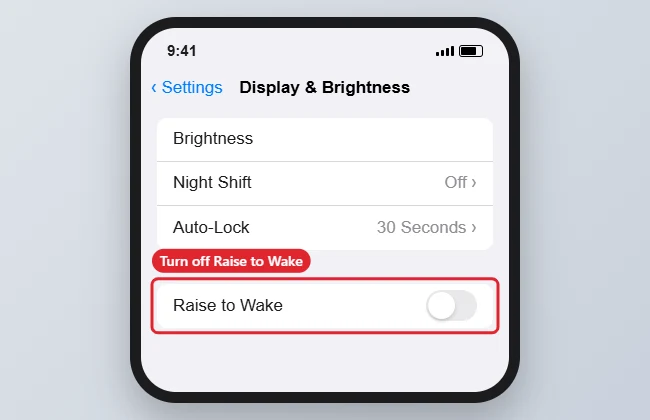
Open Settings, tap Display and Brightness, and turn off Raise to Wake. The screen will now only wake when you press a button.
How to Disable Raise to Wake on an iPhone 7
- Open the Settings app.
- Tap Display and Brightness.
- Find Raise to Wake.
- Tap the switch to turn it off (grey).
- Lock the phone and pick it up to confirm the screen stays off.
Wake Options
| Setting | Effect |
|---|---|
| Raise to Wake | Screen lights up when lifted |
| Tap to Wake | Newer Face ID models only |
| Home or side button | Wakes the screen any time |
| Auto-Lock | How quickly the screen turns off |
Troubleshooting
- The option is missing: make sure the iPhone runs iOS 10 or later.
- The screen still lights up: notifications also wake the screen. Adjust them in Settings, Notifications.
- On newer phones, see how to turn off Tap to Wake.
- For your watch, read how to stop the Apple Watch screen waking on wrist raise.
Frequently Asked Questions
Does turning off Raise to Wake save battery?
A little, especially if you pick up your phone often.
Will notifications still show?
Yes, when they arrive; this only stops the screen waking when you lift the phone.
Can I turn it back on later?
Yes. Flip the same switch.
Summary
- Open Settings.
- Tap Display and Brightness.
- Turn off Raise to Wake.
- Check notifications if the screen still wakes.

Kermit Matthews is a freelance writer based in Philadelphia, Pennsylvania with more than a decade of experience writing technology guides. He has a Bachelor’s and Master’s degree in Computer Science and has spent much of his professional career in IT management.
He specializes in writing content about iPhones, Android devices, Microsoft Office, and many other popular applications and devices.