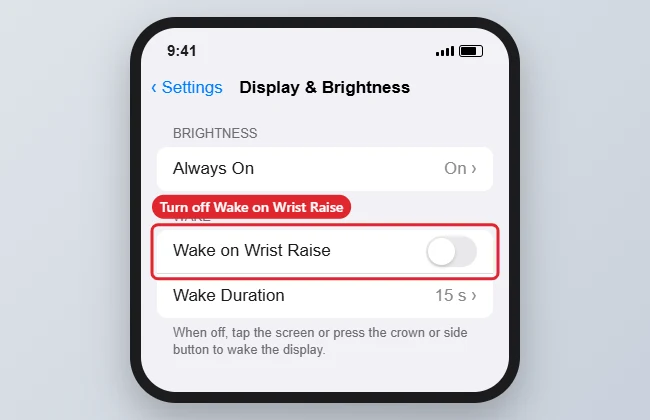
To stop your Apple Watch screen turning on when you raise your wrist, open Settings on the watch, go to Display & Brightness and turn off Wake on Wrist Raise. You can do the same from the Watch app on your iPhone under My Watch > Display & Brightness. On older watchOS versions, the switch was under General > Wake Screen. After you turn it off, tap the screen or press the Digital Crown to wake it.
Quick Answer
Watch Settings > Display & Brightness > turn off Wake on Wrist Raise. For a temporary fix, turn on Theater Mode in Control Center.
Steps on the Watch
- Press the Digital Crown and open Settings.
- Tap Display & Brightness.
- Turn off Wake on Wrist Raise.
Steps on the iPhone
- Open the Watch app and tap My Watch.
- Tap Display & Brightness.
- Turn off Wake on Wrist Raise.
Related Options
| Option | What it does |
|---|---|
| Wake on Wrist Raise | Screen lights up when you lift your wrist |
| Theater Mode | Temporarily keeps the screen dark and silences sounds |
| Always On (supported models) | Keeps a dimmed display visible; turning it off saves battery |
| Wake Duration | How long the screen stays on after a tap |
Another battery saver: turning off Background App Refresh on the watch.
For more privacy, see enabling notification privacy on Apple Watch.
Your iPhone has a similar setting. Learn how to turn off Raise to Wake on iPhone.
Troubleshooting
- Can’t find the setting: Menu names vary by watchOS version. Search Settings on the iPhone Watch app, or check General > Wake Screen on older versions.
- Screen still shows dimmed: That’s Always On. Turn it off in Display & Brightness > Always On.
- Other watch settings: See changing the elevated heart rate notification, cancelling a scheduled watch update or finding the watch microphone.
Frequently Asked Questions
Does turning this off save battery?
It can help a little, because the screen turns on less often.
Will notifications still light up the screen?
Notifications still arrive with a tap on your wrist; raise your wrist and tap the screen to read them.
What’s the quickest temporary option?
Theater Mode in Control Center. Turn it off when you’re done.
Summary
- Open Settings on the watch or the Watch app.
- Go to Display & Brightness.
- Turn off Wake on Wrist Raise.
- Use Theater Mode for short periods.

Kermit Matthews is a freelance writer based in Philadelphia, Pennsylvania with more than a decade of experience writing technology guides. He has a Bachelor’s and Master’s degree in Computer Science and has spent much of his professional career in IT management.
He specializes in writing content about iPhones, Android devices, Microsoft Office, and many other popular applications and devices.