A new PC full of trial software, promoted games and maker extras can be cleaned up with tools built into Windows: make a restore point first, remove programs you never open in Settings > Apps > Installed apps, then switch off apps that launch at sign-in under Settings > Apps > Startup. This covers current versions of Windows 11 (Windows 10 notes are near the end).
What this guide covers, and what it leaves out
“Debloating” here means removing or silencing software you did not ask for, without damaging Windows. Every step uses a setting or tool that Microsoft documents, and each one can be reversed.
Downloadable debloat scripts and “lite” or pre-stripped copies of Windows are out of scope. They can remove components that Windows Update, the Microsoft Store or Windows Security rely on, and an unofficial Windows image can carry malware. If you want a truly fresh system, Microsoft’s own reset and reinstall options (covered below) do that without the risk. For the same reason, this guide does not edit the registry or Group Policy, turn off Windows Security or Windows Update, or remove Microsoft Edge.
Step 1: Make a restore point and back up
A restore point is a snapshot of system files, installed applications, the Windows registry and system settings that you can roll back to if a removal goes wrong. Microsoft’s System Protection page notes the feature is not enabled by default, even though Microsoft recommends turning it on.
- Select Start, type Create a restore point and select that result. The System Properties window opens on the System Protection tab.
- If protection is off for your Windows drive, select the drive, choose Configure…, select Turn on system protection, set the disk space slider and choose Apply.
- Select Create…, type a description such as “Before cleanup” and select Create.
A restore point does not protect your documents and photos, so copy anything important to an external drive or cloud storage too. More detail, including how to roll back, is in creating a restore point (the steps match on Windows 11).
Remove, turn off or leave alone: the decision table
With the restore point in place, sort what you find before you start clicking. The undo column shows how to get each item back.
| What you find | What to do | How to undo it |
|---|---|---|
| Trial antivirus or trial office software you will not buy | Uninstall in Installed apps | Reinstall from the vendor if you change your mind |
| Preinstalled games and promoted apps you never open | Uninstall in Installed apps, or from the Start menu | Reinstall from the Microsoft Store |
| PC maker extras such as photo editors or deal launchers | Uninstall if you do not use them | Get them again from the PC maker’s support site |
| PC maker support or driver update tools | Usually keep | Not needed |
| Apps you use, but not at sign-in (chat, music, cloud sync) | Turn off in Startup apps | Turn the switch back on |
| Advertising ID and suggested content in Settings | Turn off in Privacy & security | Turn the switch back on |
| Copilot or OneDrive, if you never use them | Use their dedicated steps (links below) | Reinstall or sign back in |
| Microsoft Store, Windows Security, Windows Update, drivers, Settings | Leave alone | Not applicable |
A useful rule: if Settings, the Start menu or Control Panel offers Uninstall, removing that app is a normal, supported action. If none of them does, Microsoft says the app is built into Windows, so leave it.
Leave these alone even if they look like clutter:
- Microsoft Store: it reinstalls and updates many built-in apps, including any you later want back.
- Windows Security and Windows Update: they protect the PC and deliver fixes.
- Drivers and the PC maker’s support or update tool: they keep hardware working.
- Anything without an Uninstall button: Microsoft notes that some apps and programs are built into Windows and can’t be uninstalled.
- Services and scheduled tasks: switching these off by hand can break features in ways that are hard to trace.
Step 2: Uninstall the apps you never use
Microsoft’s uninstall instructions give three routes. Settings handles almost everything:
- Select Start > Settings > Apps > Installed apps.
- Find the app you want to remove and select More (the three dots) > Uninstall.
- Confirm. Some desktop programs open their own uninstaller; follow its prompts.
Two shortcuts do the same job. From Start > All apps, press and hold (or right-click) an app and select Uninstall. For older desktop programs, Control Panel > Programs > Programs and Features still works: select the program, then Uninstall or Uninstall/Change. Microsoft notes that some apps can’t be uninstalled from Settings yet, and Control Panel is the fallback for those.
Going through the list is easier with a plan. Say a student opens a new laptop and finds a trial antivirus, two promoted games, a music app and the maker’s photo editor. The trial antivirus goes (Windows Security is already built in), the games and photo editor go if they will never be used, and the music app stays if it is the one they play songs with. The maker’s support tool stays because it may deliver driver and firmware updates.
If an app has no Uninstall option, or removal fails, Microsoft points to its Program Install and Uninstall Troubleshooter. For more removal routes and fixes, see uninstalling a program on Windows 11. Two Microsoft apps get their own guides: uninstalling or hiding Copilot and turning off OneDrive. Check that OneDrive is not backing up your Desktop or Documents folders before you unlink it.
Step 3: Stop apps from starting with Windows
Apps you keep can still slow sign-in if they all launch at once. Microsoft’s startup applications page describes two places to control them.
- Select Start > Settings > Apps > Startup.
- Turn off the switch for each app you do not need the moment you sign in.
Task Manager shows more detail. Press Ctrl + Shift + Esc, open the Startup apps page, select an app and choose Disable. Its Startup impact column rates each entry from None and Low Impact up to High Impact, which tells you where the biggest wins are.
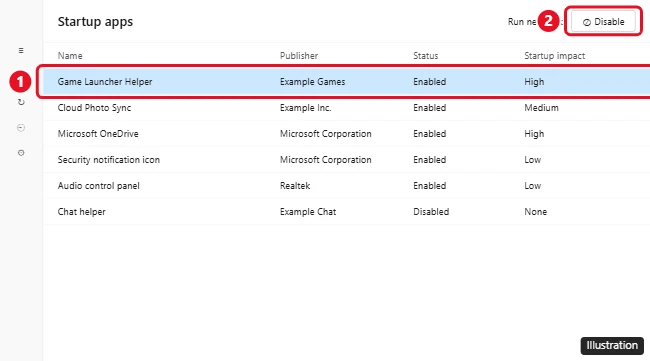
The illustration shows an older layout, so your screen may look different. Disabling an entry only stops the automatic launch; the app still opens normally when you start it yourself. Leave security software, audio and touchpad utilities on. More examples are in stopping apps from opening at startup.
Step 4: Turn off the ads and suggestions Microsoft documents
Microsoft’s general privacy settings page covers the switches that control personalized ads and suggested content:
- Select Start > Settings > Privacy & security > General.
- Turn off Let apps show me personalized ads by using my advertising ID.
- Turn off Show me suggested content in the Settings app if you do not want those prompts.
Microsoft says the General page is being replaced by a Recommendations & offers page in more recent versions of Windows 11, so look there if General is missing. Turning off the advertising ID does not remove ads; it stops apps from using that ID to personalize them.
Windows has other tips and suggestion switches in Personalization and Notifications settings. Microsoft’s support pages do not currently describe them in a way that could be checked, so they are not listed here.
Step 5: Limit background activity
Some Microsoft Store apps keep running after you close them. Microsoft’s background activity page for Windows 11 gives this route:
- Select Start > Settings > System > Power & battery > Battery usage.
- Next to an app, select More options > Manage background activity.
- Under Let this app run in the background, choose Never for apps you only use in the foreground. Power optimized (recommended) is the middle ground.
Not every app has this option, and desktop programs usually do not. Avoid setting Never for anything that should alert you while closed, such as a messaging or calendar app.
Step 6: Remove an optional feature only when you know what it does
Windows also installs optional features, such as extra language tools or legacy components. Microsoft’s page on adding and removing Windows features shows the route: Settings > System > Optional features (on some builds, under Settings > Apps), then under Installed features select a feature and choose Remove. Microsoft does not publish a list of features that are safe to remove, so only remove one when you know exactly what it does and that you do not need it.
After the cleanup: measure the difference and reverse anything you miss
Restart the PC, then compare. Open Task Manager’s Startup apps page to confirm the apps you disabled show as disabled, and note how quickly the desktop becomes usable after sign-in. The Processes page shows whether fewer background apps are running.
Keep expectations realistic. Microsoft’s tips to improve PC performance say removing apps you no longer use can free storage and reduce background activity, but also that older PCs with outdated hardware may not see significant improvements from these steps. For broader speed work, such as power mode and visual effects, see optimizing Windows 11 for performance.
To undo a change:
- Startup or background setting: turn the switch back on in the same place.
- An uninstalled Store app: search for it in the Microsoft Store and install it again.
- Something broke and you are not sure why: use System Restore to return to the restore point you made in Step 1, as Microsoft’s System Protection page (linked in Step 1) describes.
Still cluttered? Reset this PC for a clean start
When a PC is buried in preinstalled software, a reset can be quicker than removing apps one by one. Microsoft’s Reset your PC page describes the route: Settings > System > Recovery, then, under Reset this PC, the button to start (Microsoft’s page calls it Get started; your version may show a different label).
- Keep my files reinstalls Windows and keeps your personal files. If it offers Restore preinstalled apps, Microsoft says that setting brings back the PC maker’s customizations, so leave it off for a cleaner result.
- Remove everything removes your personal files, apps and settings. Its Clean data option also cleans the drive, which matters if the PC is changing hands.
Before you start, back up your files and note your BitLocker recovery key if the drive is encrypted. Microsoft warns that the screen can stay black for a long time during a reset and that you should not restart the PC while it runs. Microsoft’s recovery options page also lists a newer Cloud rebuild option (Settings > System > Recovery > Rebuild PC) that reinstalls Windows from scratch. Every route is compared in reinstalling Windows 11, and installing Windows without a USB drive covers a fresh install from Microsoft’s own files. Use only official Microsoft installation media; modified copies of Windows are where the real risk lies.
A note for Windows 10 PCs
Microsoft’s uninstall and startup pages cover Windows 10 as well, though some screens are laid out differently and the background activity route above is Windows 11 only. Microsoft states that “Windows 10 has reached the end of support on October 14, 2025,” and that the consumer Extended Security Updates (ESU) program can protect a Windows 10 device until October 12, 2027. On an older Windows 10 laptop, staying protected matters more than removing a few apps; for speed tips aimed at that version, see making a Windows 10 laptop faster.
Debloating questions
Is debloating the same as freeing up disk space?
Not quite. Debloating removes and silences software; disk cleanup deletes temporary files and old update files. They overlap, since uninstalling apps frees space. For the storage side, Windows has Cleanup recommendations and Storage Sense under Settings > System > Storage, and cleaning up a Windows 11 computer walks through it.
What should I do if an app has no Uninstall option?
Check Control Panel’s Programs and Features first, since some desktop programs only appear there. If it is missing from both places, it is most likely part of Windows; unpin it from Start or the taskbar instead of trying to force it out.
Can I debloat a work or school PC?
Usually only partly. Organizations often manage which apps are installed and may block changes or reinstall removed apps. Ask your IT department before removing anything on a device you do not own.

Kermit Matthews runs Live2Tech from just outside Philadelphia. He is an IT specialist with over 20 years of experience, from a university help desk to small-business IT, IT management and his own consulting practice, and has written tech guides full time since 2020. Steps are checked against the current software on a real device or the maker’s official documentation. More about Kermit.